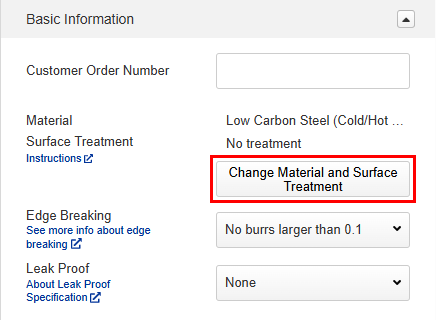
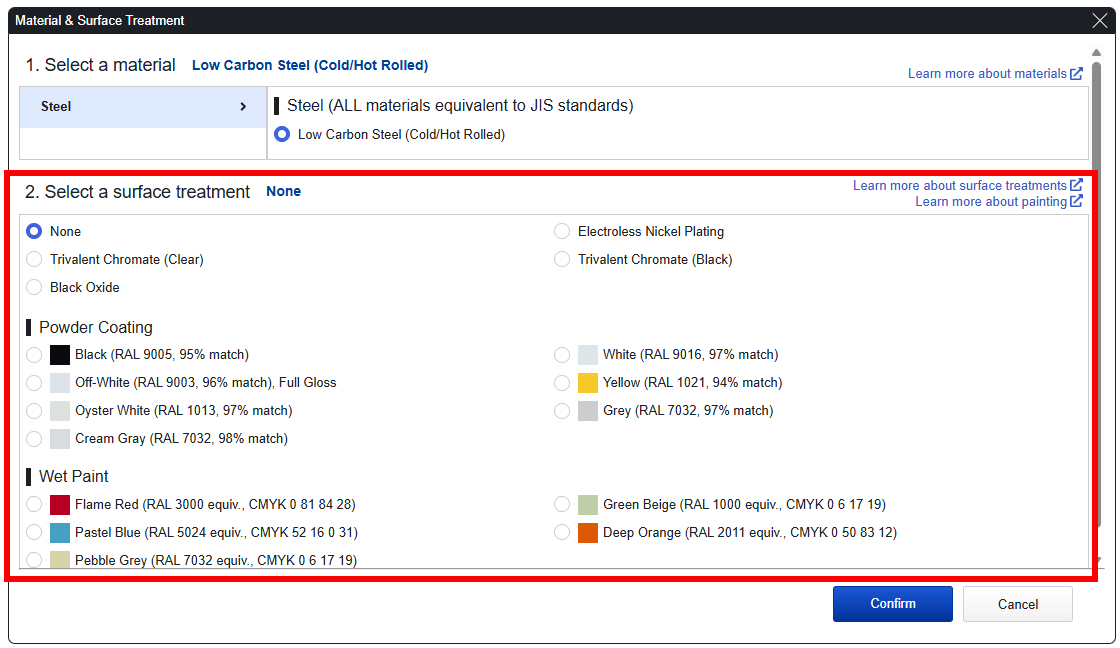
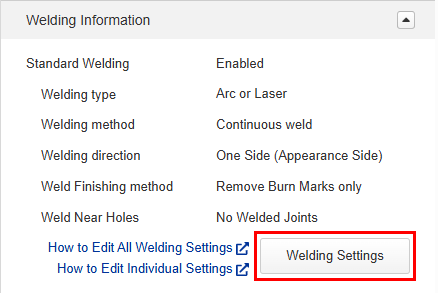
On the [Basic Information] tab, you can change the quantities in the quote, change the materials or surface treatments, set custom customer PO numbers, modify welding information and enter additional machining instructions. Prices and delivery times will be recalculated according to the changed specifications.
Select Material and Surface Treatment
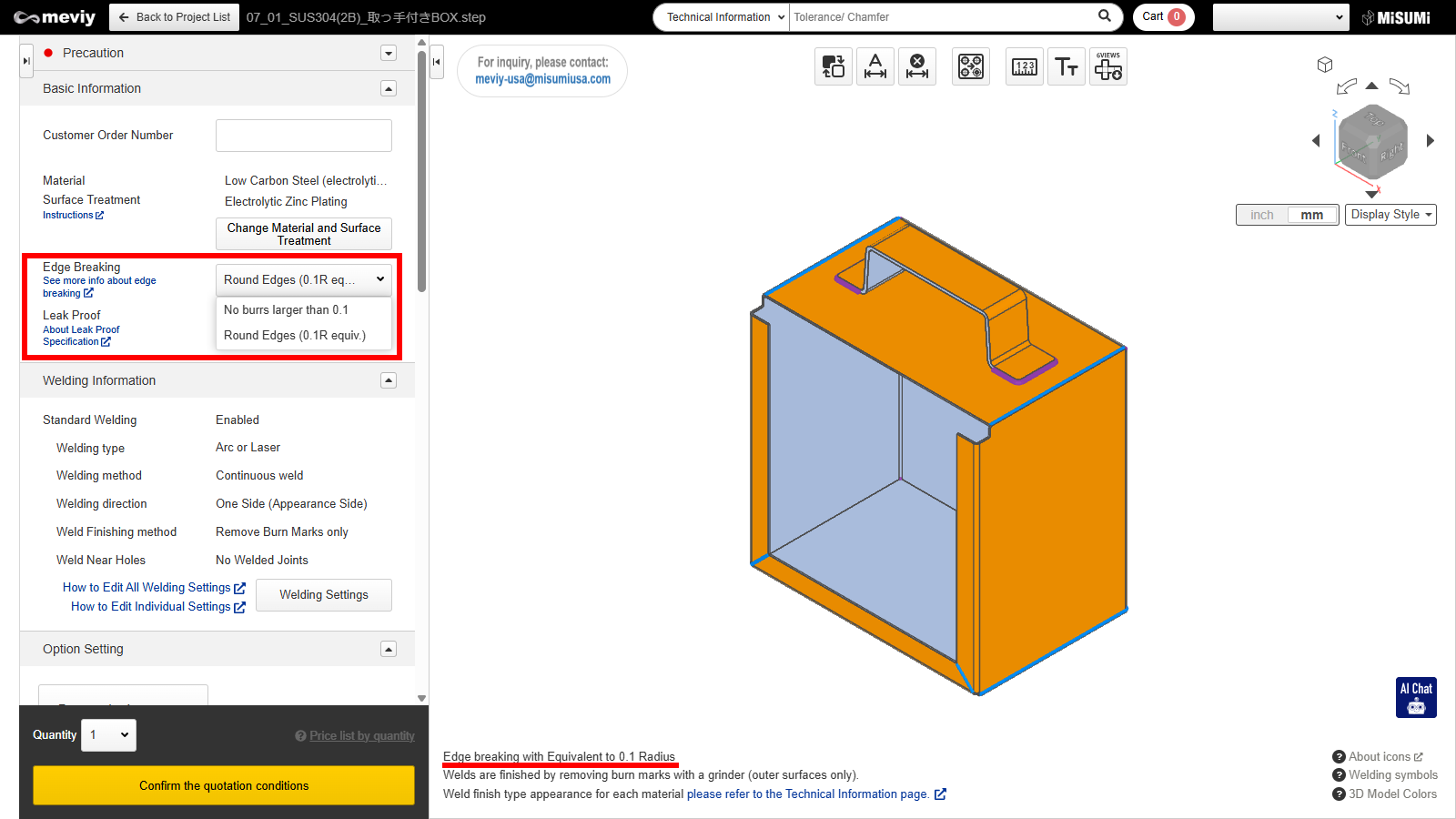
1. Click [Change Material and Surface Treatment].
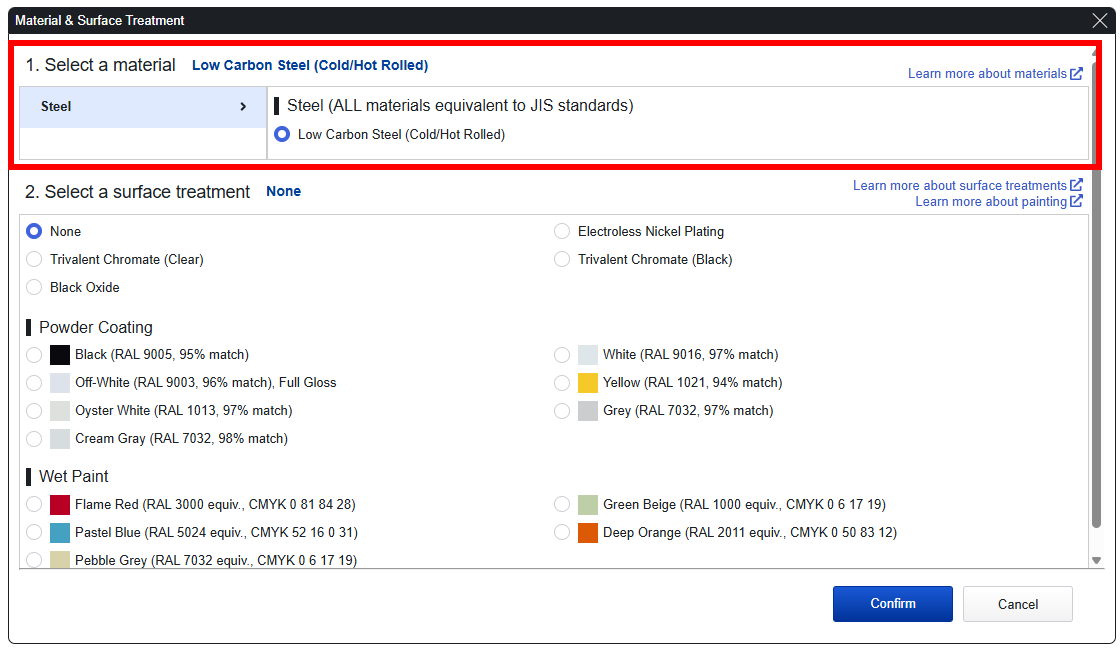
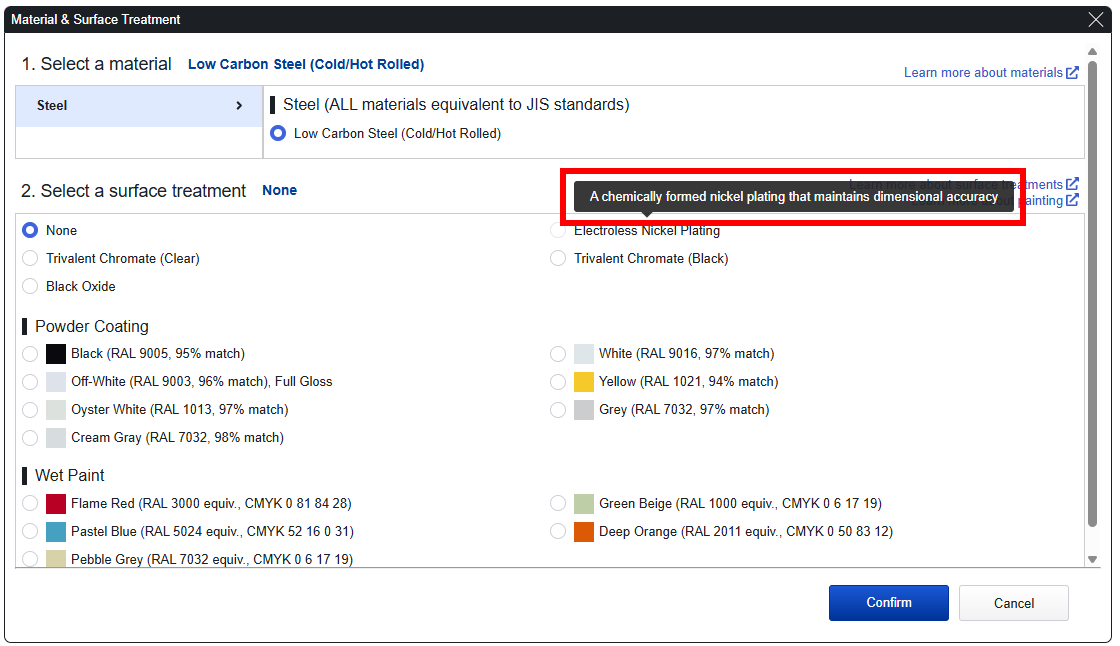
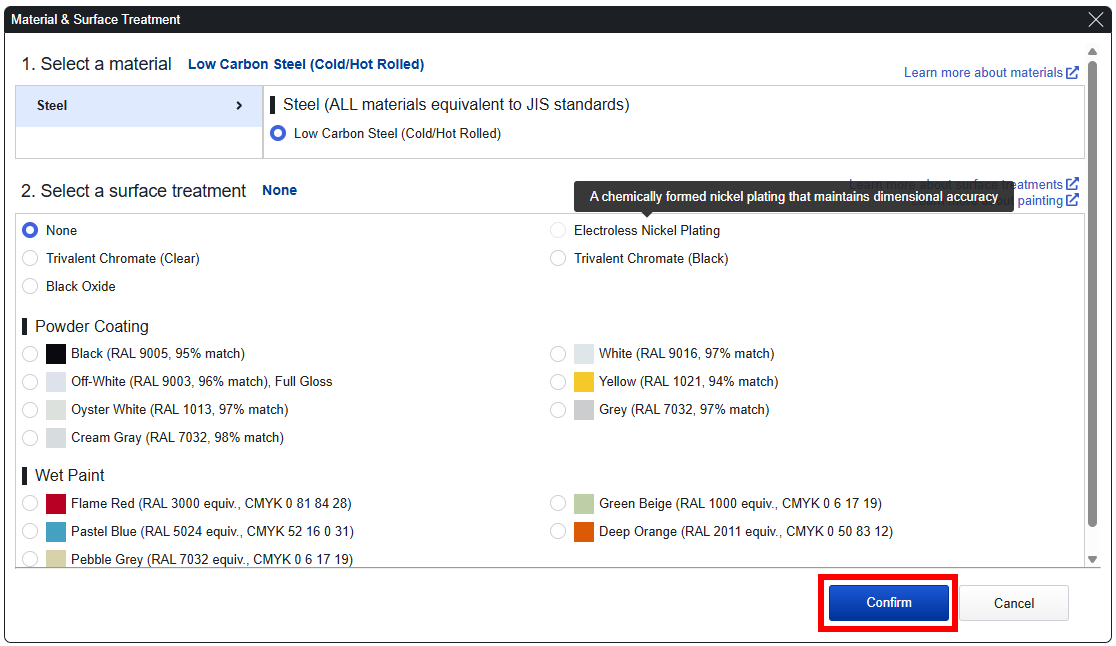
The Material/Surface Treatment dialog is displayed.
2. Select the material.
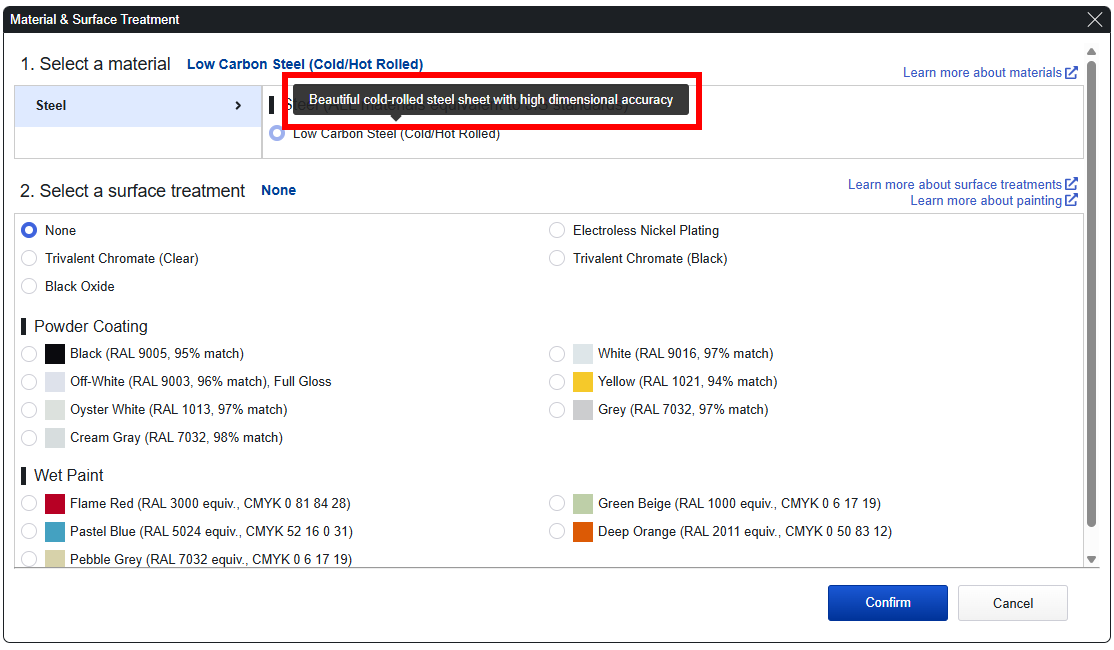
Click the material group name to display available materials.
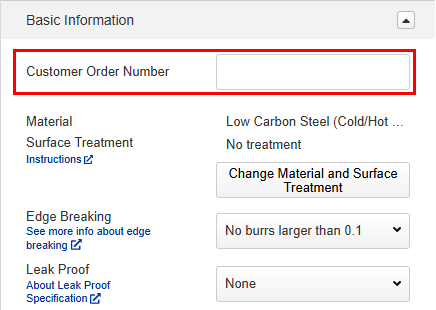
You can set your own internal control numbers (customer PO numbers).
To facilitate the confirmation of item deliveries, both the part number and the specified customer PO number will be printed on the product label when shipping fabricated Part.
Tip
The customer PO number can include up to 54 half-width characters (uppercase or Japanese) and spaces, numerals and symbols (#$%&‘()*+,-./:;=?@_,~). If the parent part number entry field is displayed, you must enter this number (up to 20 characters).
Entering Additional Instructions (Optional)
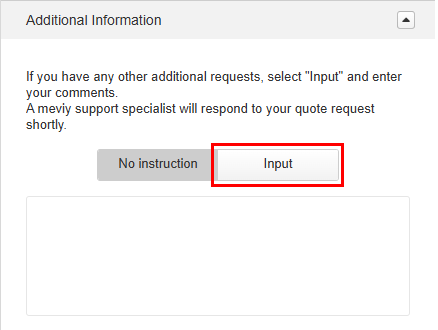
You can enter comments if you have additional instructions you would like to specify.
1. Select [Input].
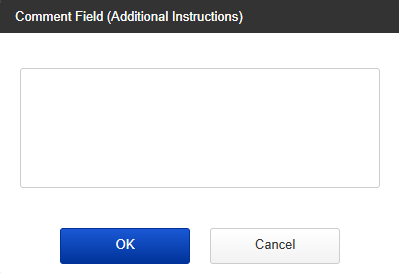
The [Add Machining Instructions] dialog box will appear.
2. Enter a comment and select [OK].
Caution
If you’ve requested additional instructions, automatic quotation is not available. Select [Request manual quotation], and the meviy support team will respond later with your quote.
Specifying Quantities
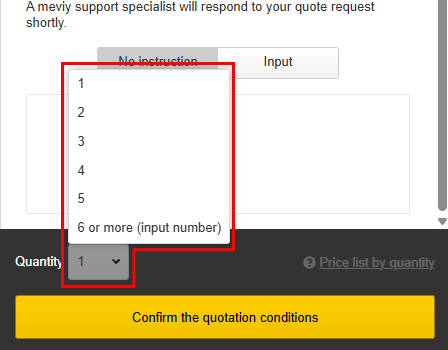
You can select a quantity from 1 to 5 under “Quantity”. If you want to order more than 6 pieces, please select “6 or more (input number) ” and then enter the number of pieces you want.
Caution
The quantity can be changed even after the quotation conditions are confirmed as long as the quantity is within the auto quotation range.
Check price and delivery date by quantity
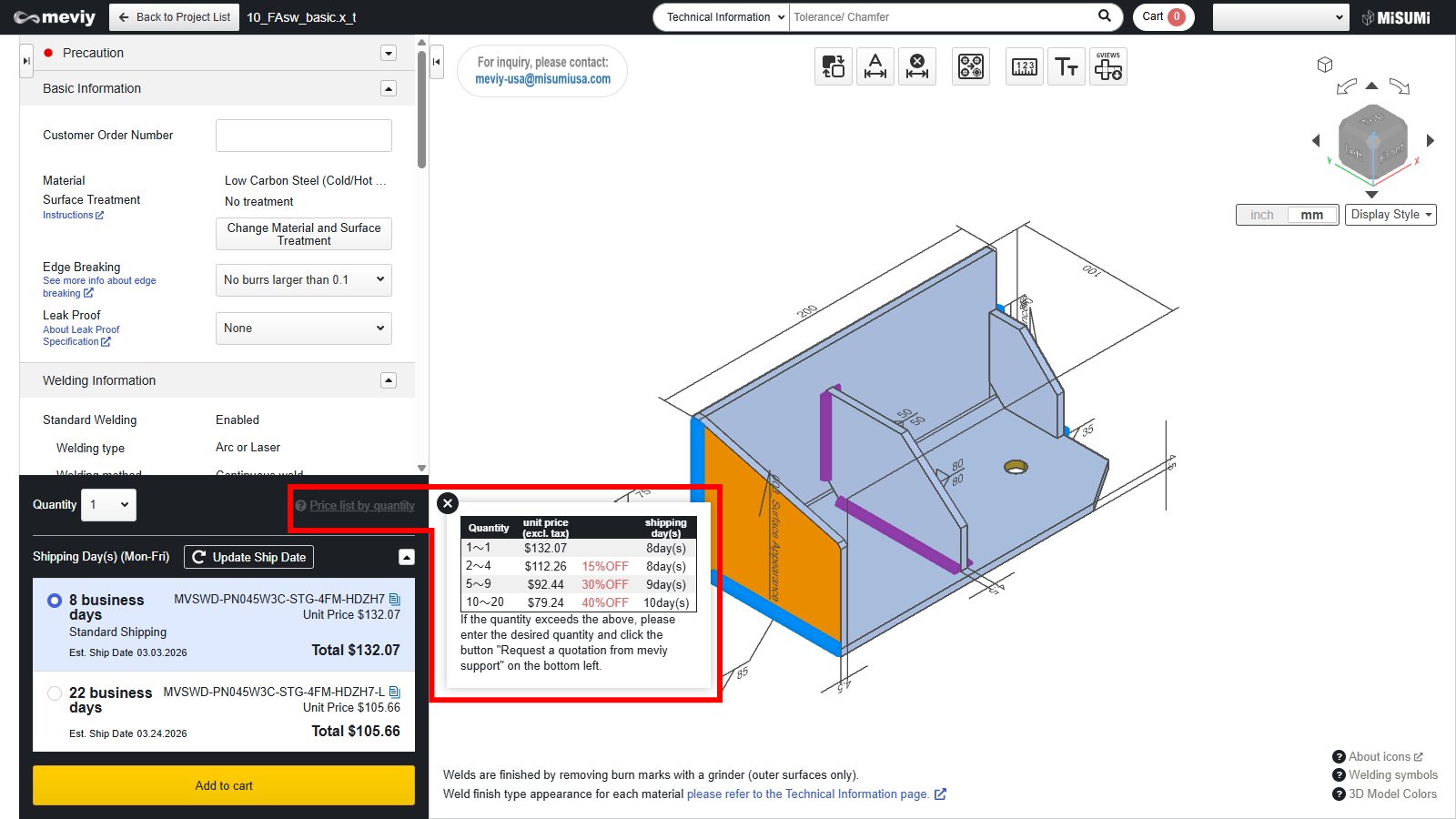
You can check the price and delivery date for each quantity in the “Price list by quantity”.