- HELP
- How to use
- Convenient Features
- Project Sharing
Project Sharing
Projects uploaded to meviy can be shared.
Other users can view shared projects and modify part specifications and request quotes in the 3D viewer.
This feature is useful for collaborating with other engineers, departments or contractors.
How to share meviy projects
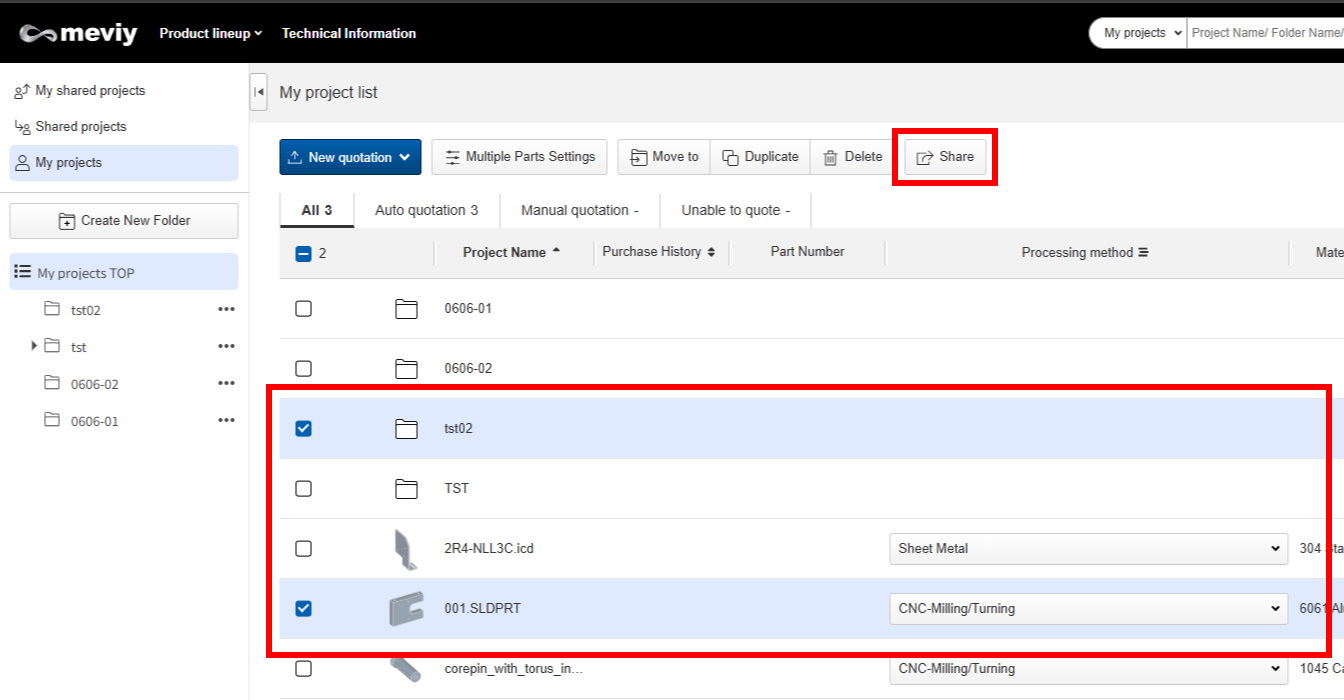
Step 1 : (Sharing User) Select a project/folder and press the Share button
Click the box for the project/folder you want to share from My Projects.
Then click the Share button to the right above the project list.
Caution
If you share a folder, all projects in the folder are also shared.
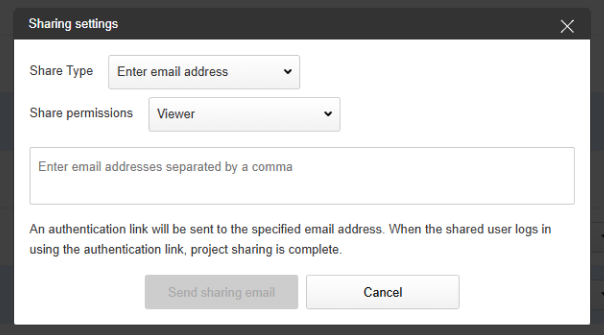
Step 2 : (Sharing User) Set recipients and access permissions
- Share Type: Select “Enter email address” or “Same customer code”
- Share permissions: Specify “Viewer” or “Editor”
- Enter the email address of the user you want to share with (multiple addresses can be entered separated by commas)
Tip
If the share type “Enter an email address” is selected, projects can be shared with users who do not have a Misumi user account.
However, in order to see the projects shared with you, an account has to be created.
Register a MISUMI user account using the same email address that was entered when project was shared.
Caution
Please note that sharing with the same customer code will share with all users immediately.
If there are many members in the organization, it is recommended to share by email address.
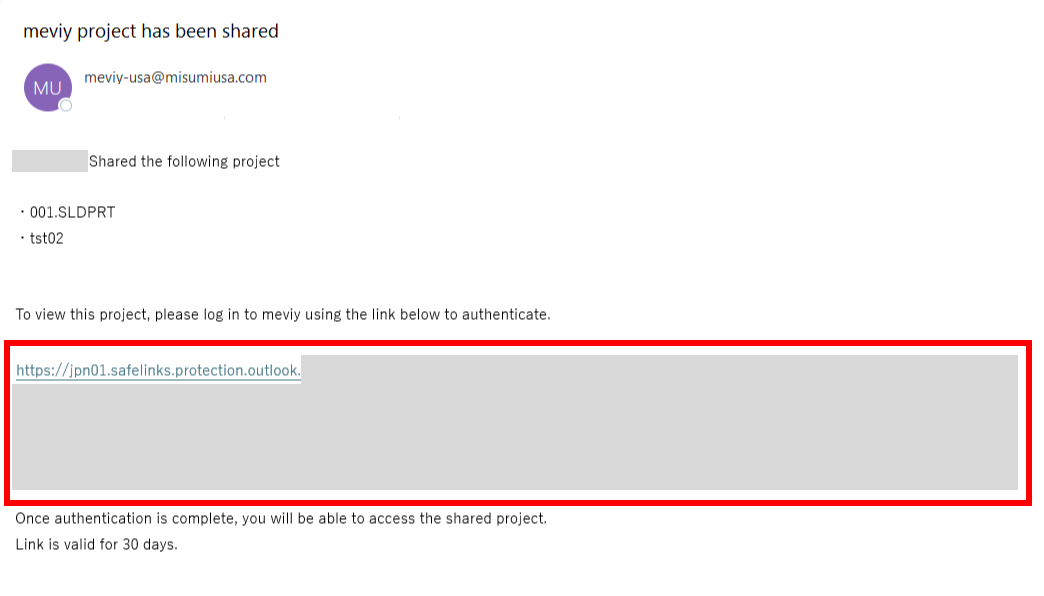
Step 3 : (Shared user) Click the verification link in the email you received
An authentication link will be sent to the specified email address.
When the shared user logs in using the authentication link, project sharing is complete.
Caution
Sharing will work if the email address entered when the project was shared in step 2 and the registered email address of the logged-in MISUMI user account are the same.
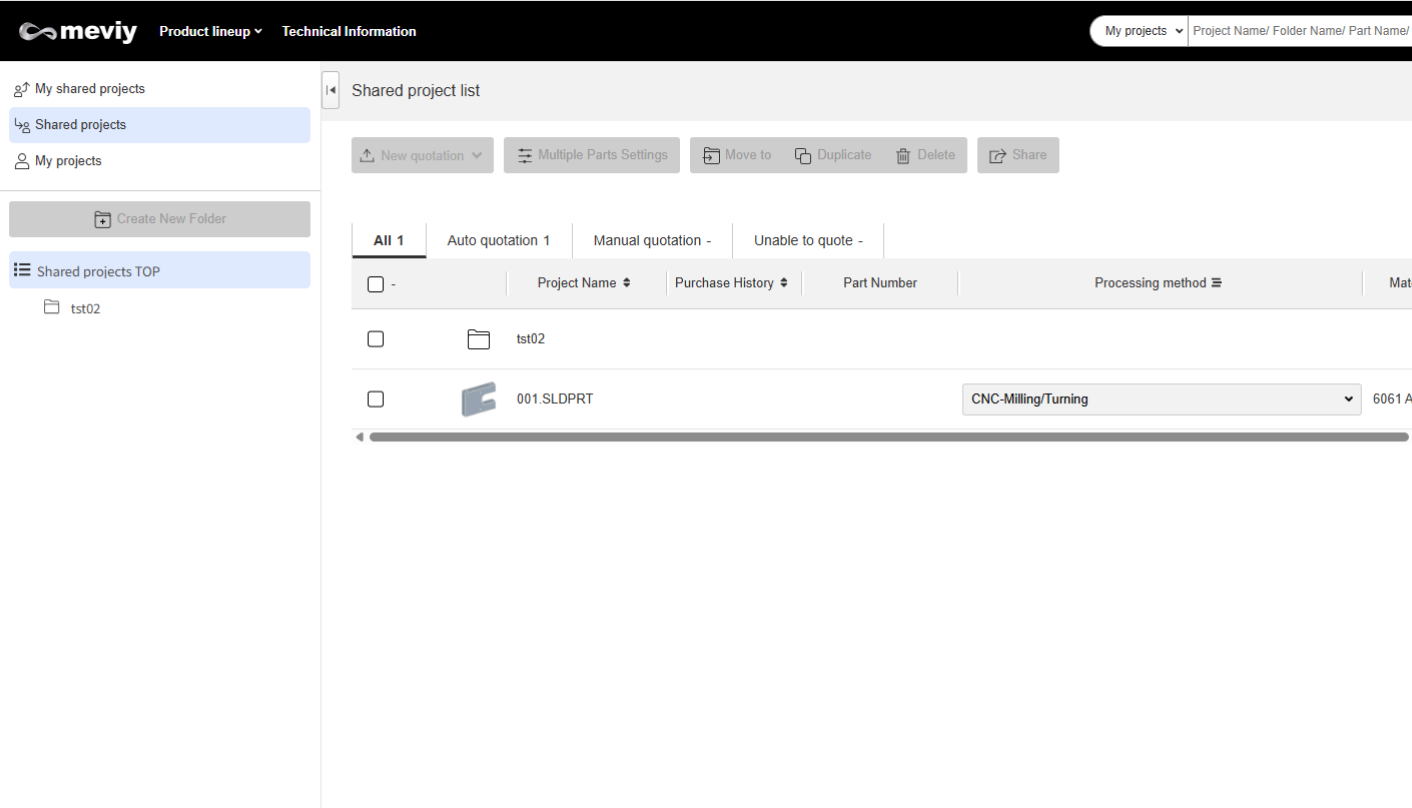
Step 4 : (Shared user) View shared projects
Tip
For the user who shared the projects, shared projects will appear in both “My shared projects” and “My projects”.Caution
For shared projects, the following items cannot be modified from the project list screen.- Processing method
- Quantity
- Shipping Days
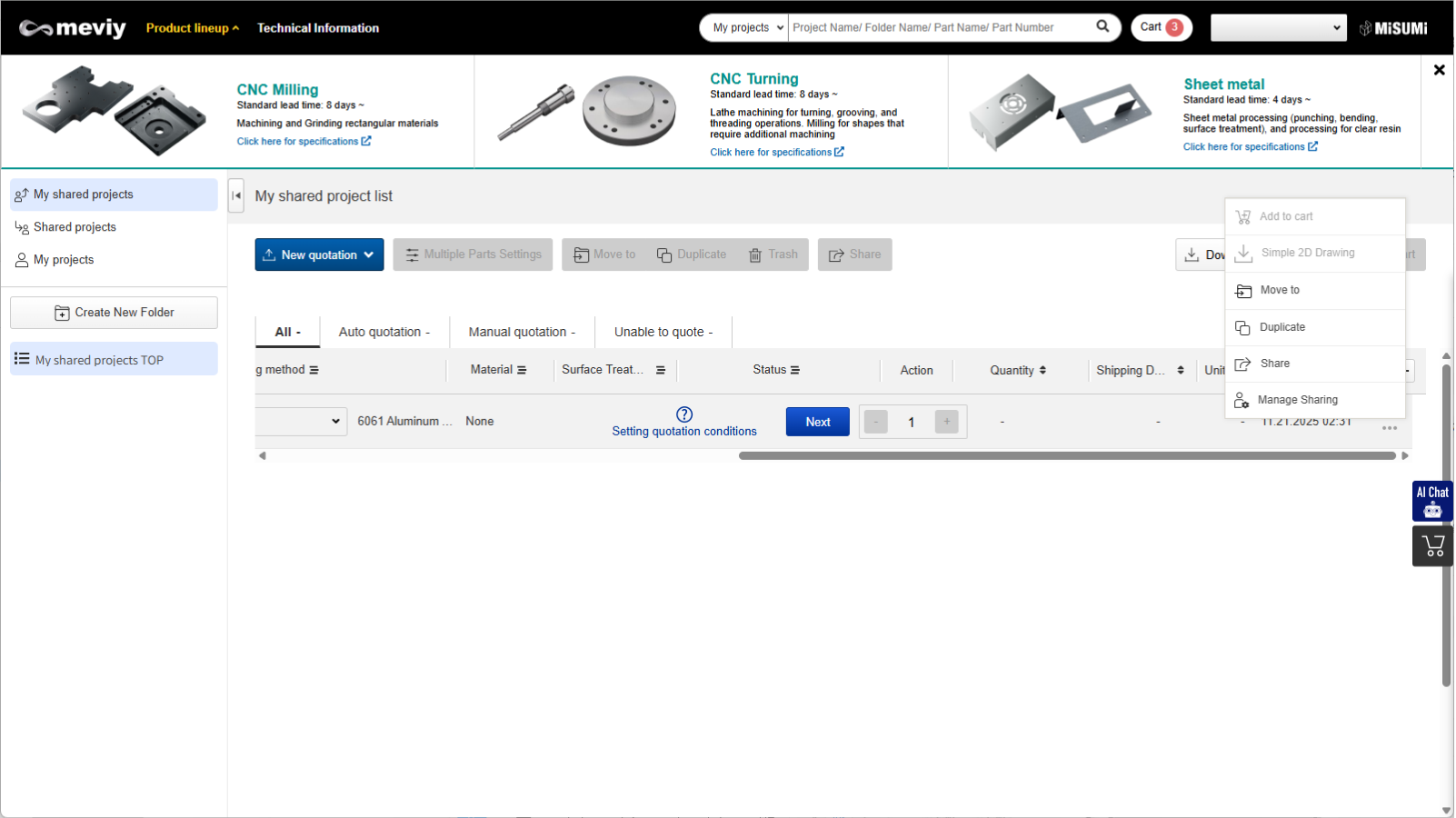
Modify, delete, or add shared users
Click “・・・” for a project or folder and select “Manage Sharing” to open the sharing management screen.
You can change or delete the permissions of a shared user.
Caution
If a shared user has not clicked the email link and logged in, the name “Unauthorized users” will appear.See who last updated or shared projects with you
See who last updated or shared projects with you
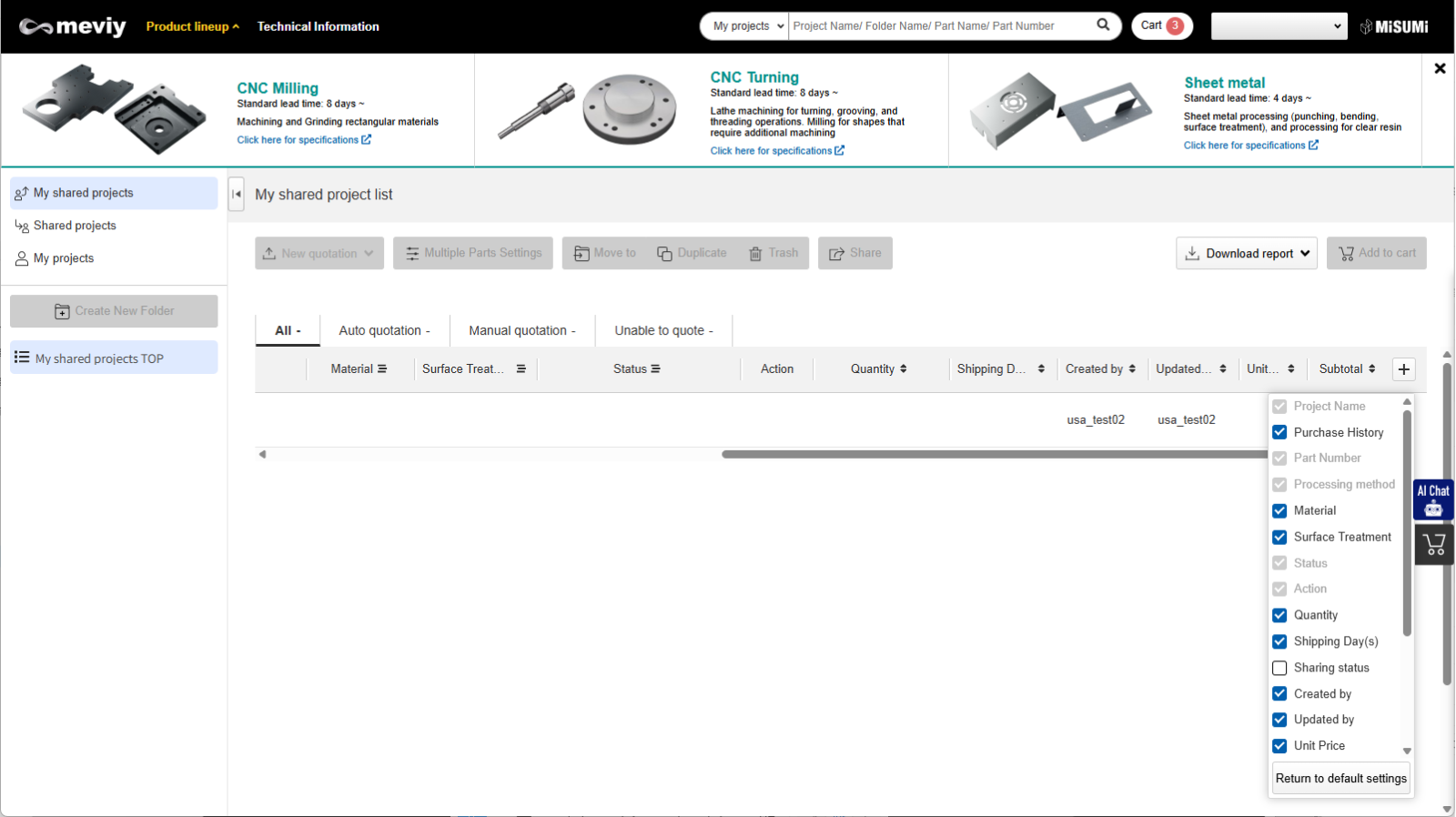
On the project list screen, “Updated by” shows the username of the last user to update a project.
If a quote hasn’t been generated, the username of the last user to make changes is displayed.
The column is hidden by default. Add it to the display using the + button.
“Created by” shows the username of the user that shared the project.
Permissions for issued part numbers
Tip
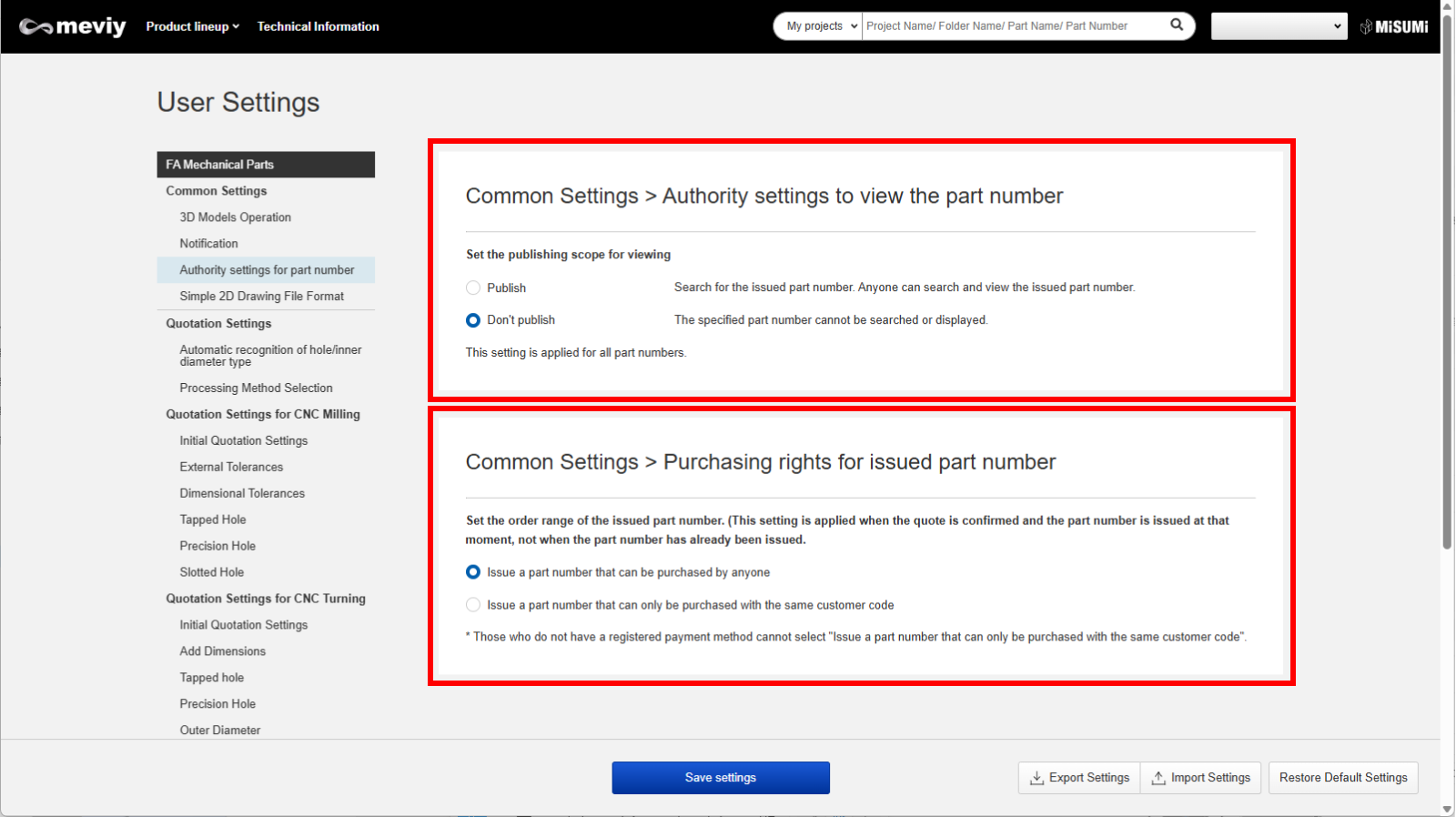
- If Person B issues a part number for a project uploaded by Person A, the user settings of Person B will determine the part number’s viewing and purchasing permissions.
- Even if the viewing permission is set to “Do not publish”, the project can still be viewed as long as it has been shared.
- If purchase permission is set to “Same customer code only”, an item cannot be added to cart or purchased if customer code is different, even if shared.
About sharing permissions
Scope of operations permitted based on access permissions
- Editor: Can perform quotation operations (such as setting materials and tolerances), but cannot manipulate the project itself (such as deleting or moving it).
- Viewer: Cannot modify the quotation, only view. Cannot manipulate the project itself.
| Classification | Operation | Editor | Viewer |
|---|---|---|---|
| 3Dviewer | 3Dviewer display | 〇
(Editable) |
〇
(View only) |
| Quotation Operations | 〇 | ||
| Part number issue | 〇 | ||
| Request a manual quote | 〇 | ||
| Simple 2D Drawing Download | 〇 | 〇 | |
| DXF Download | 〇 | ||
| Add to cart | 〇 | 〇 | |
| Project List | Move or Delete Shared Projects | ||
| Move or Delete Shared Folders | |||
| Upload to a shared folder | |||
| CSV (Form) Download | 〇 | 〇 | |
| Shared user Management | Add, Remove shared users, and Change Permissions | ||
| Sharing Actions | Share a project with another user |
About permissions for the 3D viewer screen
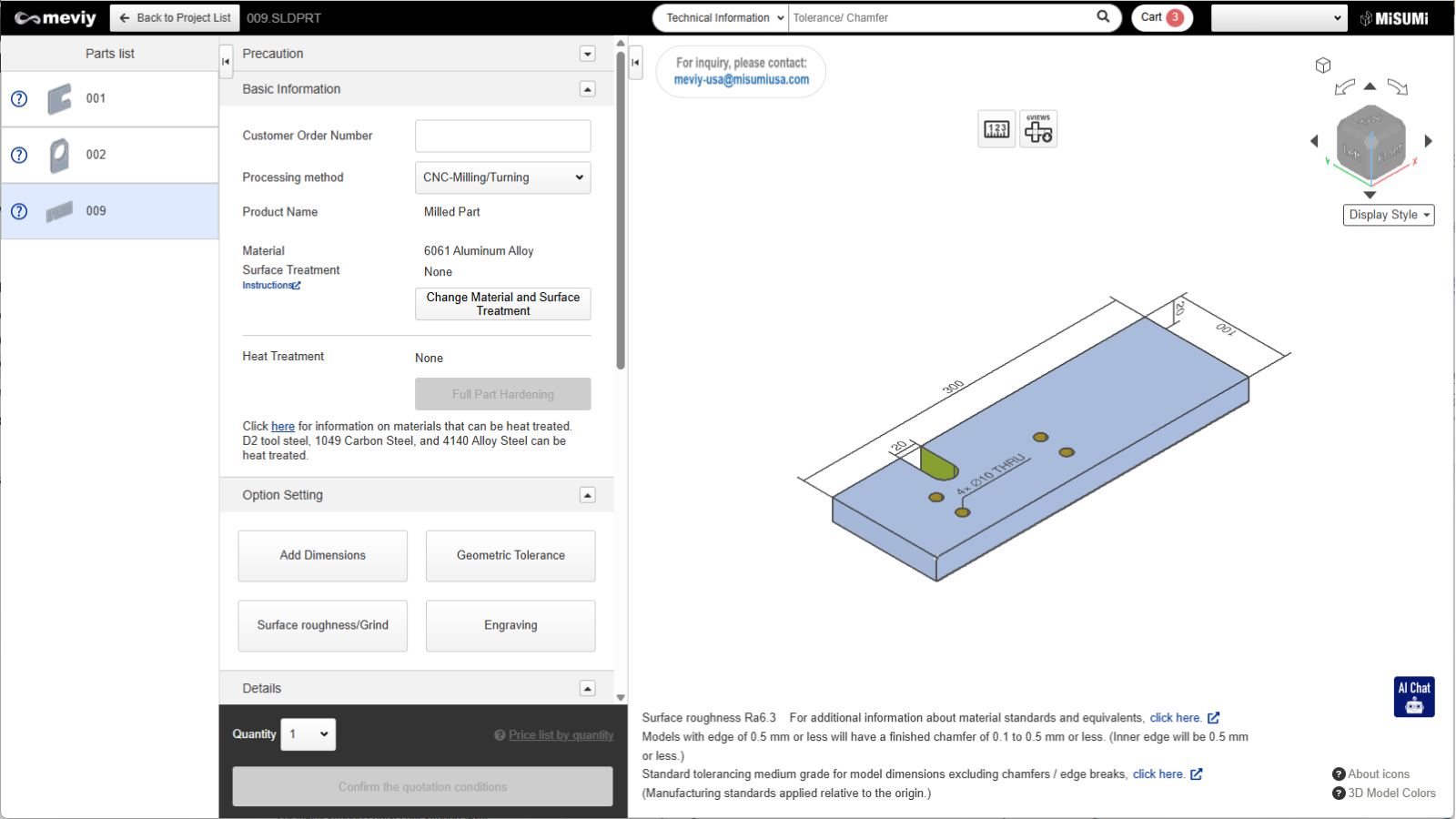
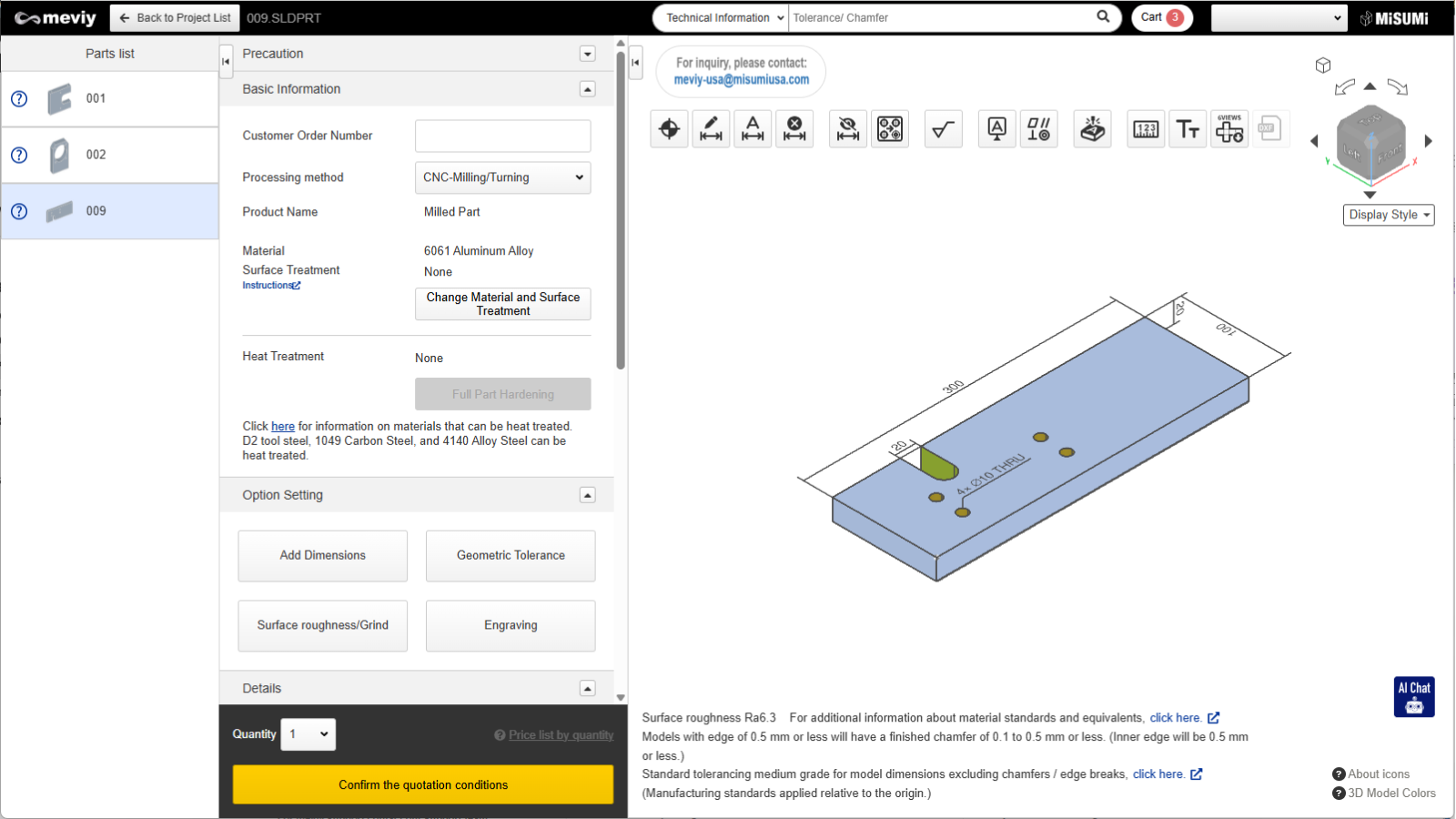
Shared projects have different features that can be manipulated in 3DViewer depending on their permissions.
- Quotation condition setting: None can be edited
- Confirmation of quotation conditions (part number issue) / Request manual quotation: Not possible
- Quotation condition setting: All can be edited
- Confirmation of quotation conditions (part number issue) / Request manual quotation: Possible
3D Viewer Restricted Access for the same project at the same time
Caution
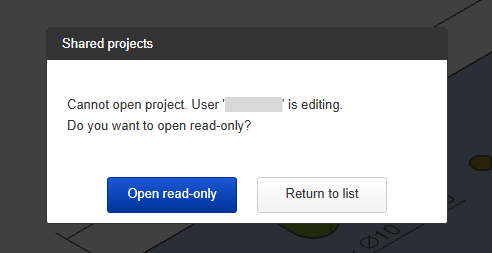
If multiple users with edit permissions access the 3DViewer for the same project at the same time, only the first user to access can edit it.