Quotation Procedure

After logging in to meviy, follow the steps below to get quotes and place orders based on 3D data of Welded Sheet Metal parts.

STEP 1: Automatic Hole Type Recognition Settings

  • If you are uploading a neutral format, configure the settings for the CAD software used for modeling.
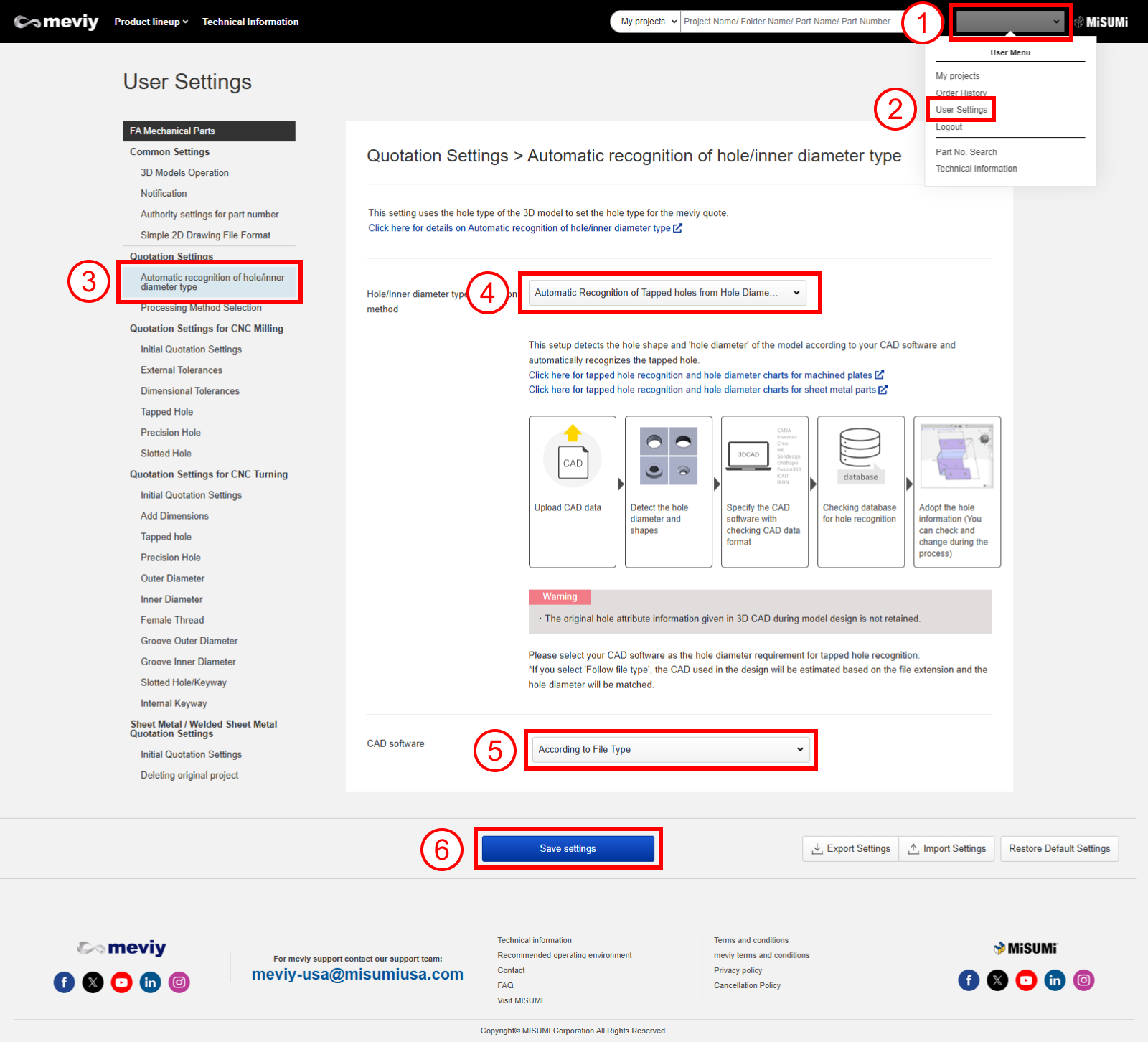
  • On the meviy platform, the hole type is identified by referencing the hole diameter in the 3D CAD data against the hole information database. Configuring the settings for the CAD software used for the modeling improves the accuracy of the hole type identification.
  1. Point the mouse to the user name in the upper right corner of the screen. The “User Menu” will appear.
  2. Choose “User Settings”.
  3. Choose “Automatic Hole Type Recognition Settings.
  4. Select the hole type recognition method. → Details of each setting method
  5. Set the CAD software used for modeling in the hole diameter condition of tap hole recognition.
  6. Choose “Update”.

STEP3: Create a Welded Sheet Metal project

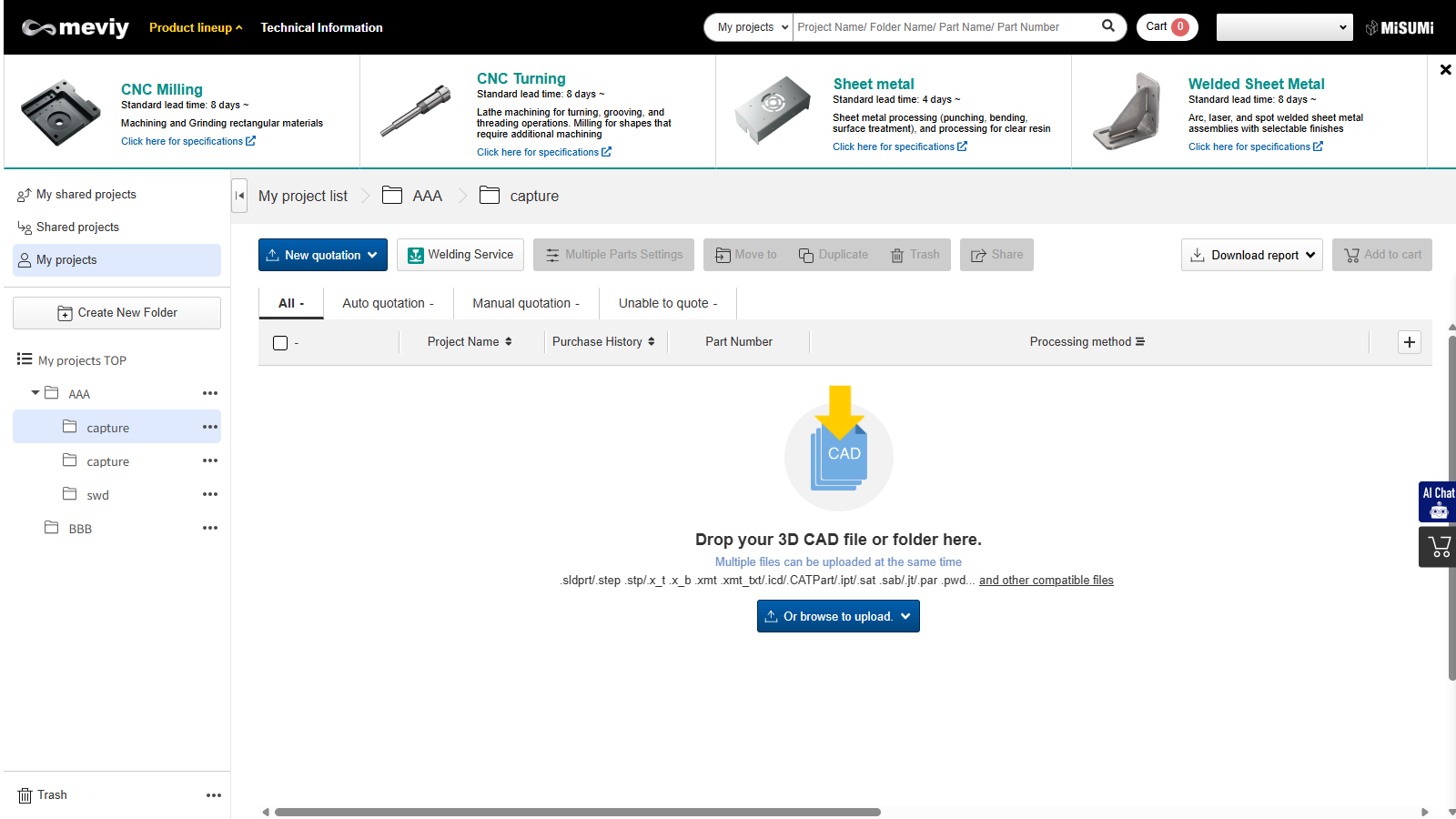
  • Select the project you wish to estimate for Welded Sheet Metal
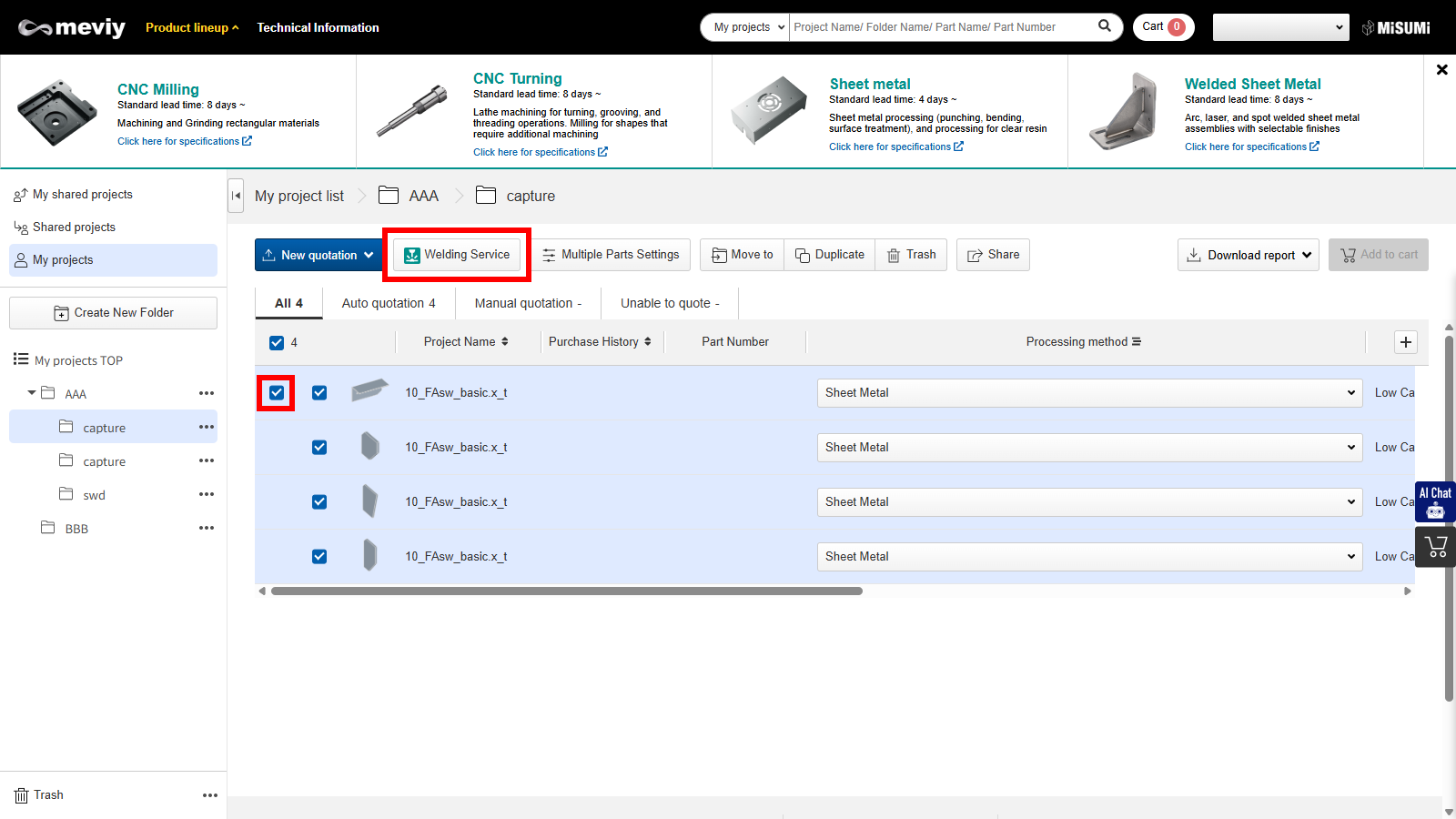
  • Regardless of the currently selected processing method, all 3D data included in the project will be included in the estimate.
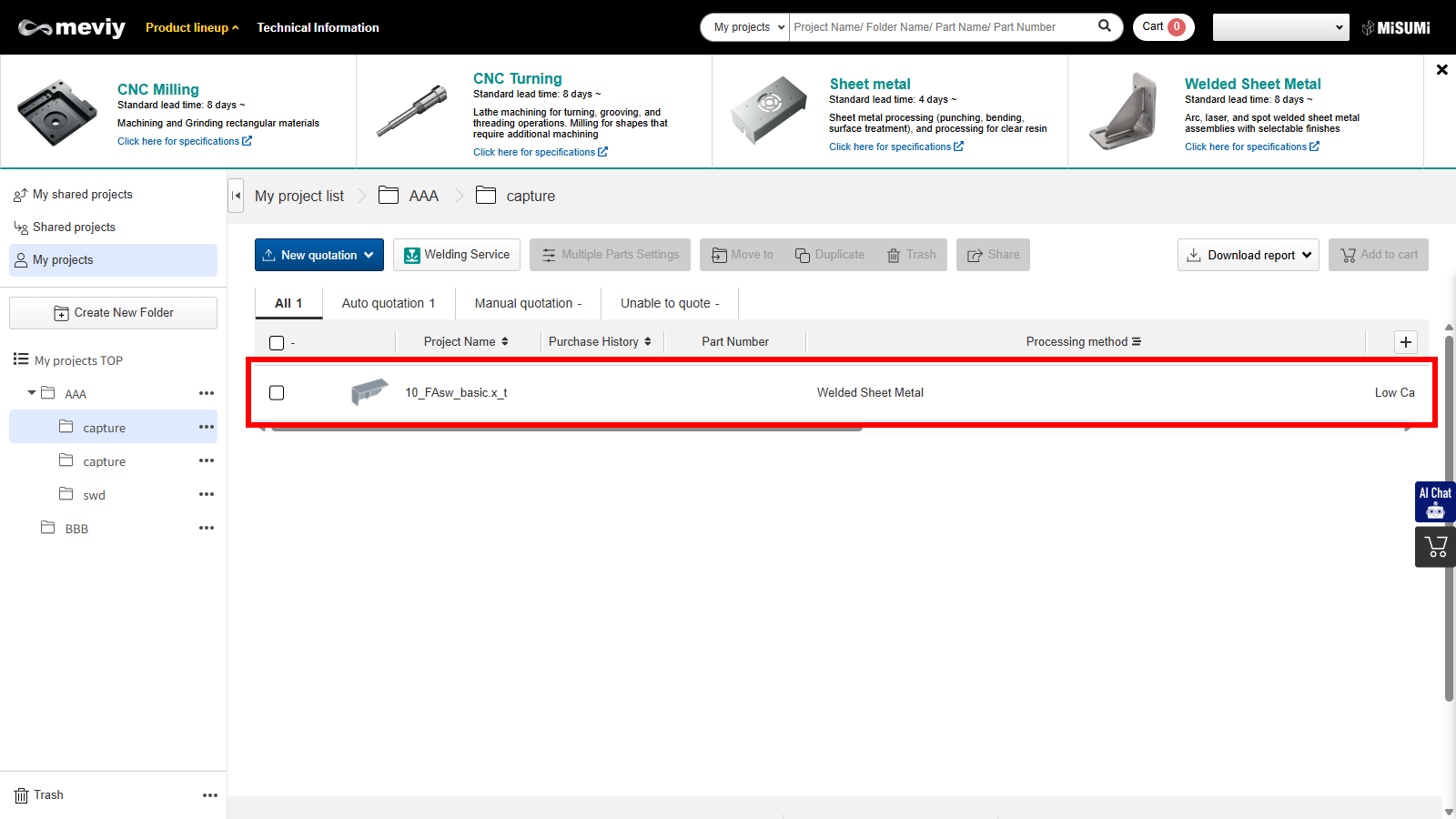
  • Clicking the [Make Welded Structure] button creates a new project with the processing method set to Plate Welding at the top.
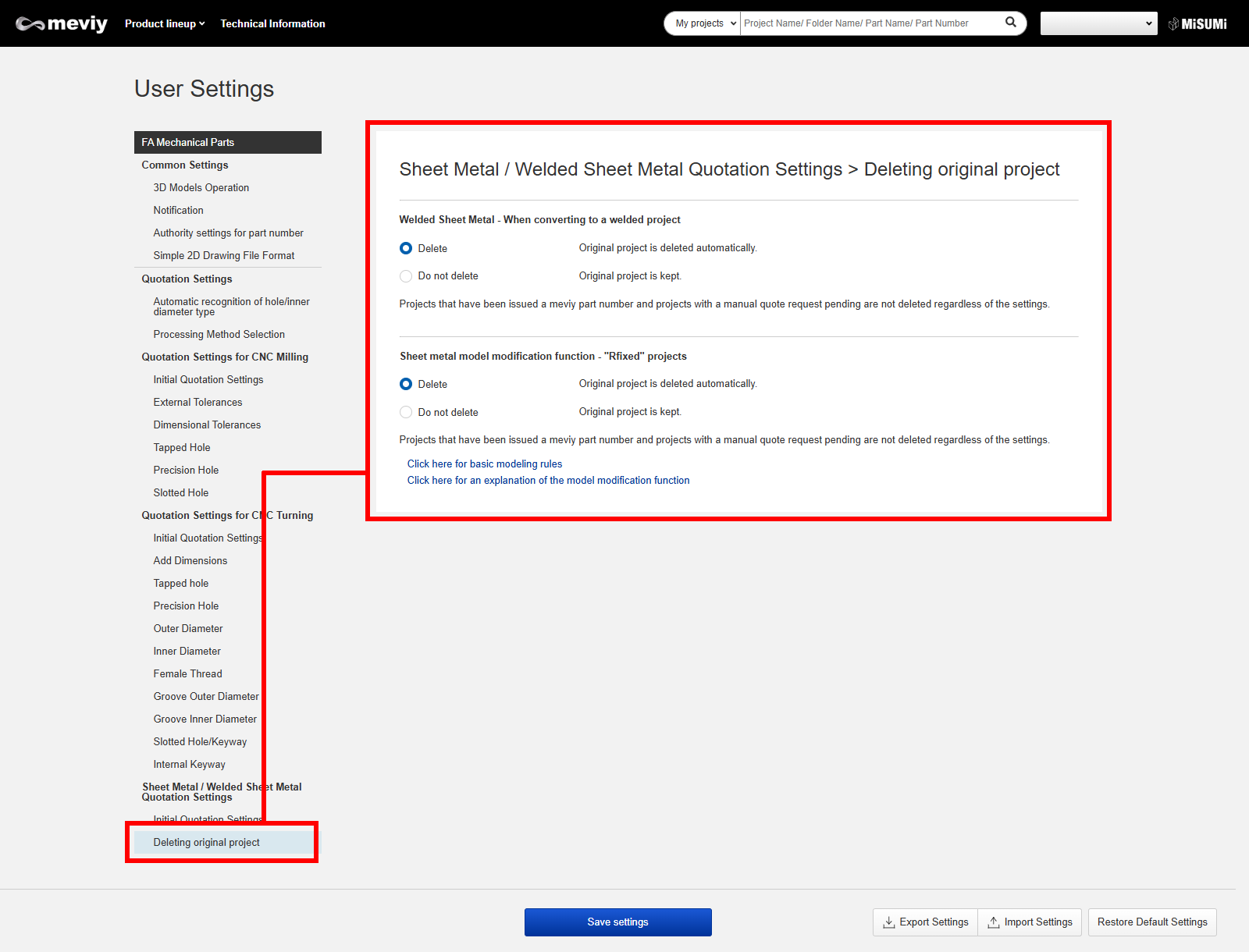
  • Note: Upon creating a plate welding project, the original project with the checkbox selected will be automatically deleted.
    *Projects with a confirmed estimate or currently being estimated by an assigned person will remain and not be deleted.

Tip

    • [Make Welded Structure] You can
      also choose to keep the original project checked before execution.
    • In that case, go to User Settings > [Delete Plate Welding Estimates] > [Delete Original Project] in User Settings and change it to “Do Not Delete”.
      *The default setting is “Delete,” so the original project will be automatically deleted.

STEP4: Set/Change Quotation Conditions

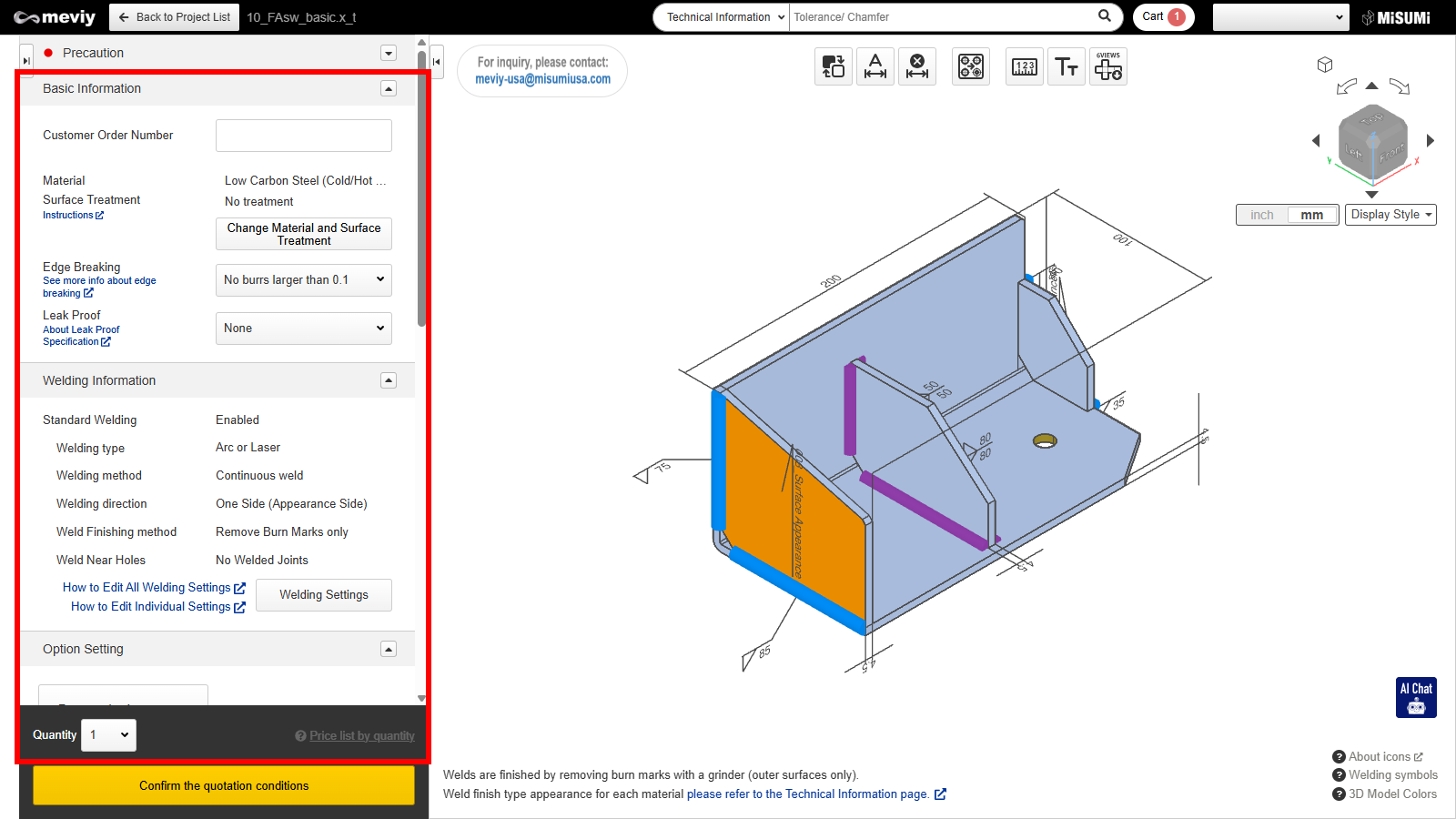
Set or modify the estimation conditions as needed.

Tip

Using keyboard shortcuts is convenient → “Keyboard Operations

STEP5: Finalize Quotes and Obtain Part Numbers

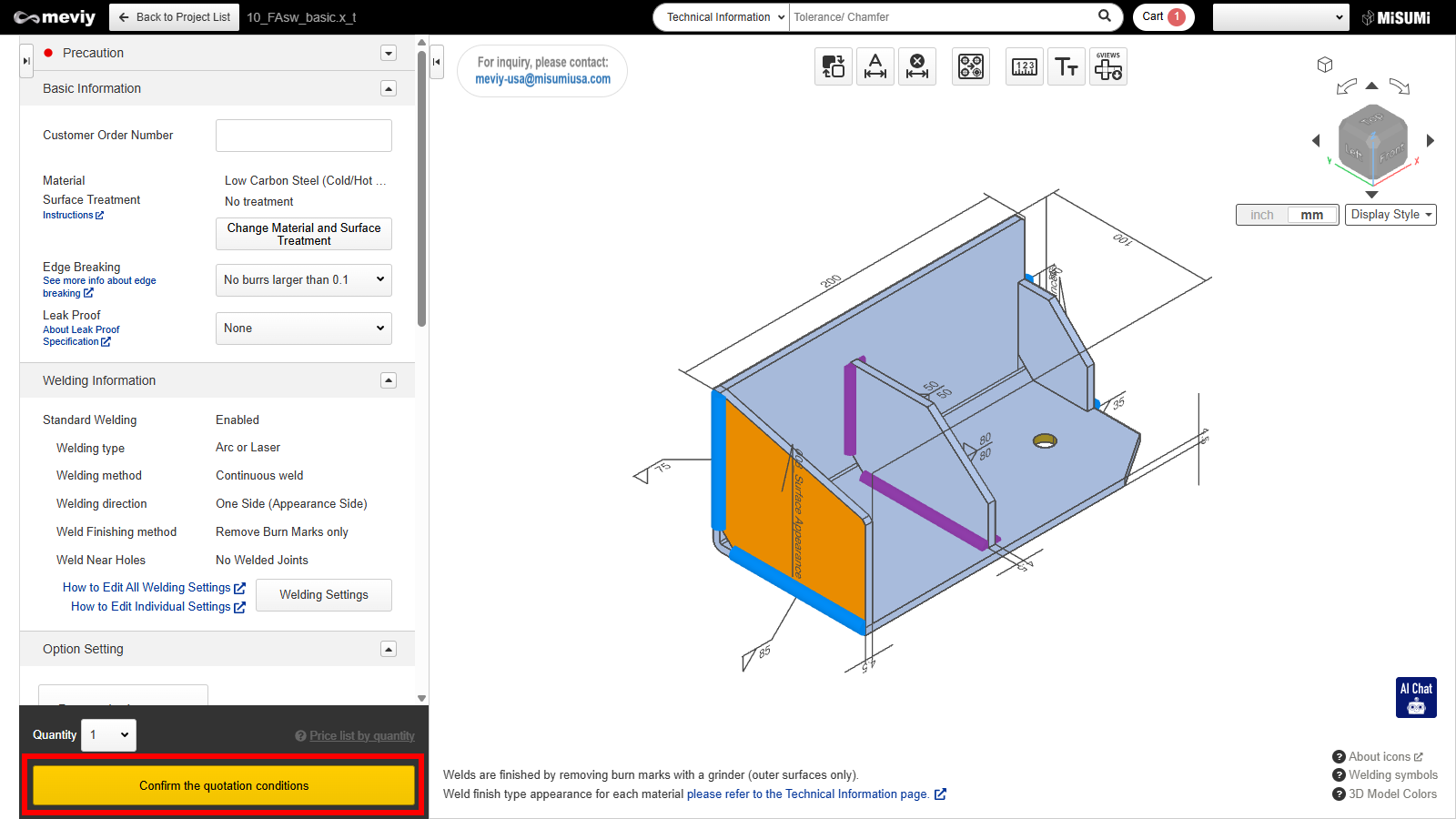
After setting the quotation conditions, if there are no problems, confirm the quotation and obtain the part number. → “Confirm(issue part number)/check/change the quotation

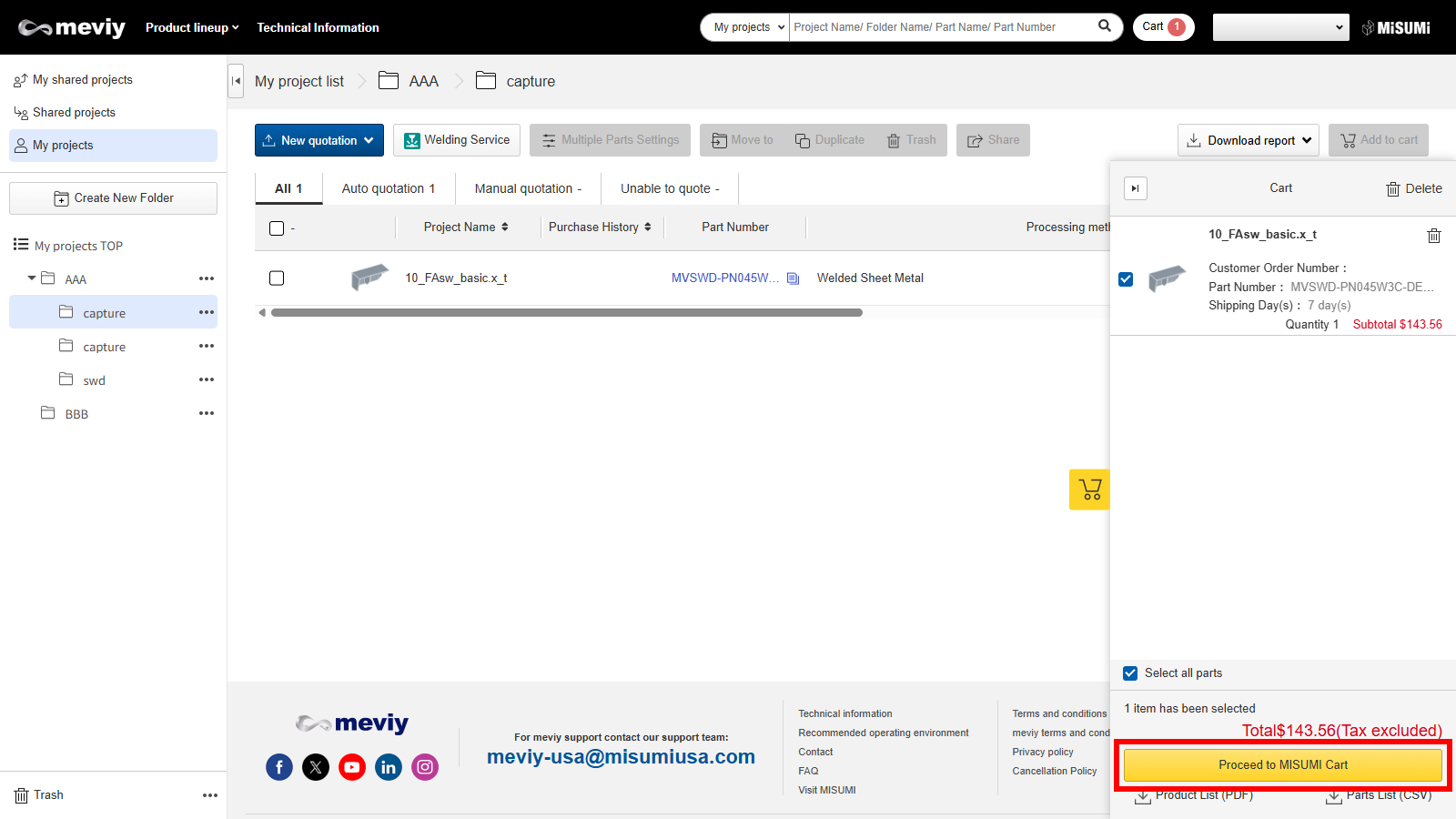
STEP 6: Add to Cart

  • After obtaining the part number, return to the project list screen.
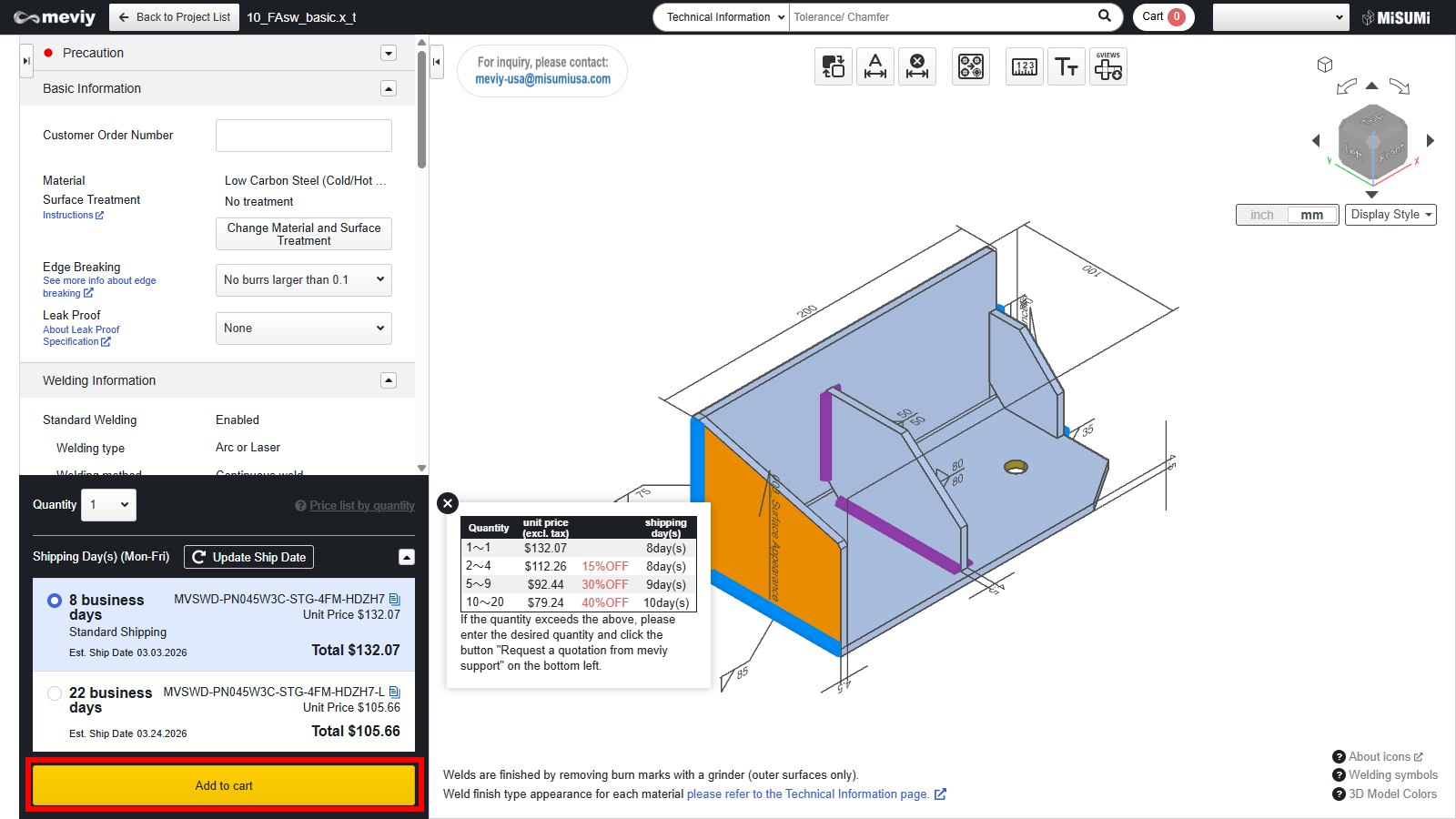
  • Check the parts you wish to order and click the “Add to Cart” button.

STEP7: Check the cart, then order

  • Open cart screen.

  • Check the parts you wish to order, click “Proceed to order”, and place your order through “Entry Order” screen.

Recently viewed articles