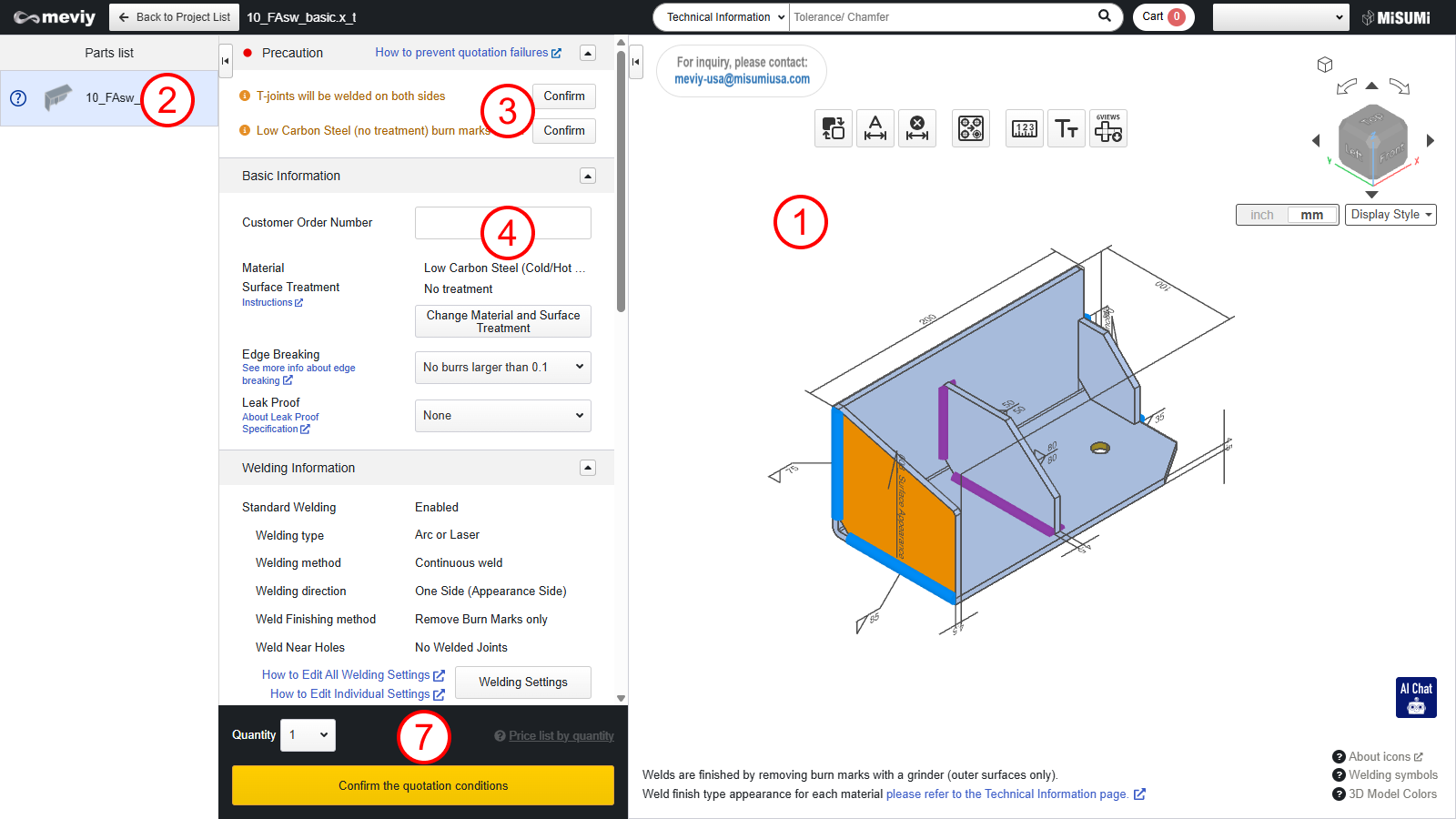
All the parts contained in the project selected in the Project List will be displayed. Individual 3D viewer displays for each
component part of a product are not available.
③ Precaution
Lists error messages, warning messages, and messages from the meviy operator.
④ Basic Information
You can change material and surface treatment, modify welding instructions, set custom customer order numbers, and input additional processing instructions.
Caution
If additional processing instructions are entered, automatic estimation will not be possible. Please select [Request Estimation from Responsible Person].
The responsible person will provide an estimation response later.
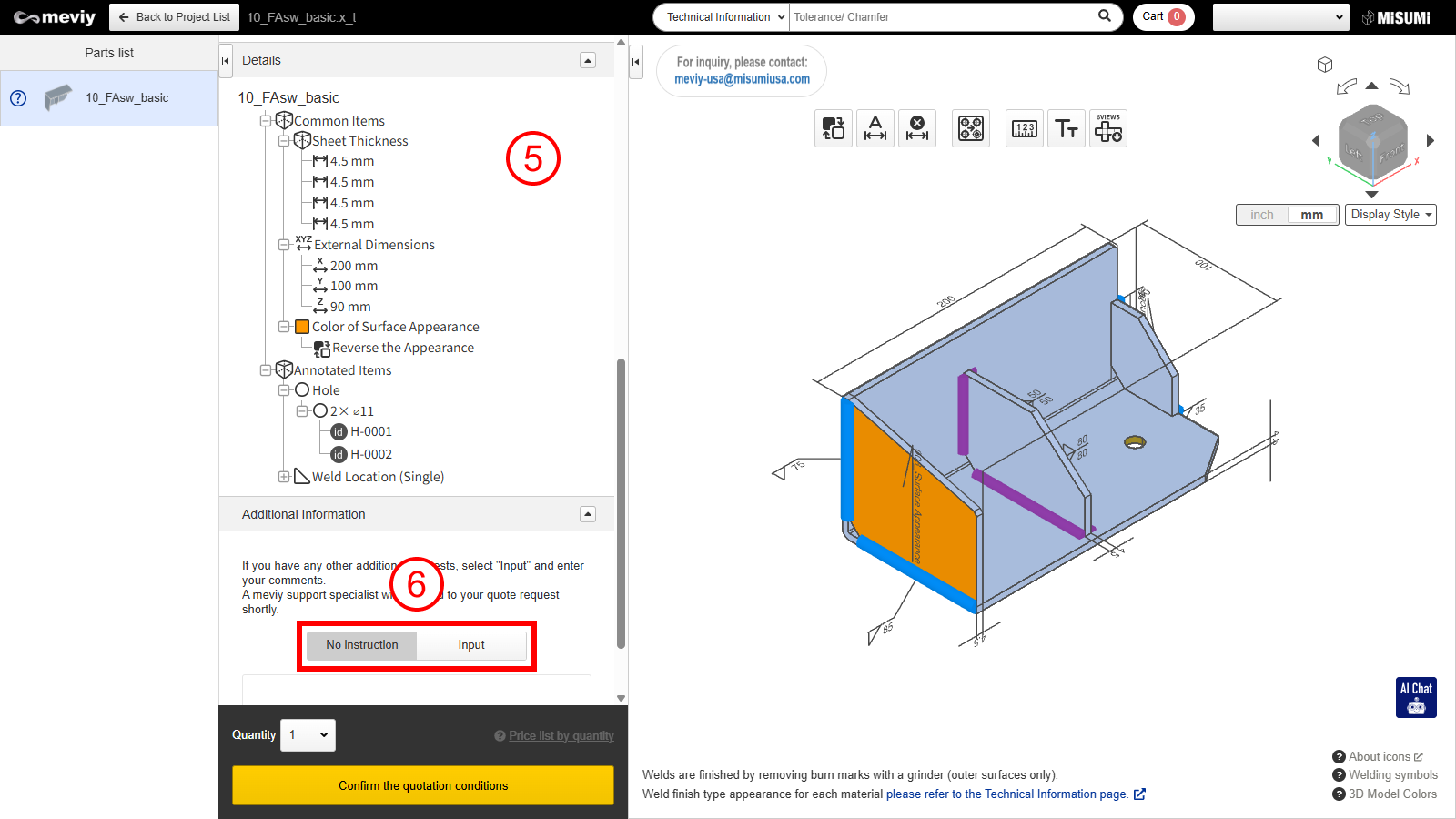
⑤Tree View
You can check the overall dimensions of the part, hole information for each of the 6 faces, and weld line information within the product using the tree view.
You can also change hole types. Double-click the hole you wish to change to display the [#Hole Information Indicator#] dialog box.
Tip
When converting 3D data into parts, a message will appear if any shapes exist that may deform. You can check this in the 3D viewer.
⑥ Other additional instructions are described in the comment box
You can enter additional requests or inquiries, such as additional processing instructions that cannot be set within meviy.
If you require additional processing, automatic quotation is not available. Select [Request manual quotation], and the meviy support team will respond later with your quote.
⑦ Part Number issuing area
The quantity setting and the list of prices, delivery dates, and issued Part Numbers according to the contents of the basic information are displayed.
The button changes according to the status, and you can confirm the quotation conditions, request a manual quote, or add the selected quote to the cart.