- HELP
- How to use
- Quotation conditions settings
- [Welded Sheet Metal] Quotation Settings
- Setting Welding Information
Setting Welding Information
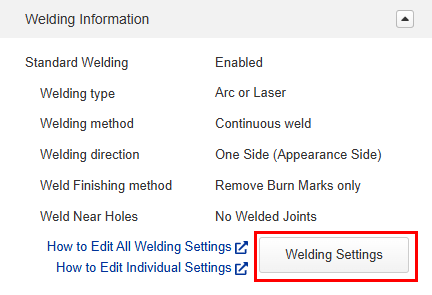
- On the [Welding Information] tab, you can change the welding type, welding method, welding direction, and finishing method.
- Prices and delivery times will be recalculated according to the changed specifications.
Set Welding Information
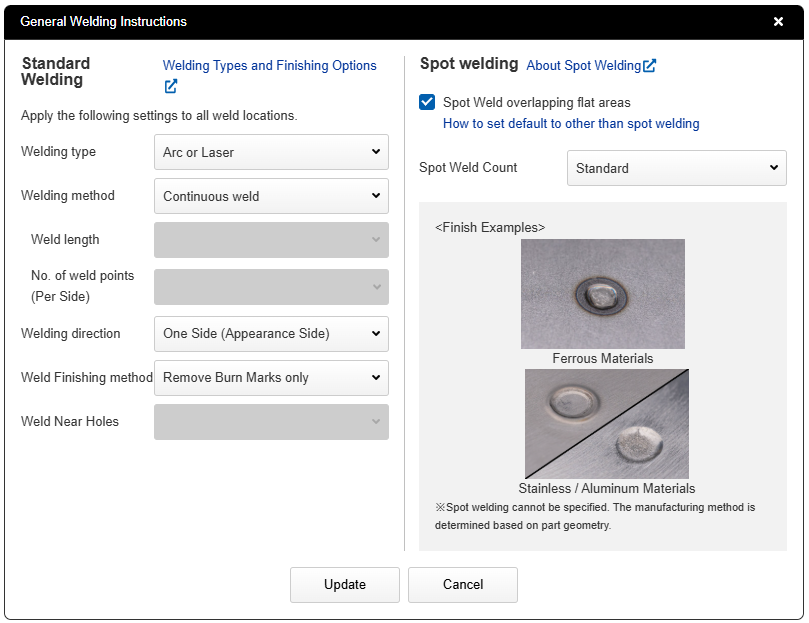
1. Select the Edit button to open the Welding Information Dialog Box.
- 2. Select your desired weld type, welding method, welding direction, and welding finish, then press the Update button.
- Welding Information Details → “Instructions and Details for Welding Information“
Tip
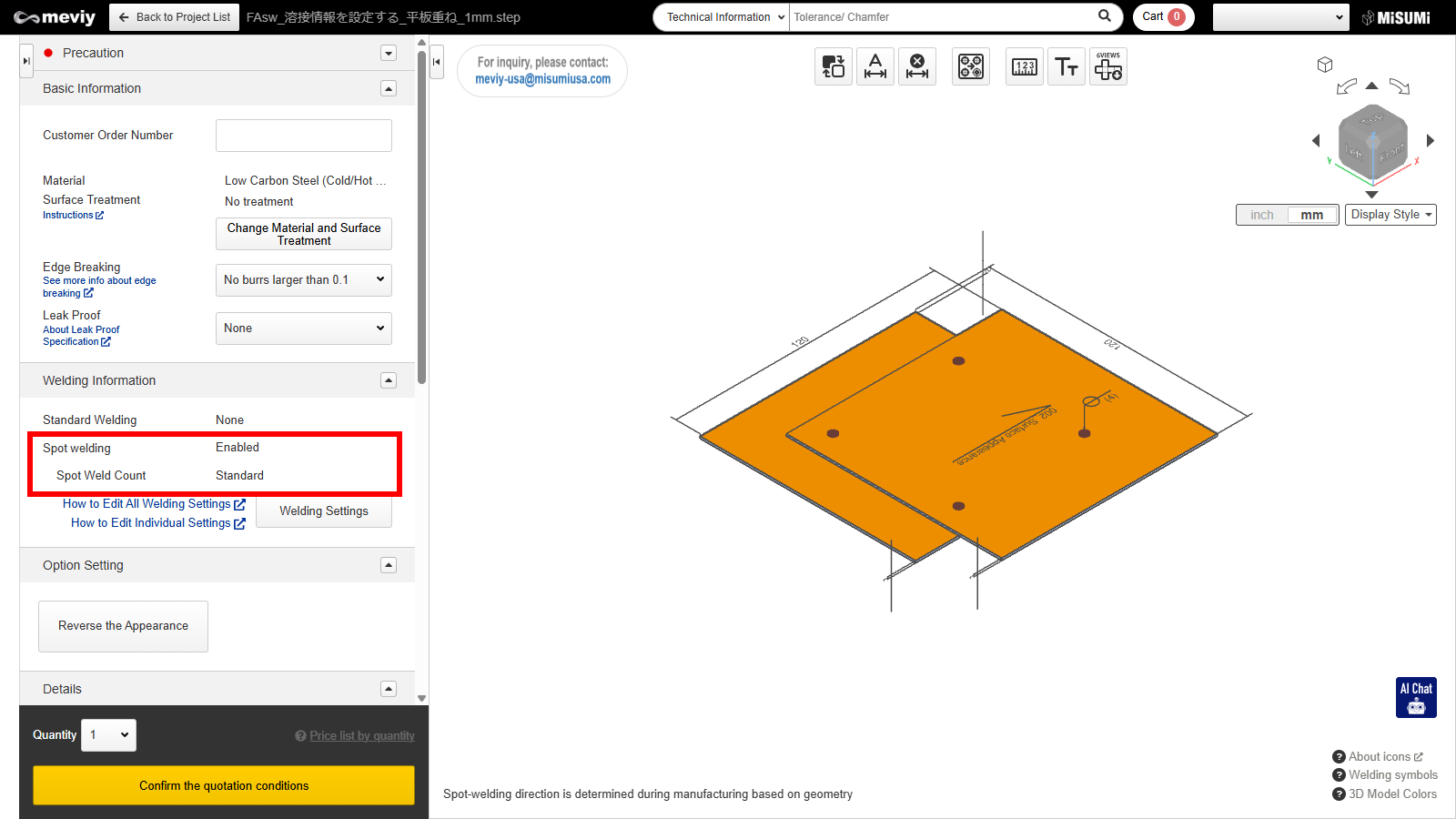
- If you wish to use spot welding, check the corresponding checkbox.
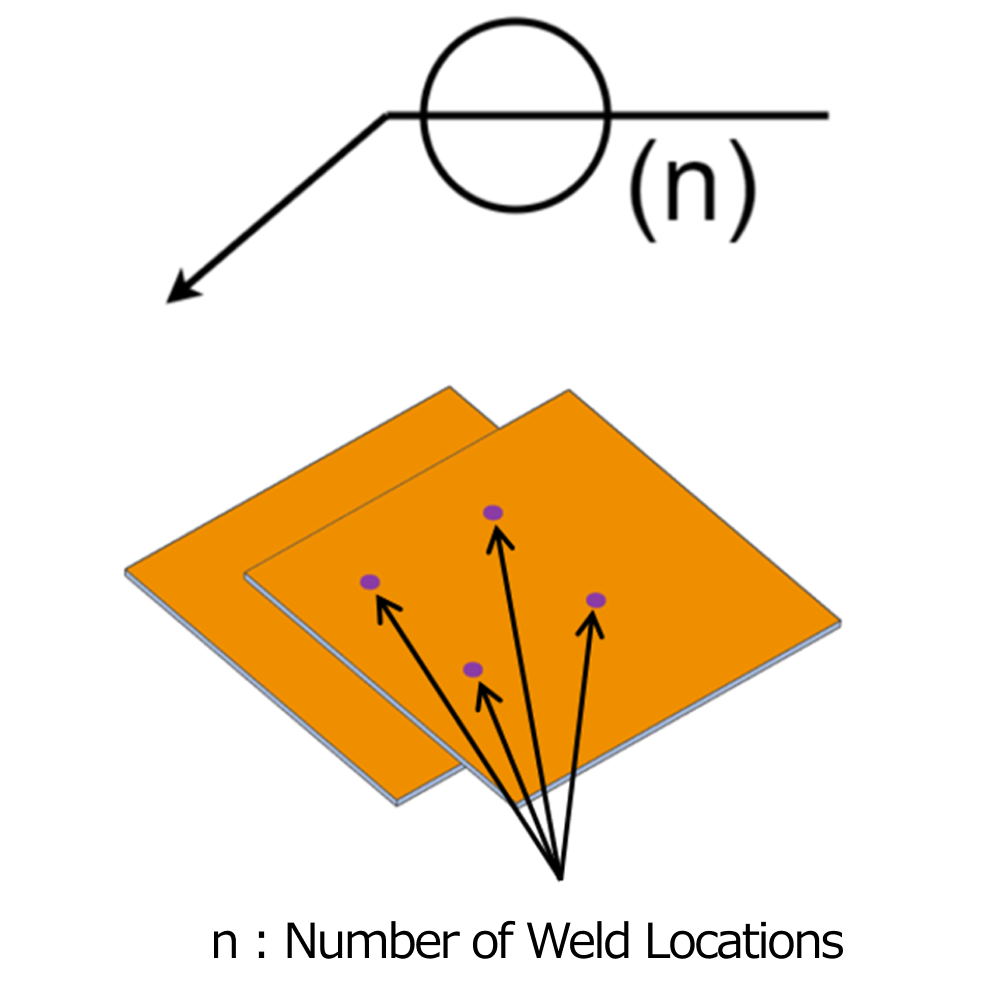
When spot welding is selected, it is only applied to overlapping surfaces. *Other welded areas will follow the specifications selected under “Welding Type”. - When selecting spot welding, you can choose the spot welding pattern from “High”, “Standard”, or “Low”. If you require a spot weld count outside the three patterns please specify this in the Additional Instructions field and use the Request Quote feature. A representative will respond with a quote later.
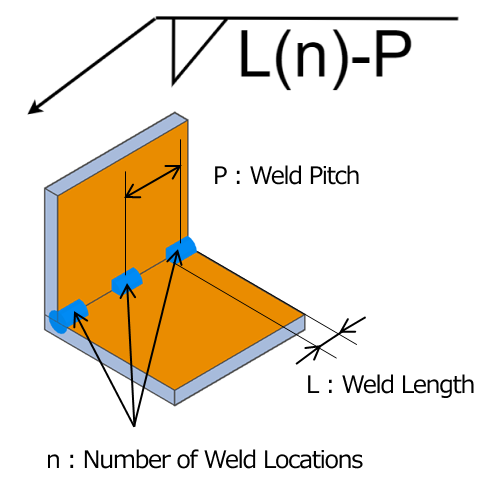
- Selecting intermittent welding in the welding method allows you to choose the weld length and number of weld points.
- If the weld area is close to a hole and interference with bolts is anticipated, the option [Do not weld near holes] will be
automatically selected, and weld beads near the hole will be removed.The deletion area is set as the circle centered on the corresponding hole, based on the maximum nominal diameter of the tap hole corresponding to the plate thickness and the washer diameter according to JIS standards.If you do not wish to remove the weld bead, select [Weld near hole “Yes”] (the weld bead will revert to its state before removal).*When changing the presence of welds near holes for each welded area, please verify this instead of setting Individual Welding Information.
Caution
The welding instructions in the welding information field apply to all welded areas within the product.
If you wish to specify different welding instructions for each weld location, select the relevant weld location and specify the instructions via the Individual Welding Information Dialog. (Details → “Setting Individual Welding Information“)
Confirming the set welding information
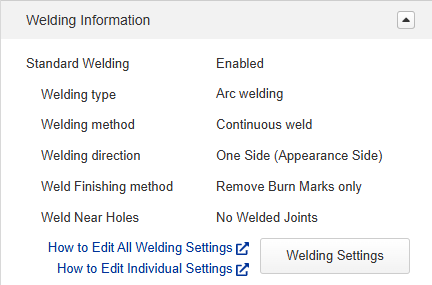
1. Verify that the desired instructions have been updated in the welding information field.
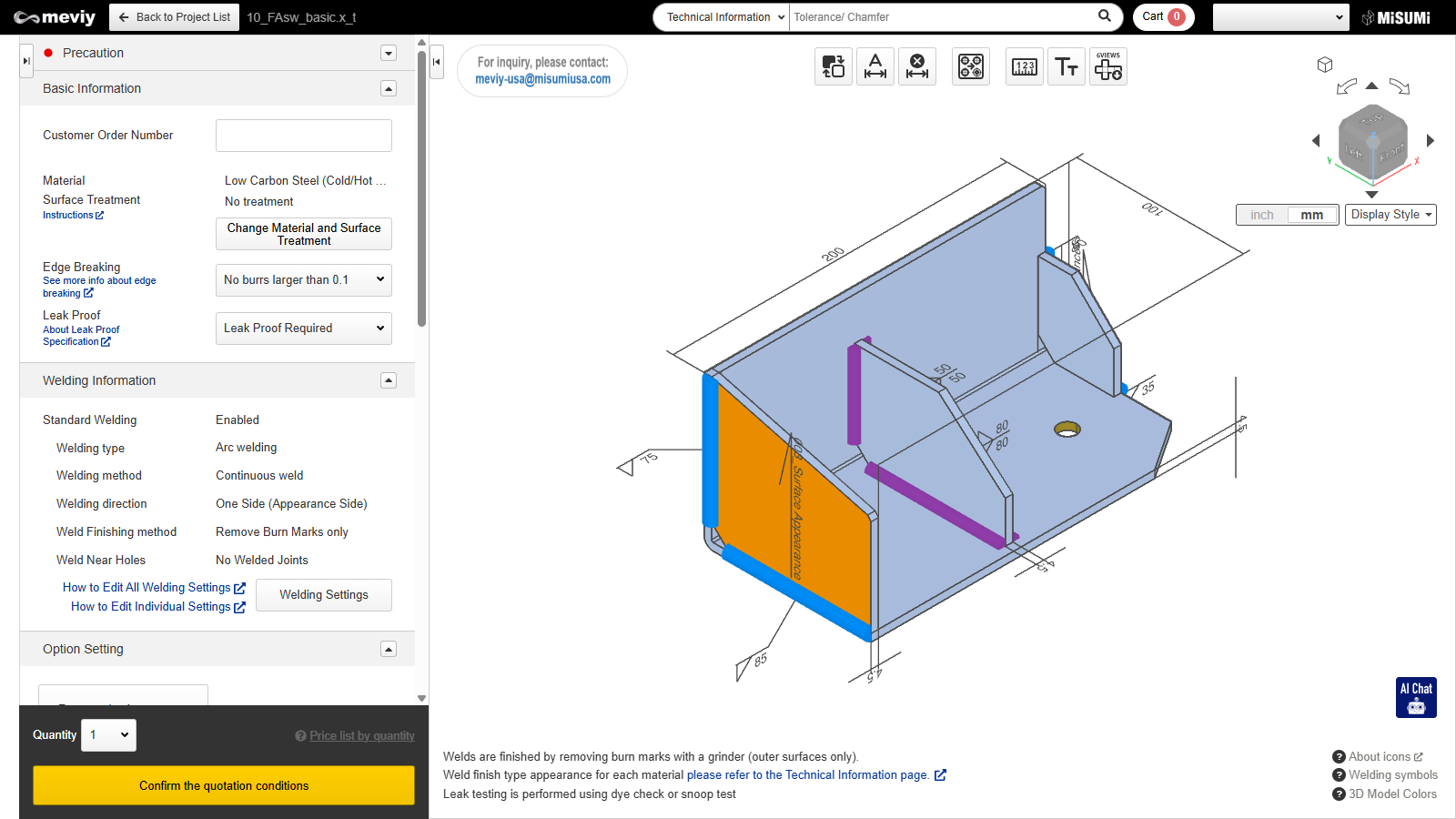
2. Confirm in the 3D viewer window that welding is performed at the desired position.
Tip
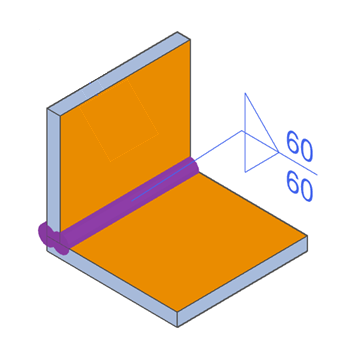
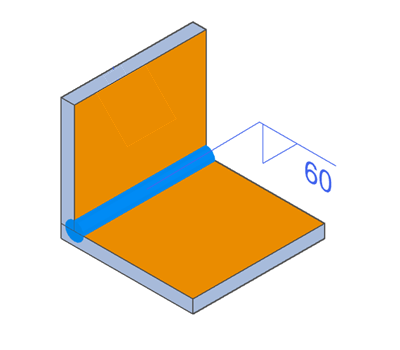
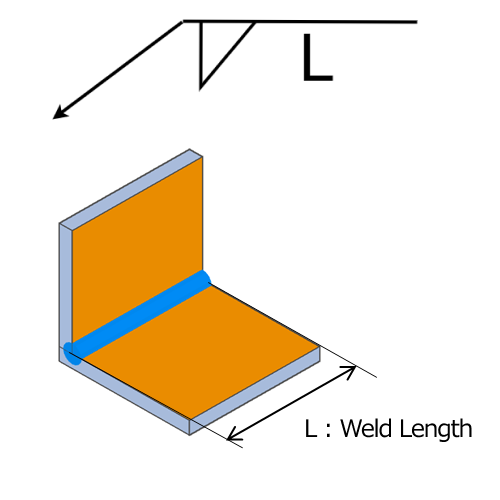
- The welding operation position is highlighted, and welding symbols are displayed for each welded edge.
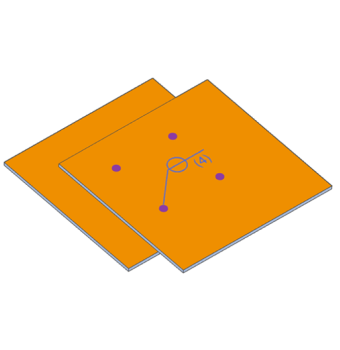
- When spot welding is selected, a cylindrical highlight is displayed at the spot welding position.
About Welding Symbols Displayed in the 3D Viewer
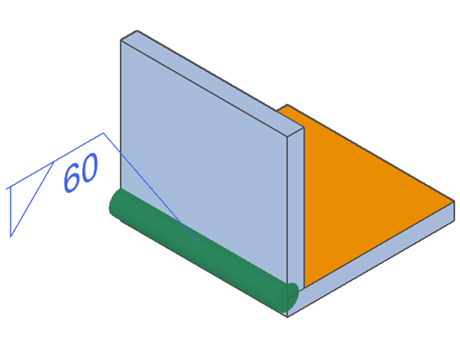
Weld position highlights are displayed according to the rules in the table below.
| Flat side (face-to-face welding) | Single-side (non-face-to-face welding) | Both sides welded | Spot Welding |
|---|---|---|---|
|
|
|
|
Welding symbols shall be displayed according to the following rules.
| Continuous welding | Intermittent welding | Spot welding |
|---|---|---|
![]() |
![]() |
![]() |