Setting Individual Welding Information
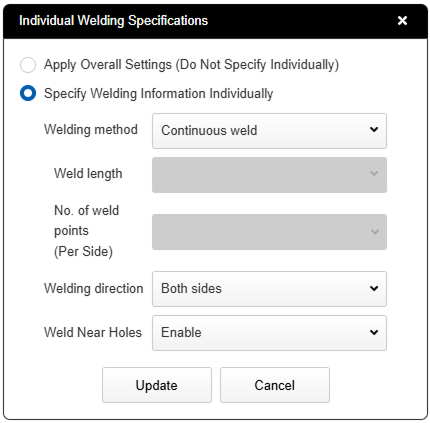
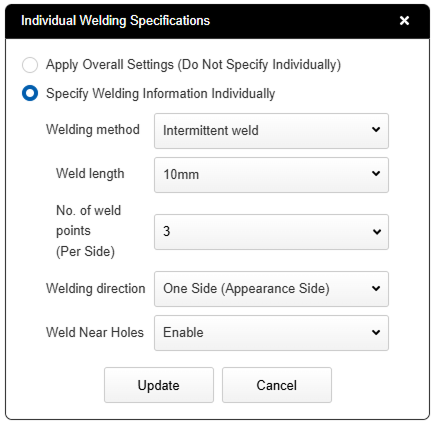
  • [Individual Welding Instruction] In the dialog box, you can select different welding methods, welding directions, and whether to weld near holes for each welding location, distinct from the overall welding information.
  • After confirming the set conditions, the price and delivery time are calculated.

Set individual instructions

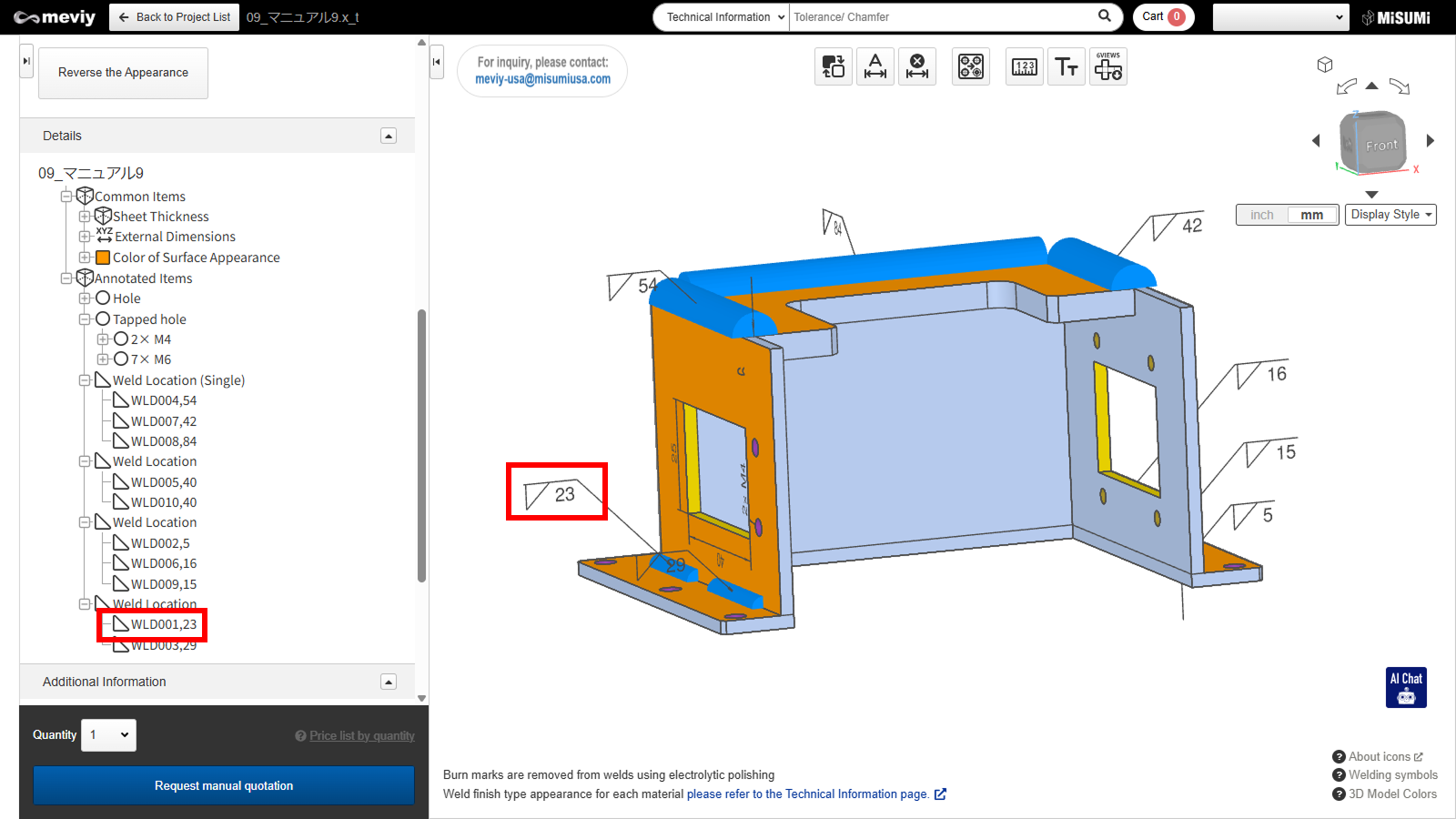
1. Welding symbols in the 3D viewer or welding line information in the tree view Double-click (WLD…) to open the Weld Information Individual Instruction Dialog.

2. Select [Specify Individually] to activate the edit fields.

3. Select the desired welding method, welding direction, and whether to weld near the hole, then press the Update button.

Tip

  • To clear previously set individual instructions and apply the weld conditions from the overall weld information, select the radio button [Apply Overall Weld Information] and press the Update button.

Confirm individually specified information

*Cases where individual instructions were set for all items: Welding Method, Welding Direction, Welding Near Hole

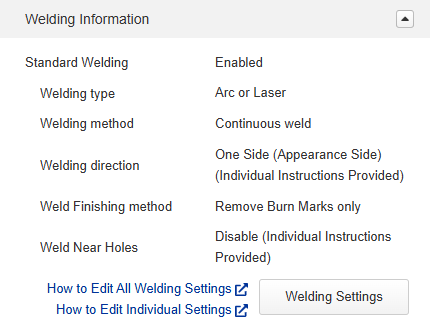
1. In the welding information field, verify that the text “(Individual setting applied)”is displayed at the end of each individually edited item.

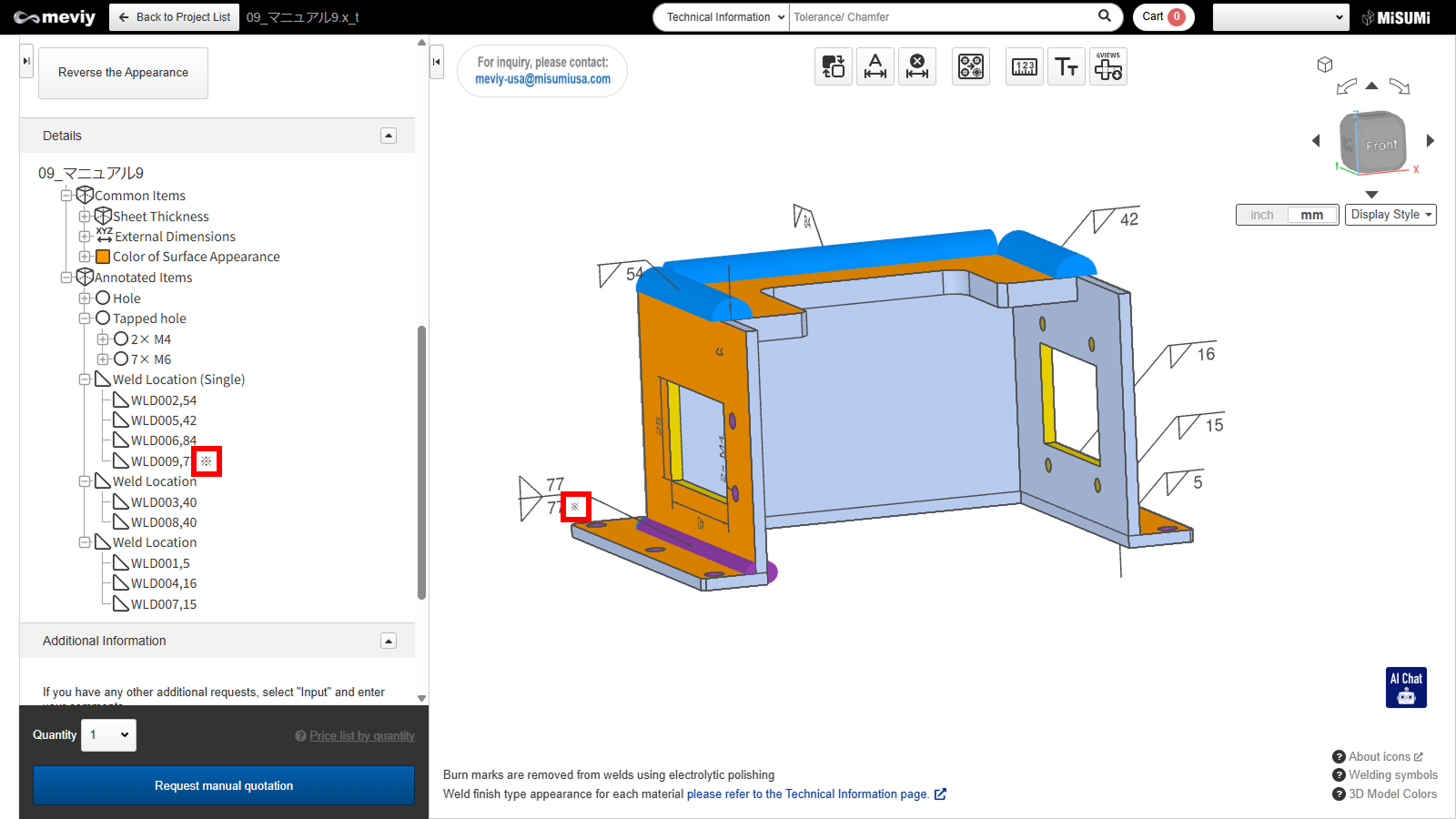
2. In the 3D Viewer window, verify that the 3D model’s color matches the set welding information.

3. In the 3D viewer window’s weld symbols and the tree view’s annotation items, a ” *” mark will appear for individually specified weld locations.

Tip

  • To review or re-edit individually modified content, double-click the weld line marked with “*” to launch the individual designation dialog box and make changes.
Recently viewed articles