- HELP
- Technical Information
- Welded Sheet Metal
- Design Guidelines
- 3D Design Guide for Welded Sheet Metal parts
3D Design Guide for Welded Sheet Metal parts
This guide explains how to create and save 3D models for Welded Sheet Metal parts that can be uploaded and quoted on meviy.
The guide follows the flow: “Model Creation → Data Saving → meviy Part Number Issuance”.
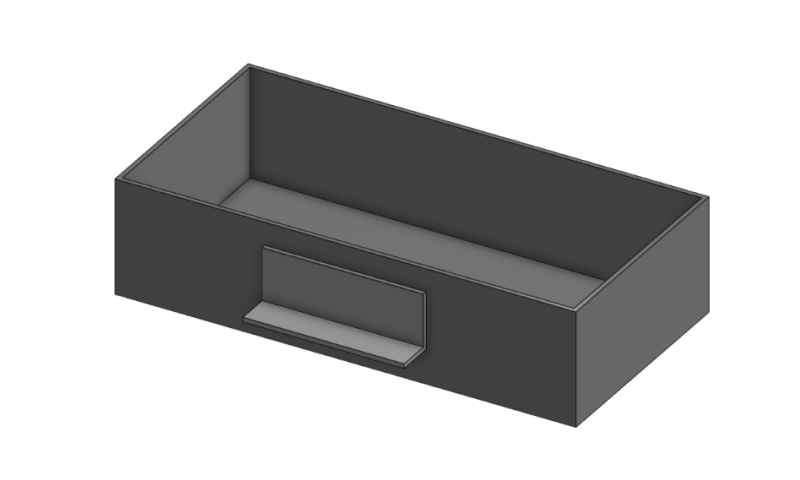
Similar base models to the examples can be downloaded as STEP files via the “here” link below.
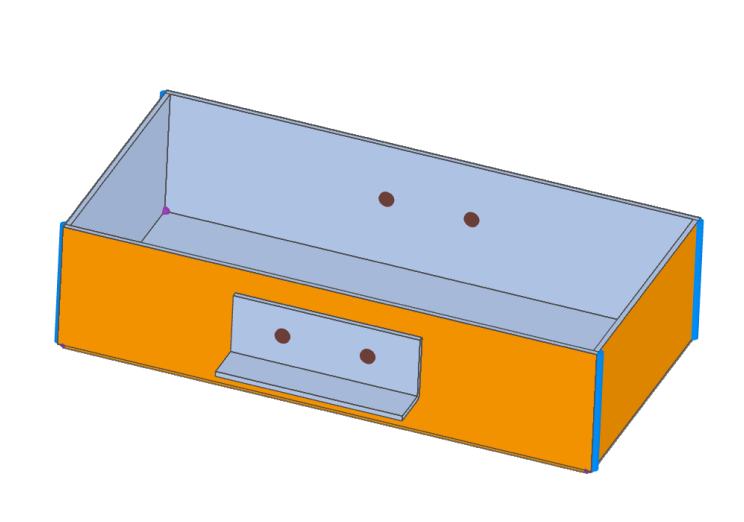
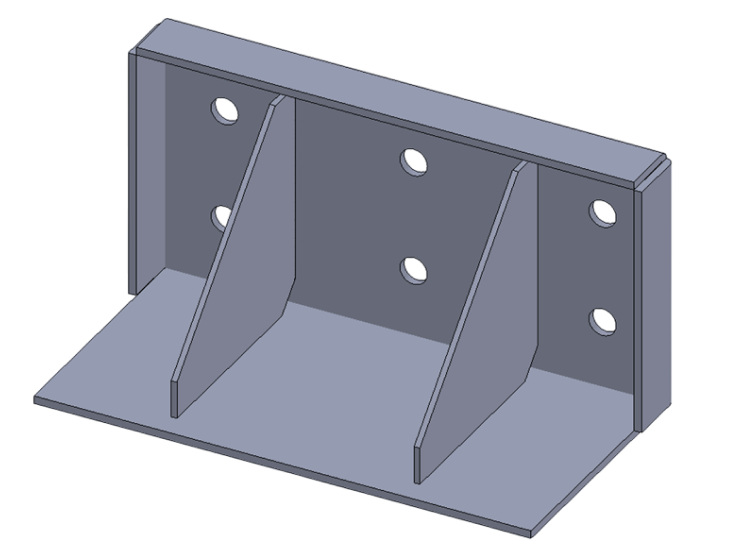
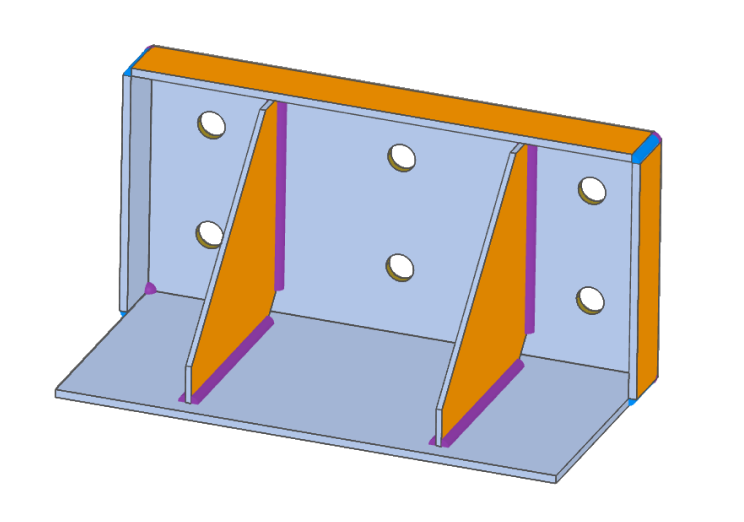
| Example 1: Rib Shape | Example 2: Box Shape |
![]() |
![]() |
| File Download » Here | |
Example 1: Bracket Rib Reinforcement (SOLIDWORKS Edition)
This section introduces rib shape design for reinforcement in various scenarios using SOLIDWORKS.
1 Key Points for Modeling
1.1 Creating the Base Flange
Use the Base Flange command in the Sheet Metal tool to create the L-shaped portion of the bracket.
Open a new project and navigate to the Design tab.
[Operation Procedure]
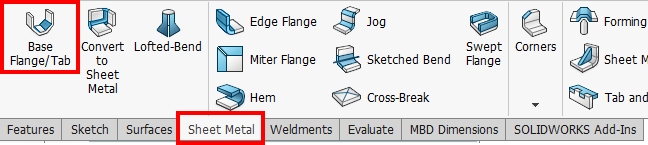
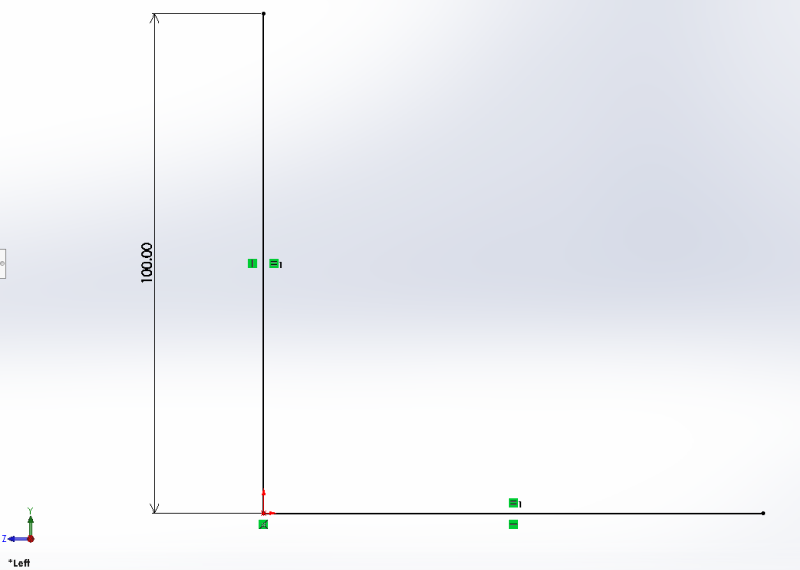
Select [Sheet Metal] – [ Base Flange] , then select the [Right Side] plane in the drawing window
Inserting Straight Lines
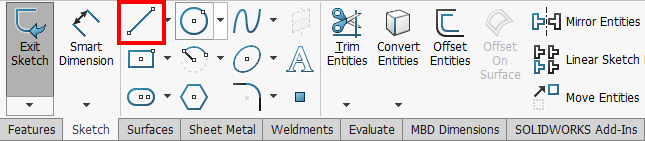
Create two straight lines (vertical and horizontal) and set the dimension to 100mm
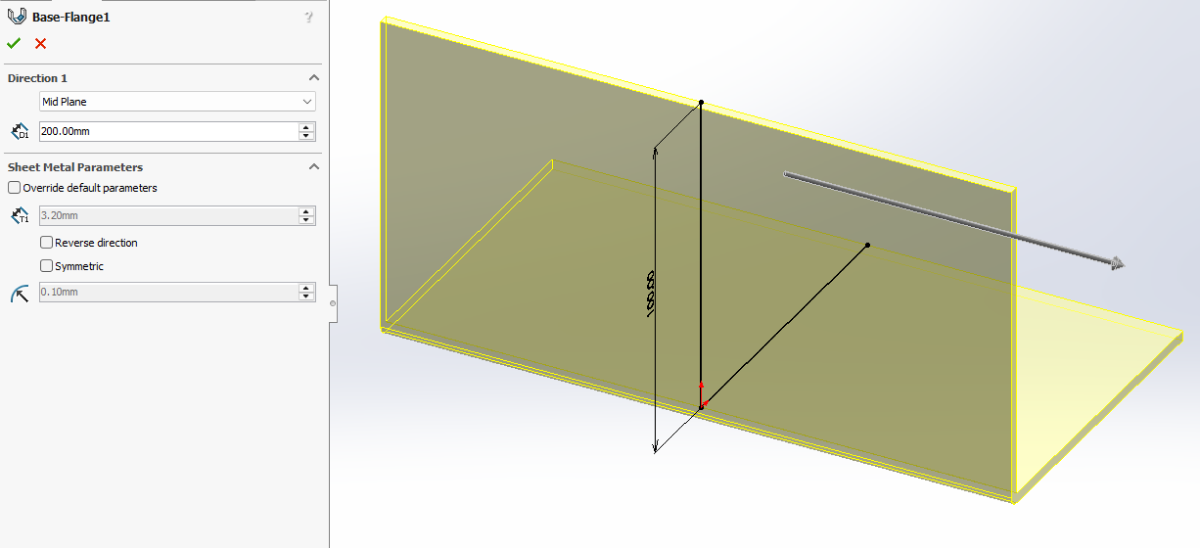
End Sketch *Automatically switches to Base Flange settings.
Select [Direction 1] – [ Extrude State ] – [ Intermediate Plane]
Set [Direction 1] – [D1: Thickness Dimension ] to 200mm
Click [OK] to finish the base flange
1.2 Create the rib part
Attach ribs to the bracket using the welding rib feature in the Sheet Metal command.
[Operation Procedure]
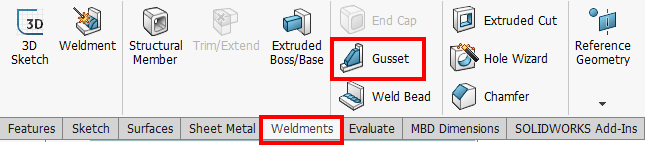
Select [Weld] – [ Weld Rib]
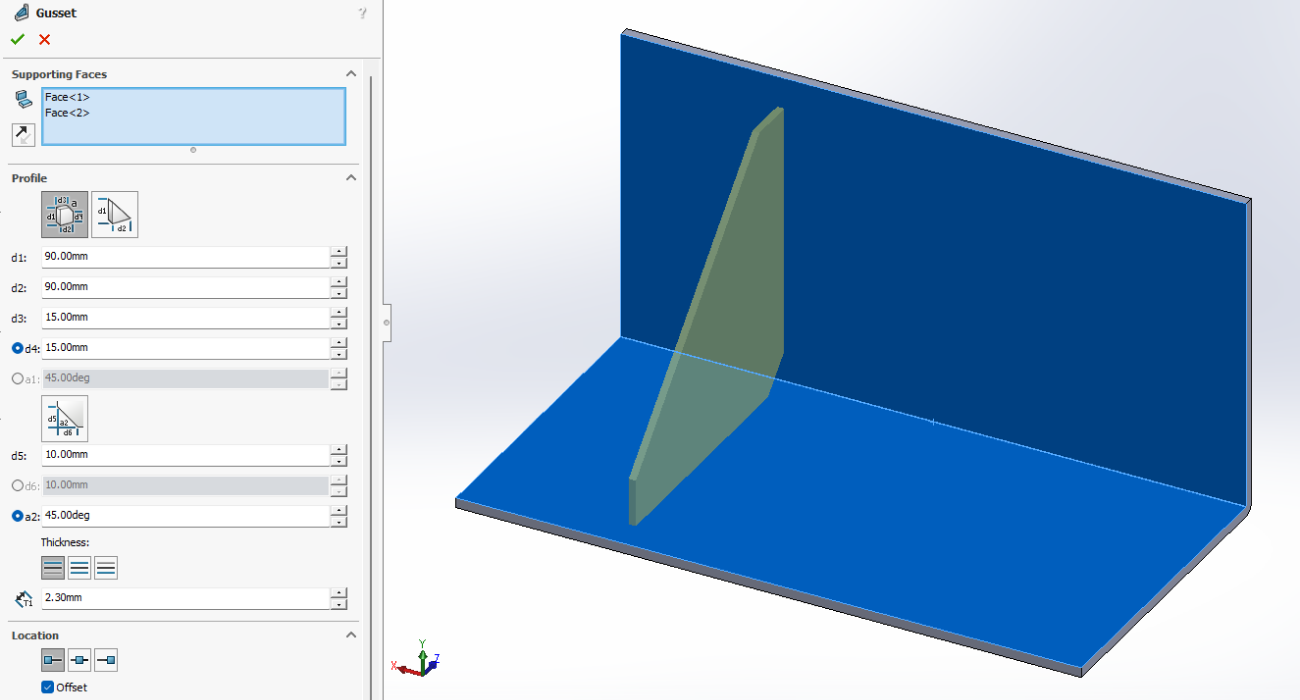
Select the inner two faces of the base flange in [Support Face]
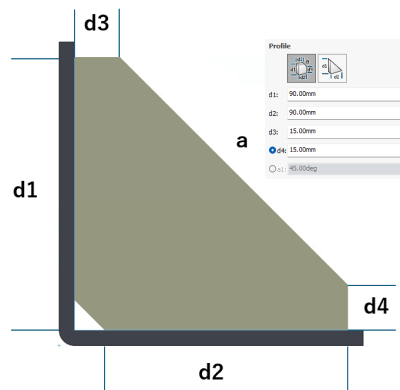
Select [Contour] – [ Polygonal Contour] and enter dimensions
– Set [d1] to 90mm, [d2] to 90mm, [d3] to 15mm, [d4] to 15mm
– [Thickness] – Select [Both Sides], set [T1: Plate Thickness Dimension ] to 2.3mm [Position] – Select [Profile Position @ Start Point]
Set [Offset] to 50mm
Click [OK] to finish the weld rib
Tip
- SOLIDWORKS Weld Rib Feature
- This allows you to create ribs more quickly and simply than by creating a sketch and using the Extrude Boss feature.
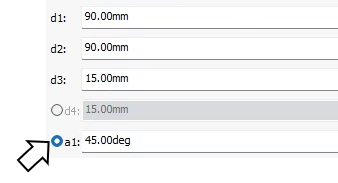
- Select the face to create and enter the outline size. d4 and a1 become editable when toggled via radio buttons.
-
The second rib can be created by repeating the welded rib or duplicating it using the Mirror command in the Features tab. (Operation omitted)
1.3 Creating Edge Flanges
Create the edge flange in two separate steps.
Splitting the process into two steps prevents corner errors.
[Operation Procedure]
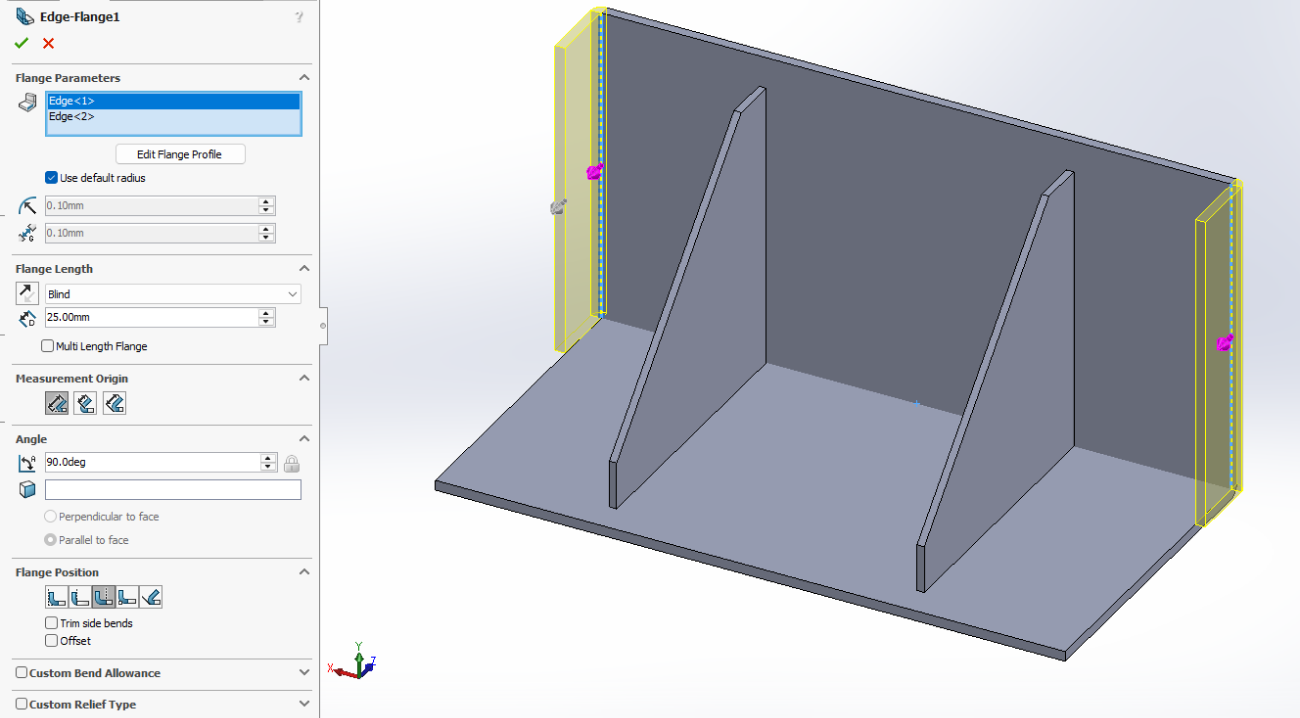
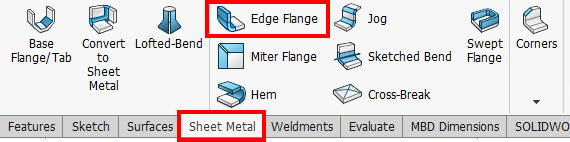
First step: Select [Sheet Metal] – [ Edge Flange ]
Select the two edges to add the flange to in [Edge]
Set [Flange Angle] to 90deg
Set [Flange Length] – [Blind] – [Length] to 25mm Select [Flange Position] – [Bend Outward]
Click [OK] to complete the edge flange
Step 2: Creating the Edge Flange
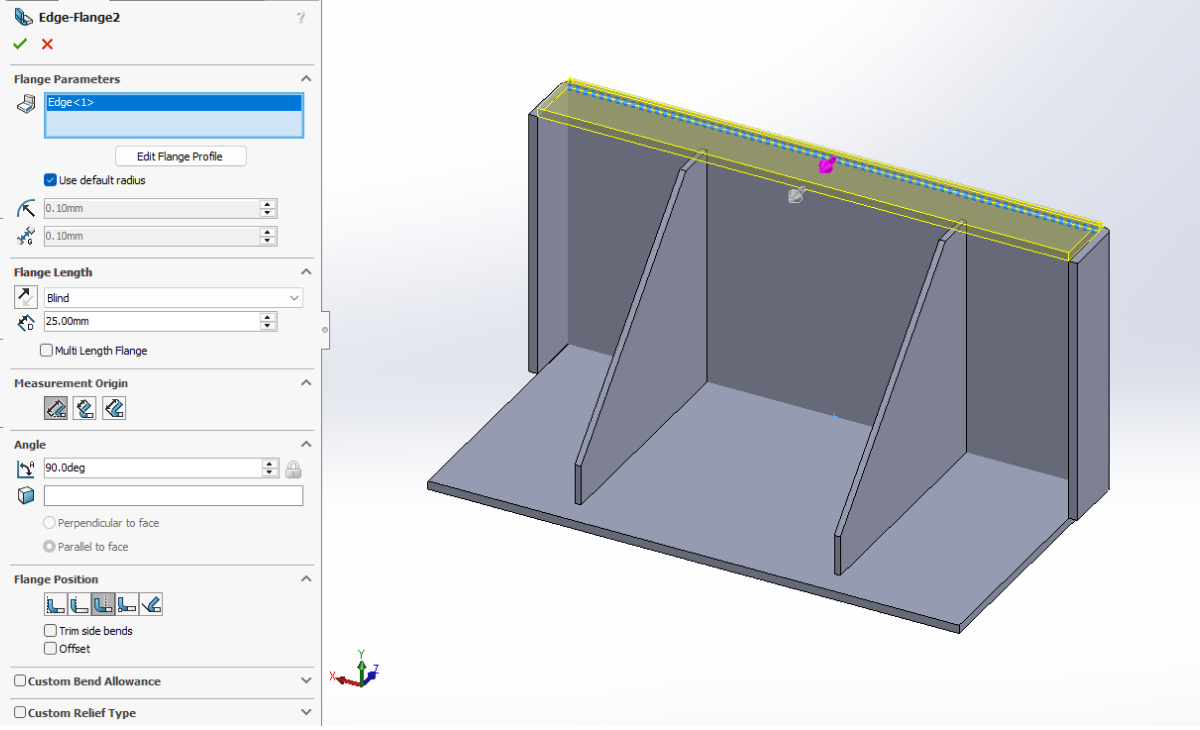
Press Enter to repeat the last command [Edge Flange] .
[Operation Procedure]
Select the remaining edge to add a flange to in [Edge]
Set [Flange Angle] to 90deg
Set [Flange Length] – [Blind] – [Length] to 25mm Select [Flange Position] – [Bend Outward]
Click [OK] to complete the edge flange
Finally, open the 6-Φ11 holes on the front face for bracket mounting using sketch and extrude to complete the design. Complete
2 Save Data
Click [Save] , enter the file name, and save as a native [.sldprt] file.
3 Get a quote on meviy
3.1 Upload to meviy
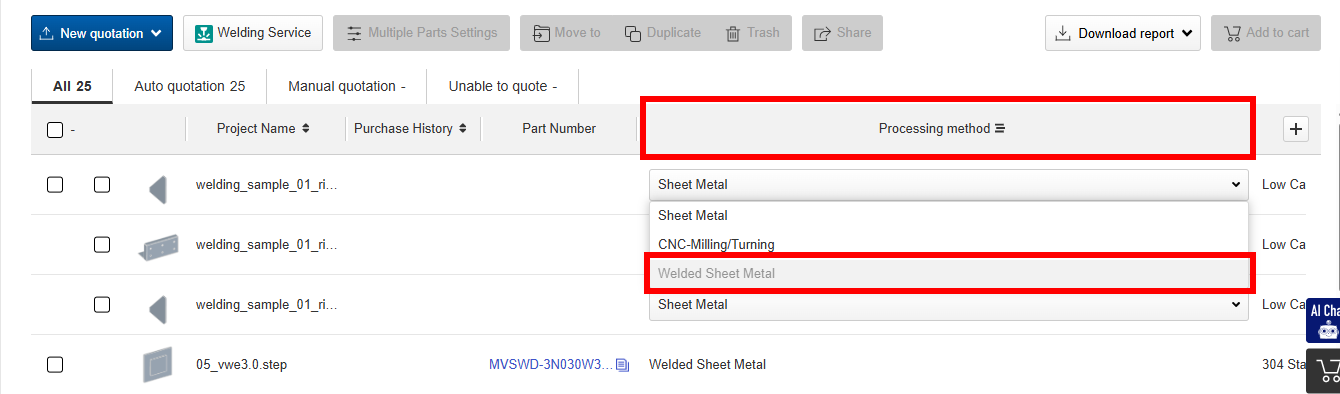
Open the meviy project list, upload the saved 3D data, then select [Welded Sheet Metal] in the processing method field.
(For multiple solids, clicking any one part will generate a Welded Sheet Metal project based on the part configuration at the time of upload.)
3.2 Configure the estimate in the 3D viewer
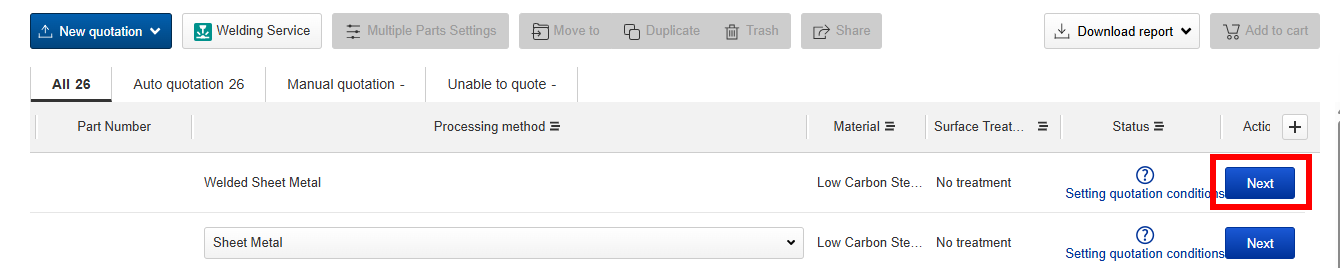
Click [Next] to proceed to the 3D Viewer and continue with the estimation settings.
[Operation Method]
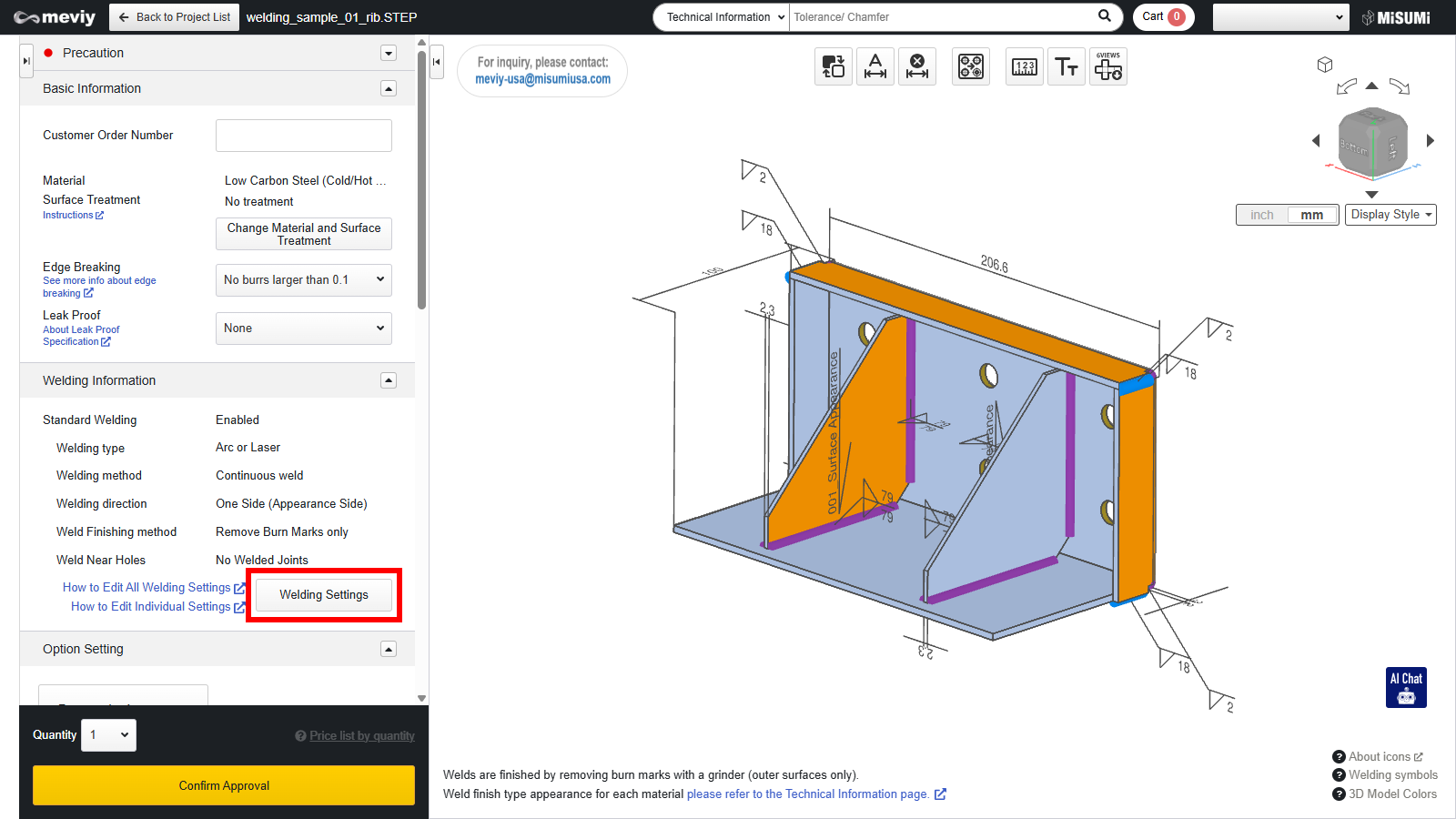
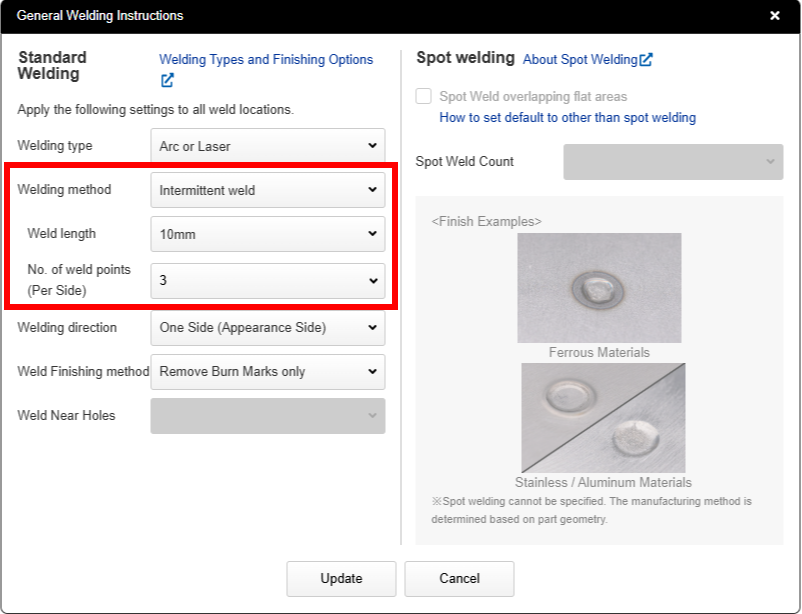
Press [Edit Welding Information] in the welding information field and specify the welding conditions.
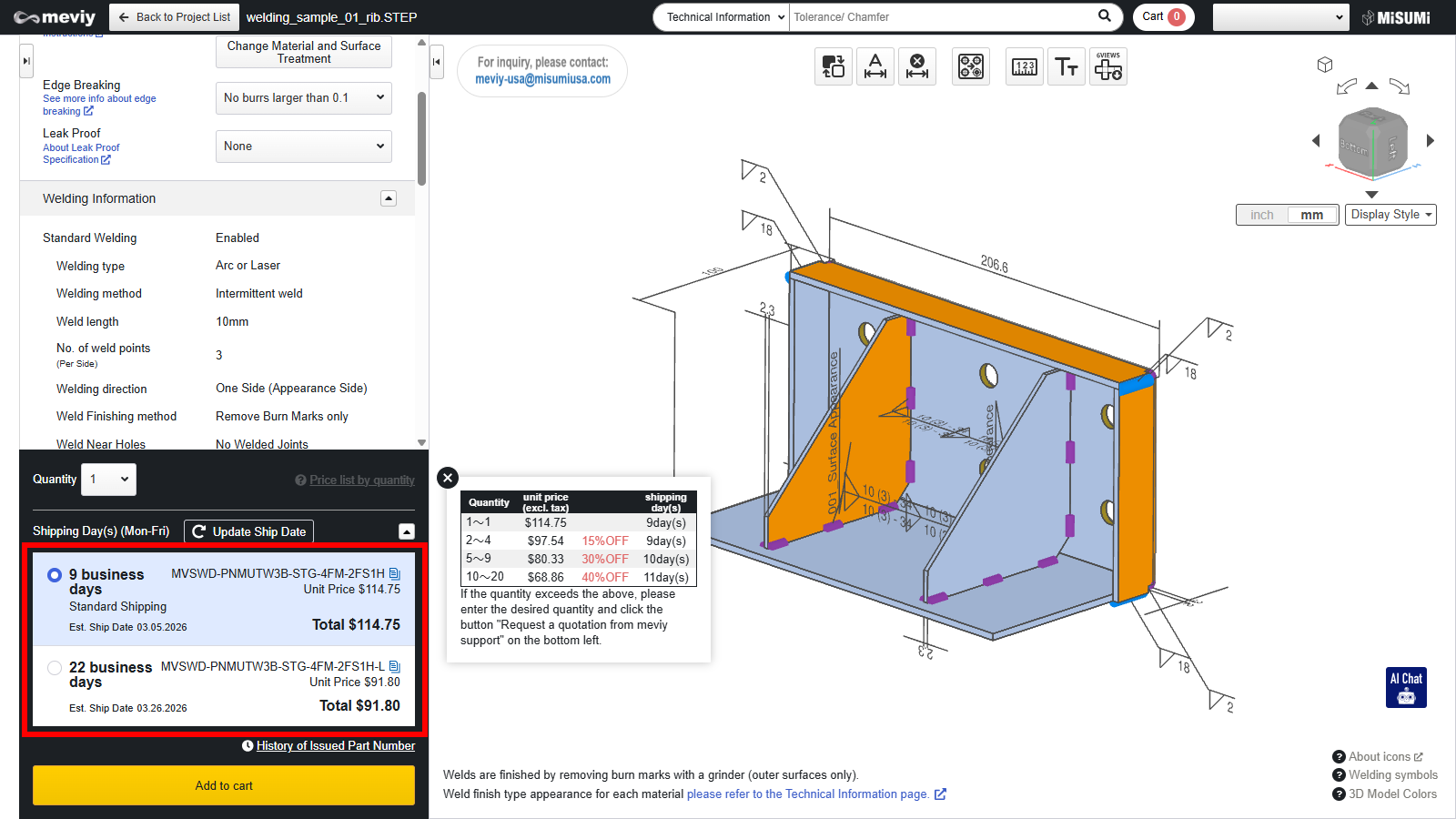
To change the welding method, set it f r o m [Continuous Welding] to [Intermittent Welding] ( weld length 10mm, 3 points per side), then press the Update button.
3.3 Completing the Estimate
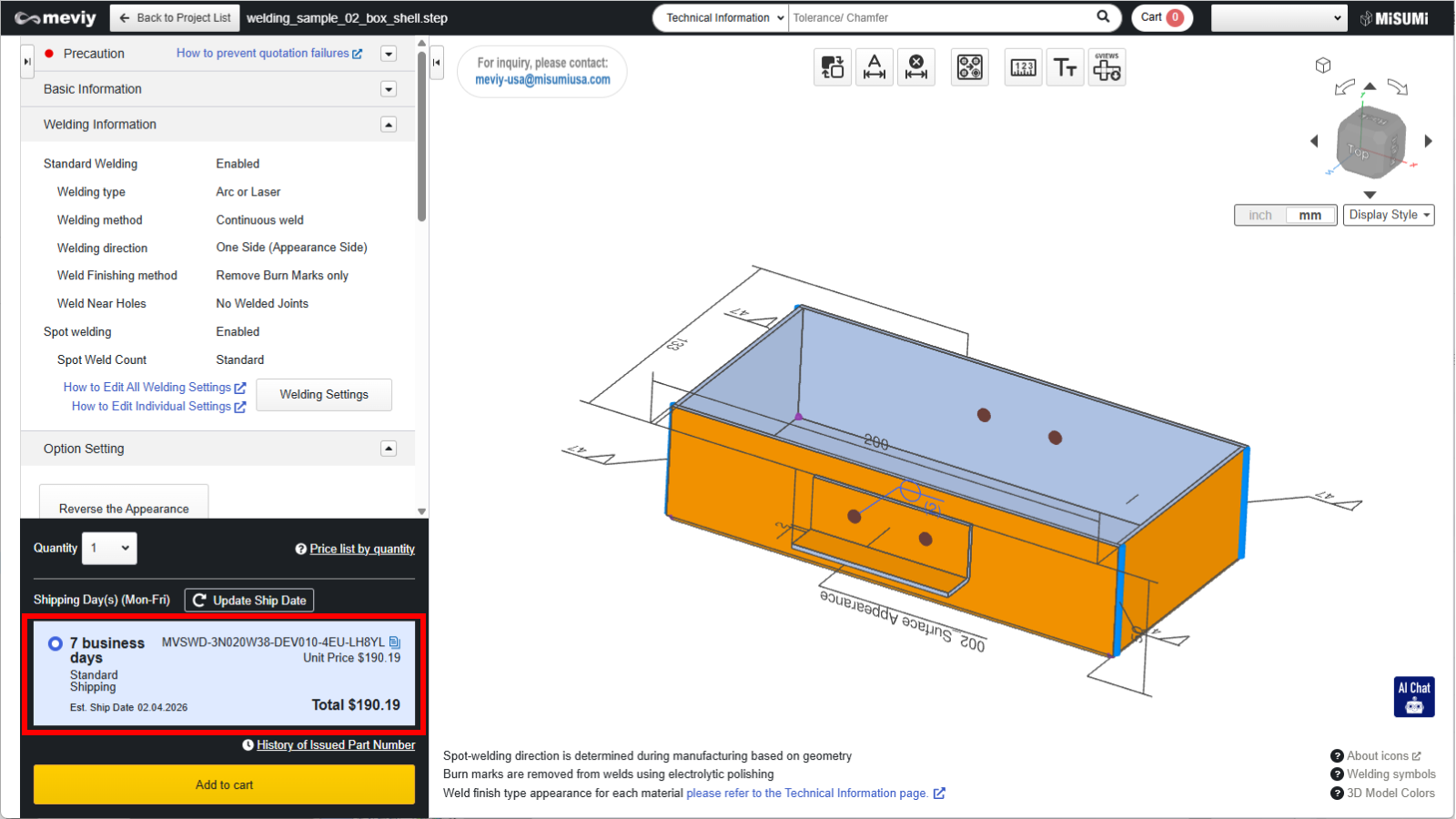
After editing the welding information, confirm the 3D viewer has updated and press the “Confirm Quotation Conditions” button.
Once the plate welding model number starting with [MVSWD] is issued, the estimate is complete.
Example 2: Wing-Attached Box Shape (iCAD Edition)
This section introduces a design example of a box shape, commonly used in welded products, using iCAD.
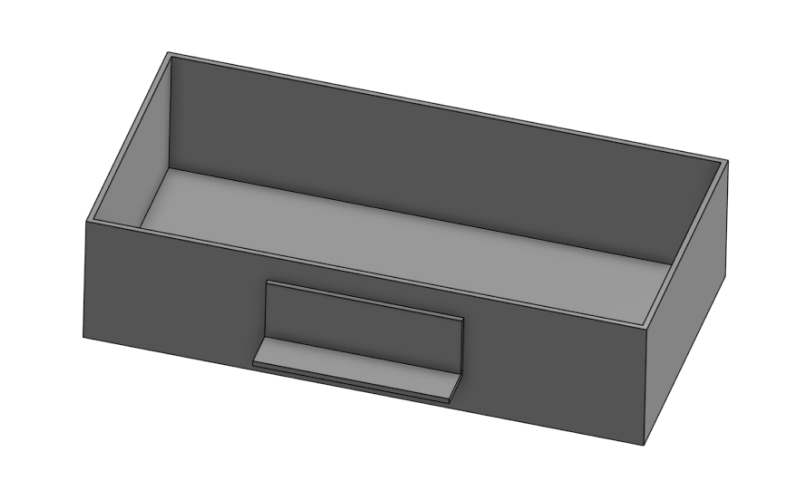
Model: Box
Spot weld the bent sections to the storage box.
1 Modeling Points
1.1 Creating the Box Model
Create the box shape using a shell.
For a typical box shape with uniform plate thickness, the model created as a shell will automatically be remodeled into a plate shape with plate welding.
[Operation Procedure]
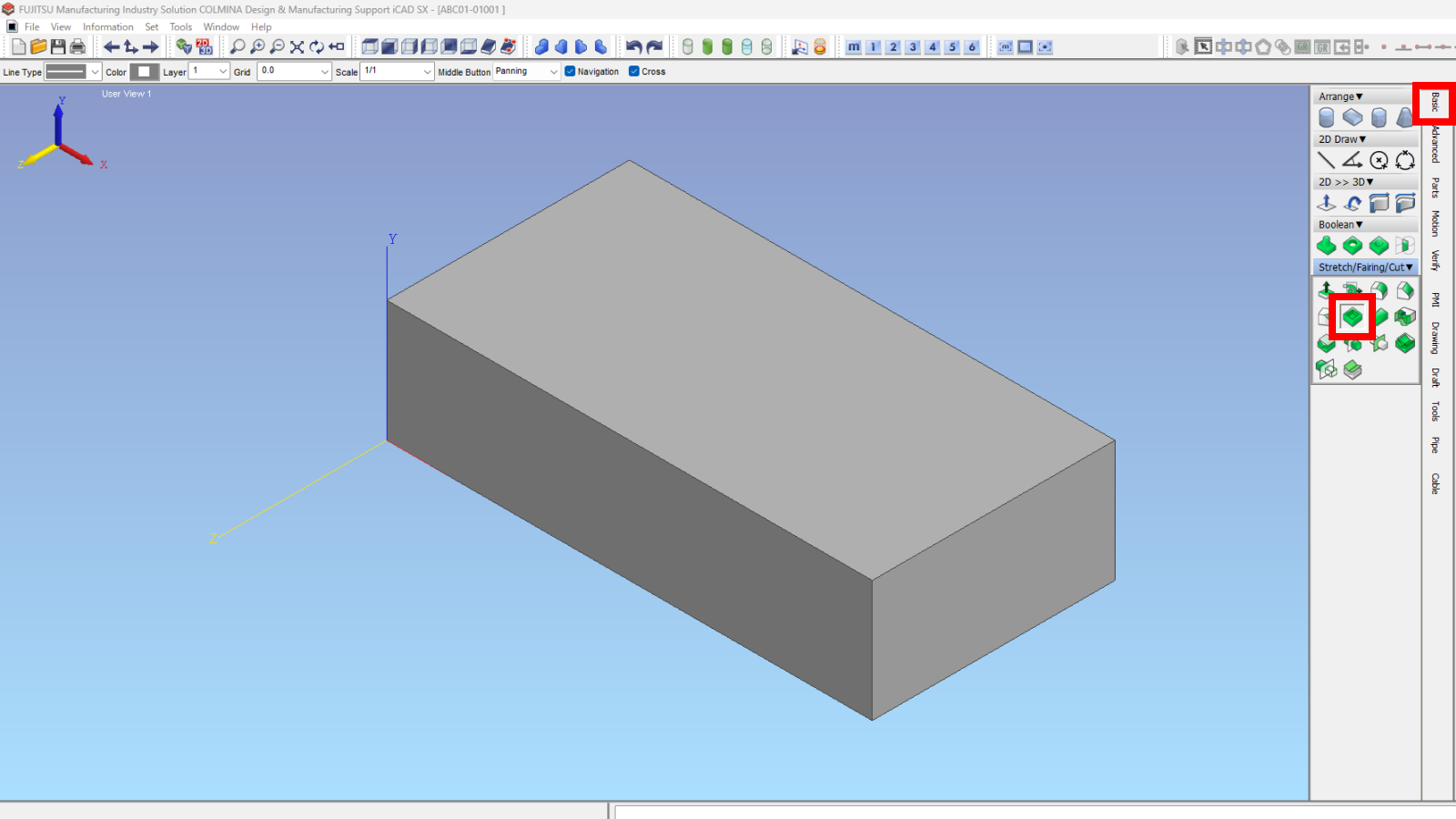
Select the [Basic tab] – [ Shape Placement] – [ Place Rectangular Body] command
Specify [Depth] 100.0, [ Width] 200.0, [ Height] 50.0 and place
1.2 Shelling the Box
Hollow out the interior of the solid to achieve uniform plate thickness.
[Operation Procedure]
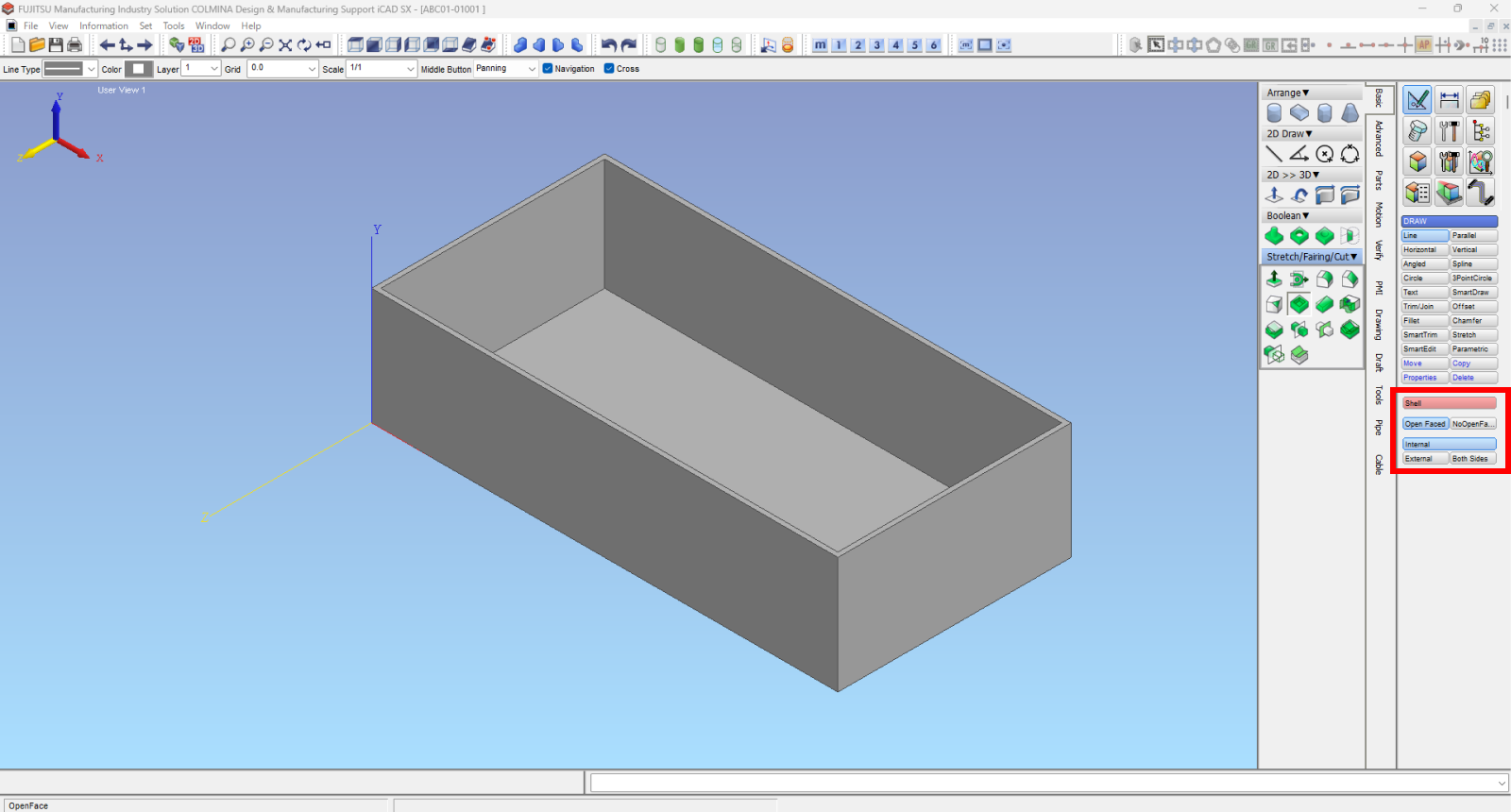
From the [Basic ] tab, select the [ Shell] command, then choose [With Open Faces] – [ Inner ].
Select the TOP face as the [Open Face]
Set [Common Thickness] to 2mm
No need to set [Specific Thickness ] (Leave as 0.0mm since the model’s thickness itself remains unchanged)
1.3 Creating the Handle Model
Create the handle model using the Shell tool.
[Operation Procedure]
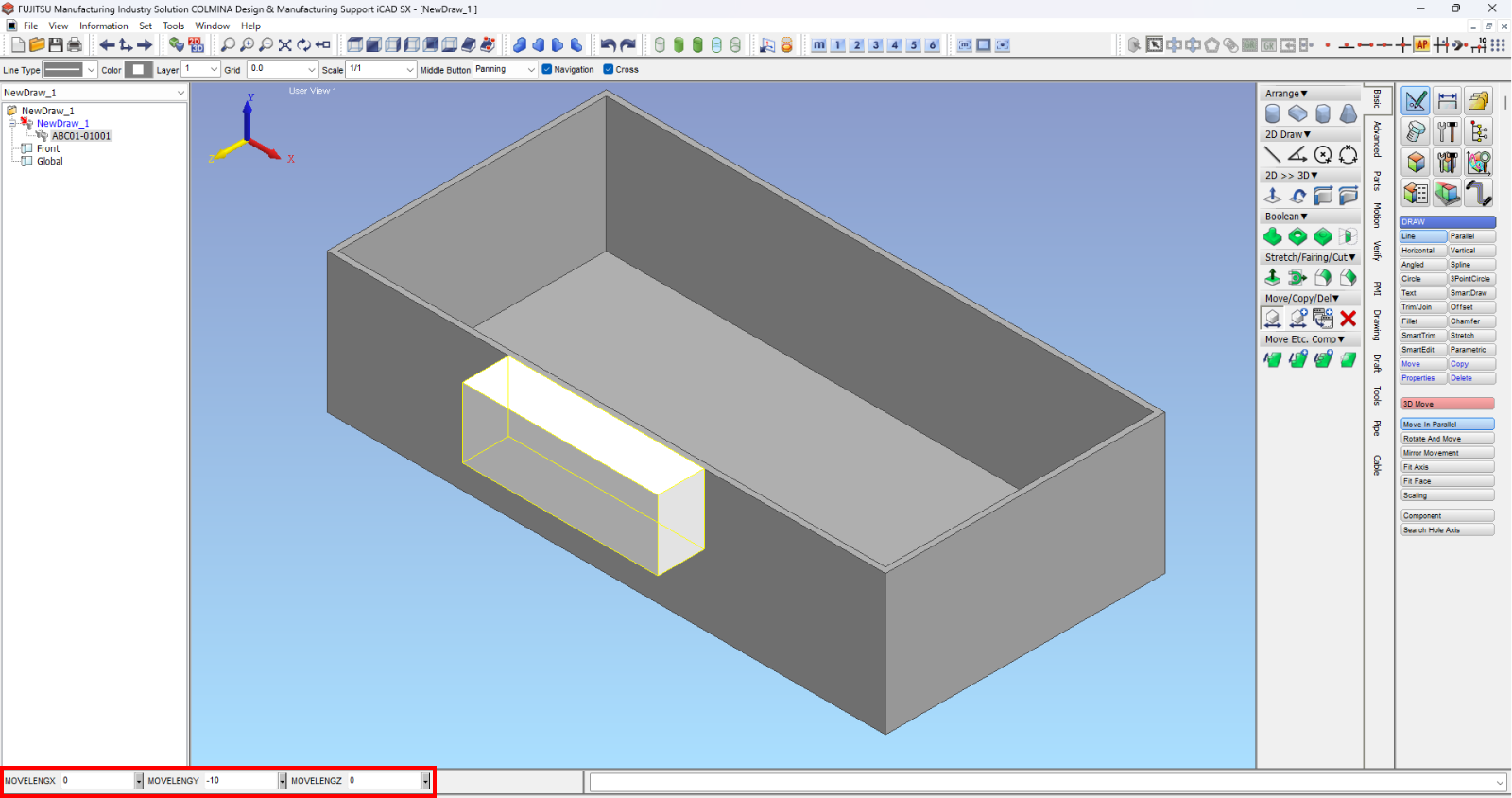
[Basic Tab] – [ Shape Elements] – [ Solid] command
Specify [Depth] 16.5 – [Width] 70.0 – [Height] 25.0 and position it
Move the reference model to the specified coordinates
1.4 Shelling the Hand Model
Shape the created shell into the handle form.
[Operation Procedure]
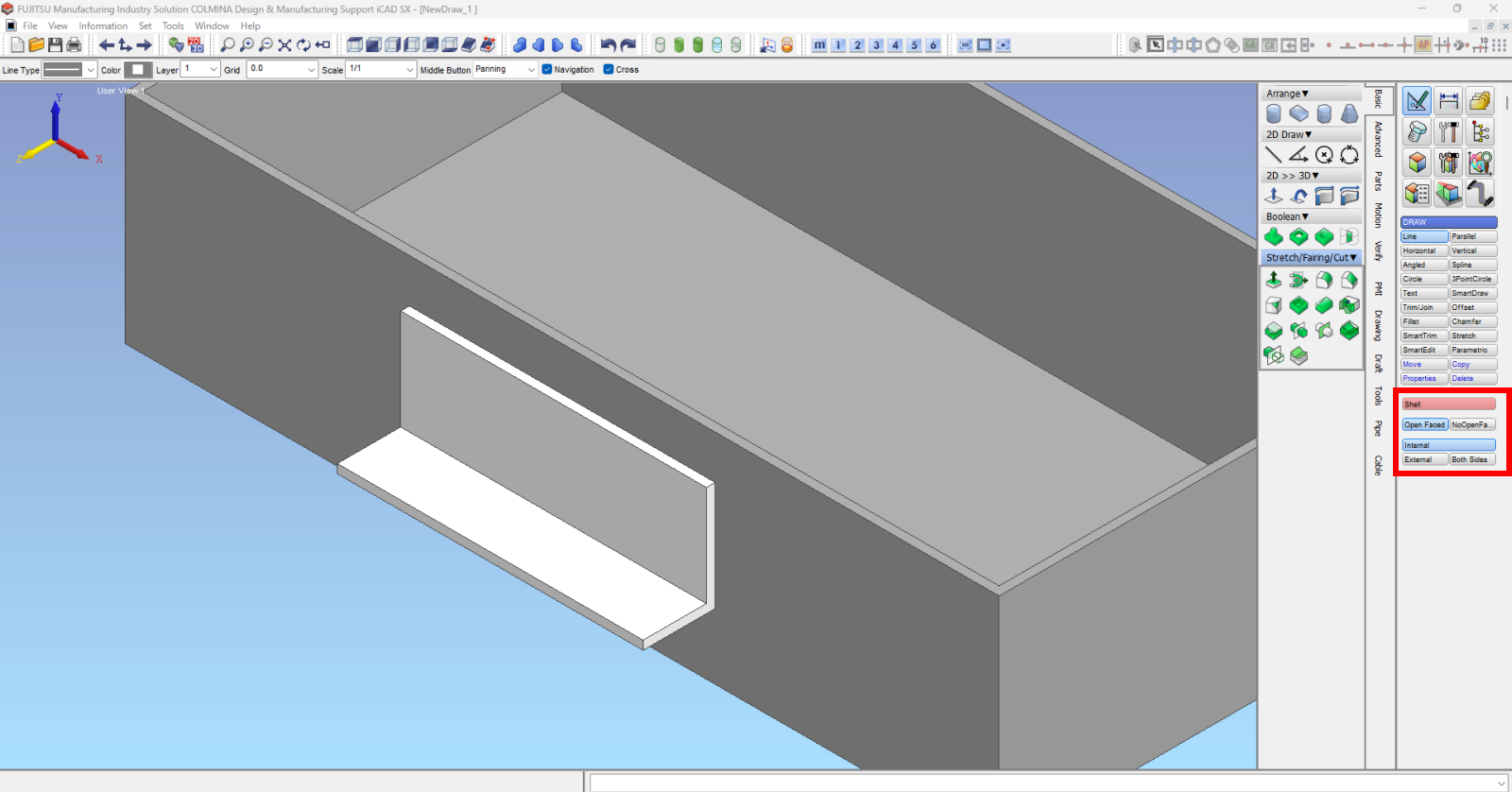
From the [Basic] tab – [ Shell] command, select [With Open Faces] – [ Inner]
Select the top, front, right side, and left side faces of the handle model as the [Open Faces]
Set [Common Thickness] to 2.0mm (same as 1.2mm for non-open faces)
Create bend radius (outer radius)
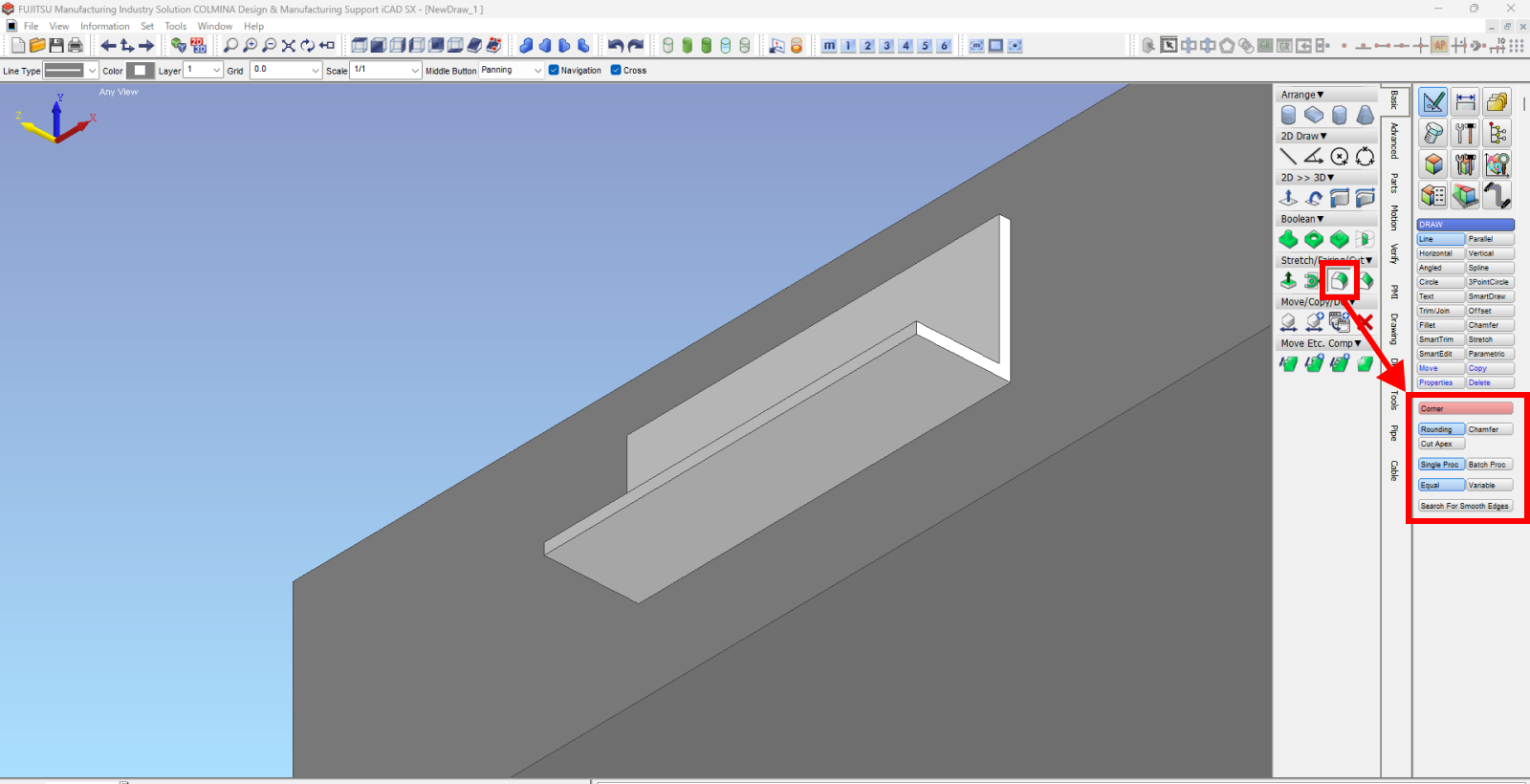
From the [Basic Tab] – [Stretch/Shape/Cut] – [Create Equal Fillet] command, select [Corner Edit] – [Fillet] – [Single Operation] – [Equal]
Set [Radius 2.0] (= equal to or greater than plate thickness)
(*See meviy’s bending modeling rules here)
The second handle can be created by repeating the same steps on the opposite side or by duplicating it using the command [Basic Tab] – [Move/Copy/Delete] – [Mirror Copy] . (Operation omitted)
1.5 Verify the solid configuration information of the model
Areas where faces overlap must be separated into distinct solids. Verify this before saving the file.
[Operation Procedure]
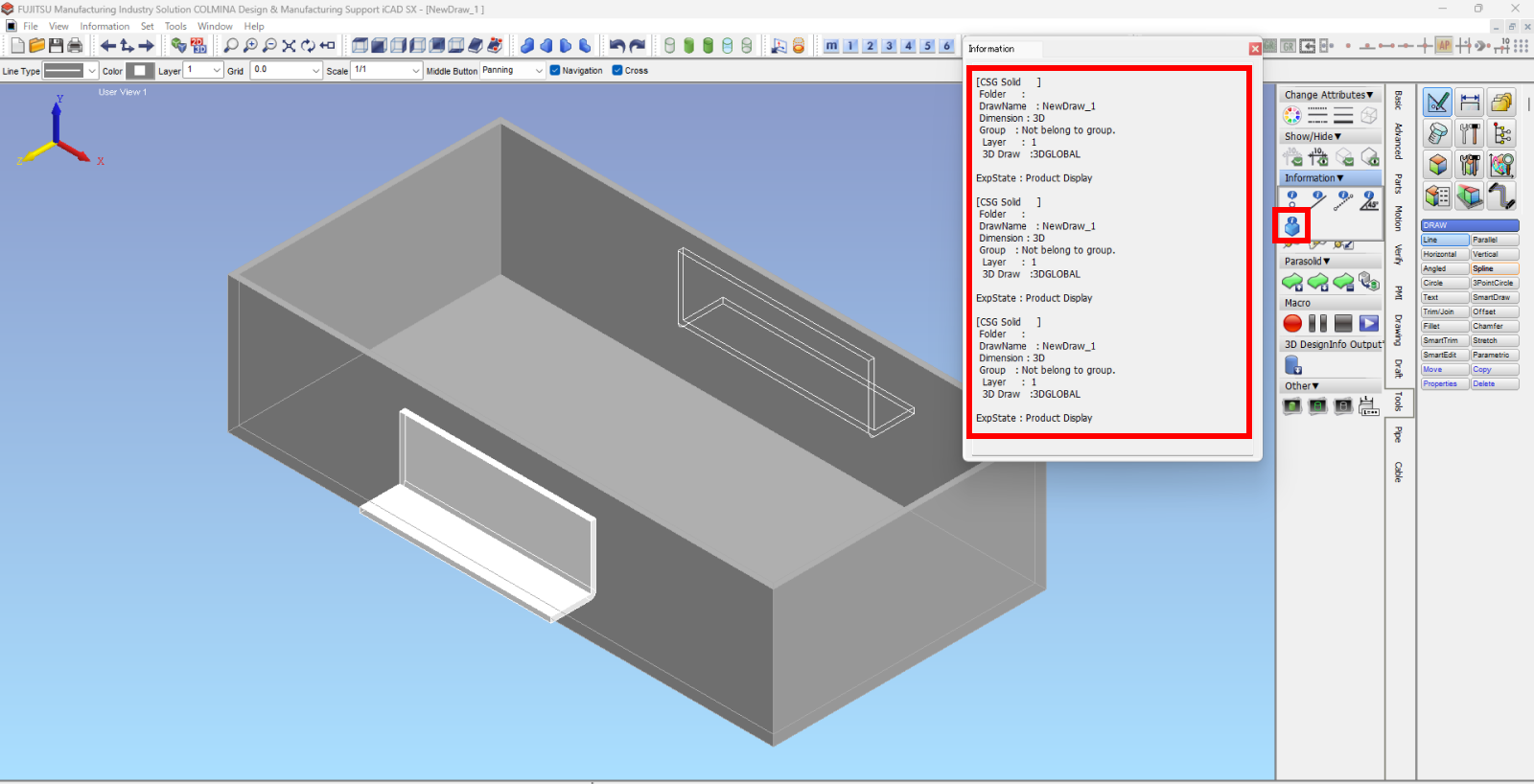
Select the command [Tools] tab – [Measure] – [Display Element Information]
Selecting the entire data displays an information pop-up
*Welded parts with different plate thicknesses or overlapping identical faces cannot be estimated as a single solid (integrated model).
When saving the file, please confirm that multiple solids exist.
2 Data Saving
Save as Weldment Assignment a name to the product before exporting it to a file.
[Operation Procedure]
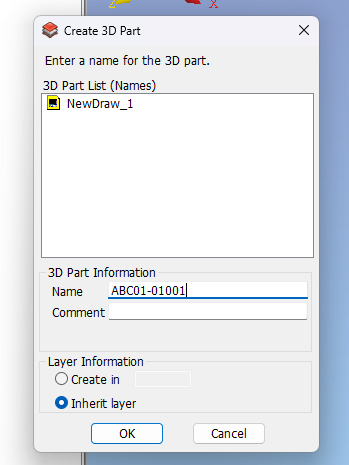
Select the [Create Part] command under the [Parts] tab.
Select the target welded part data, enter the [Part Name] “ABC123-01001” i n [Part Information] , then click OK
Return to the device view.
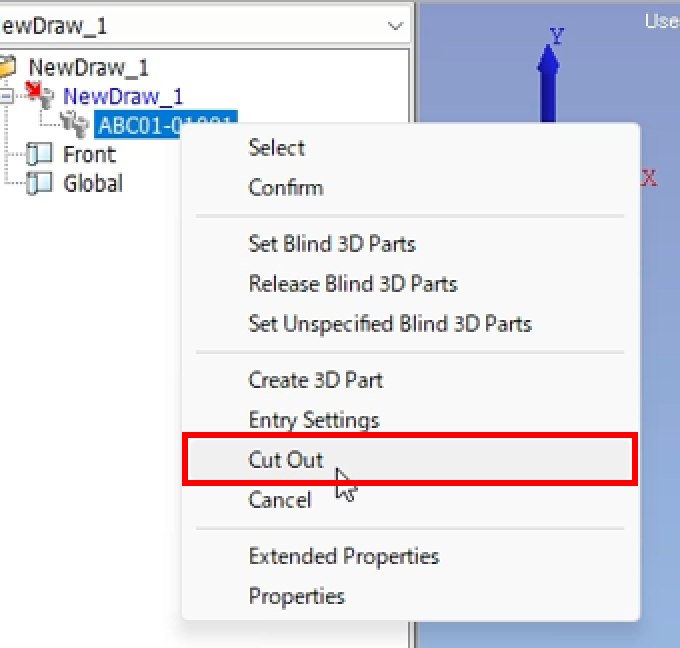
Confirm that the data saved as the part name is displayed in the tree information as part of the device.
To recognize it as an external part, right-click the part reflected in the tree and select [Cut Out].
Specify the [Creation Drawing Name] and [Destination Folder] to save and complete.
3 Issue the estimate/mold in meviy
3.1 Upload to meviy
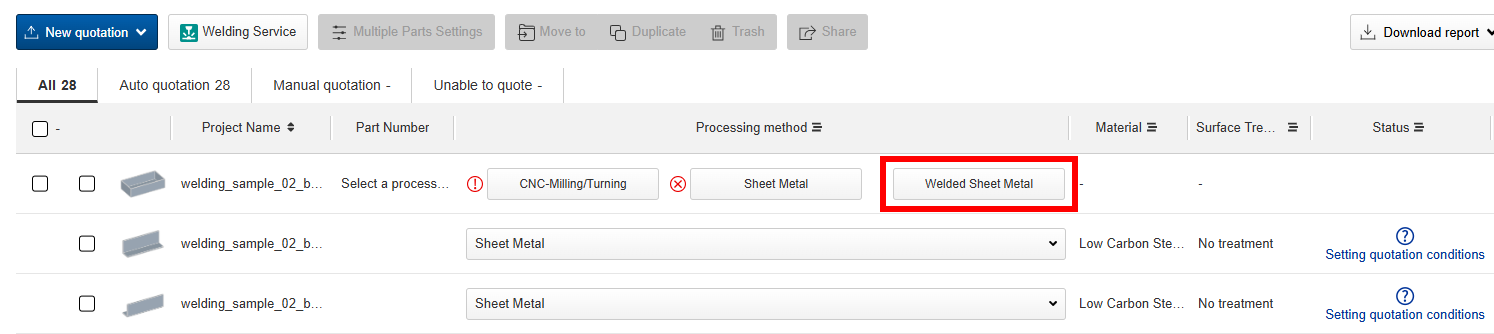
Open the meviy project list, upload the saved 3D data (.icd native file), then select [Welded Sheet Metal] in the processing method field.
(For multiple solids, clicking any one part will generate a Welded Sheet Metal project based on the part configuration at upload.)
3.2 Set the estimate in the 3D Viewer
Click [Next] to proceed to the 3D Viewer and advance the estimation settings.
[Operation Method]
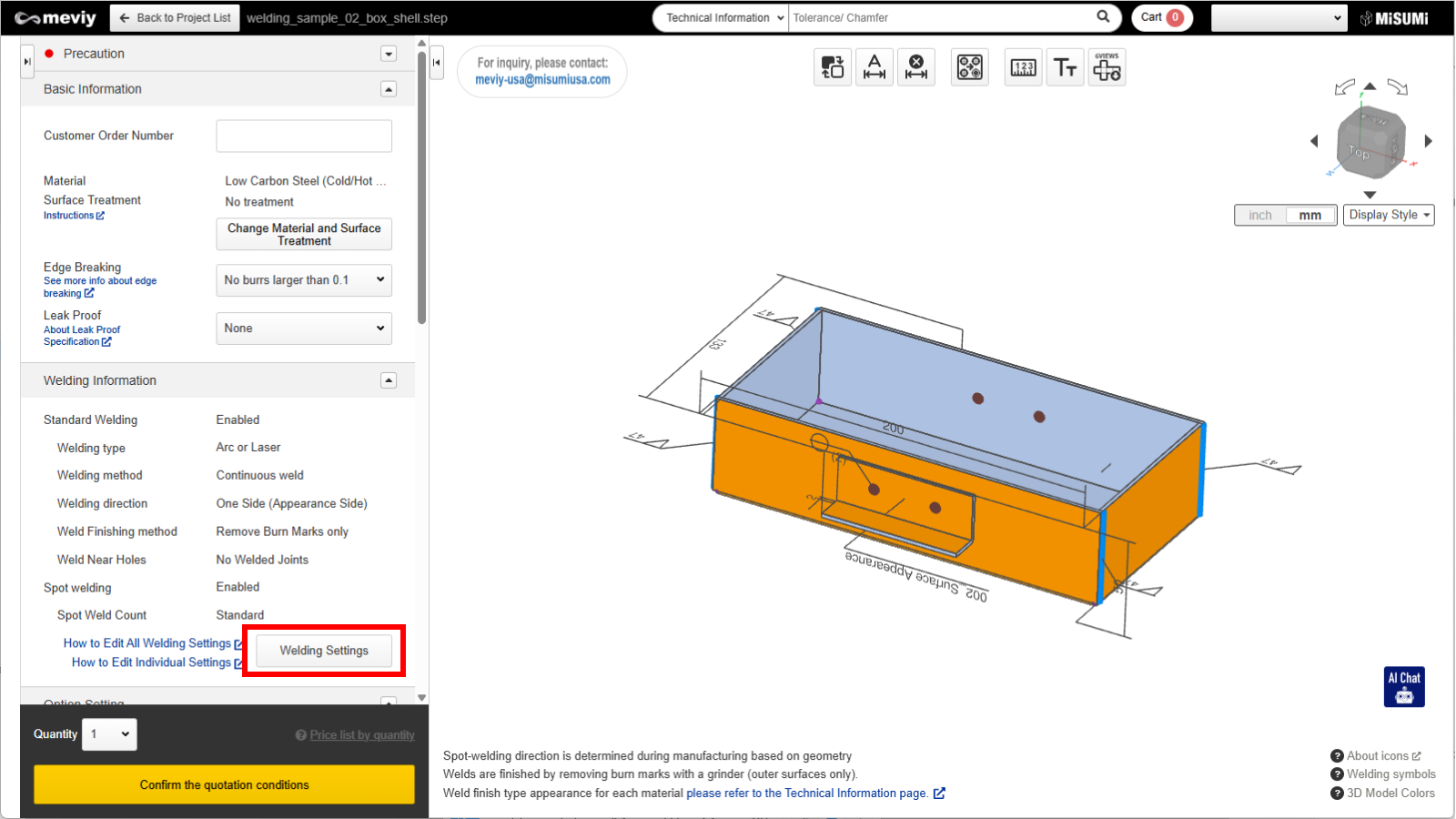
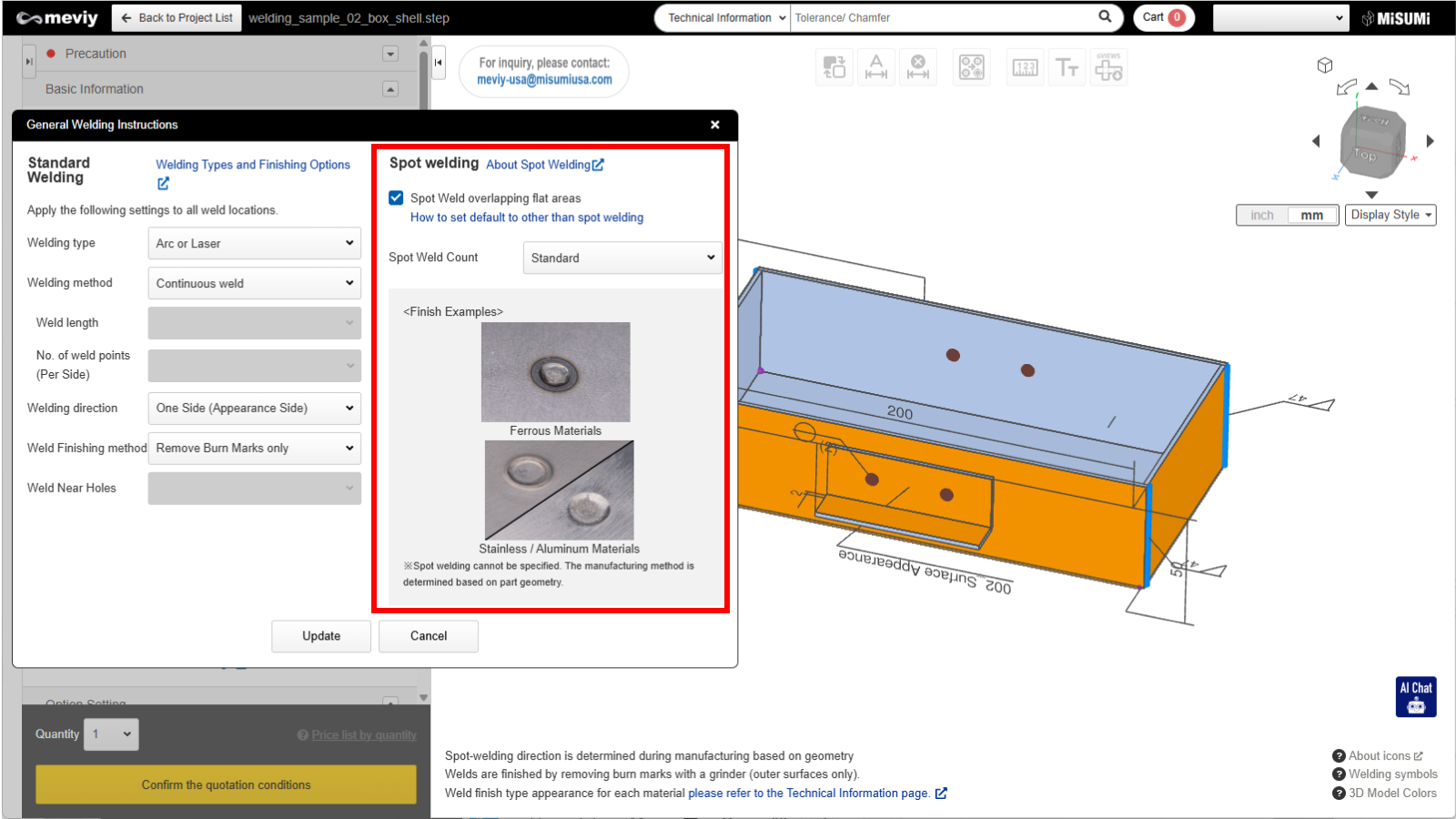
Press [Edit Welding Information] in the Welding Information field and specify the welding conditions.
Use spot welding for areas where plate flat surfaces overlap.
3.3 Estimation Complete
After editing the welding information, press the [Confirm Quotation Conditions] button.
Once the plate welding model number starting with [MVSWD] is issued, the estimation is complete.
Example 3: Modeling Without Sheet Metal Commands (CAD Common Edition)
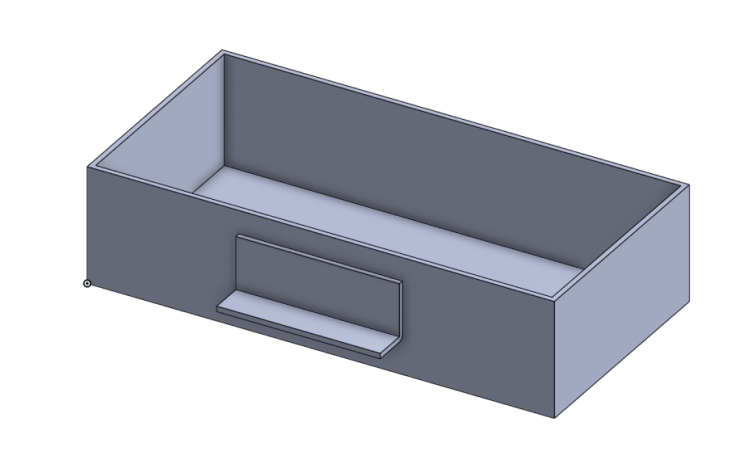
Using a box with flanges similar to Example 2 as an example, we introduce a design method using only sketches and extrusions without the sheet metal command.
Open a new design sheet to begin designing.
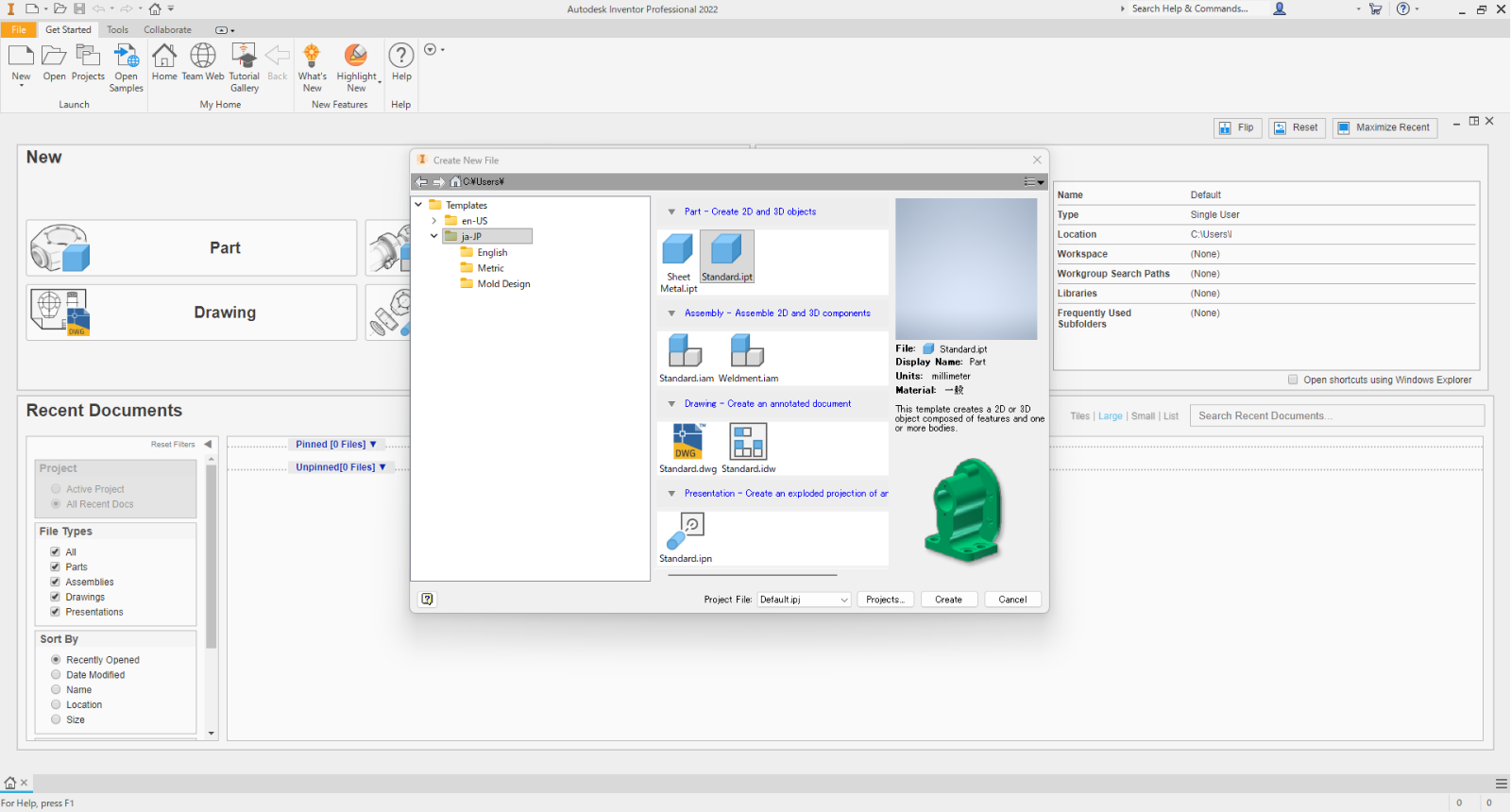
*This chapter uses Autodesk Inventor.
Please proceed with the following operations according to your CAD software.
Inventor example: Click [Startup] – [Create New File] – [standard.ipt]
1 Modeling Points
1.1 Creating a Box Model
After creating a straight body in the sketch, convert it to a shell box shape.
For a typical box shape with uniform wall thickness, even a model created as a shell can be remodeled into a sheet metal shape using the Welded Sheet Metal feature.
[Operation Method]
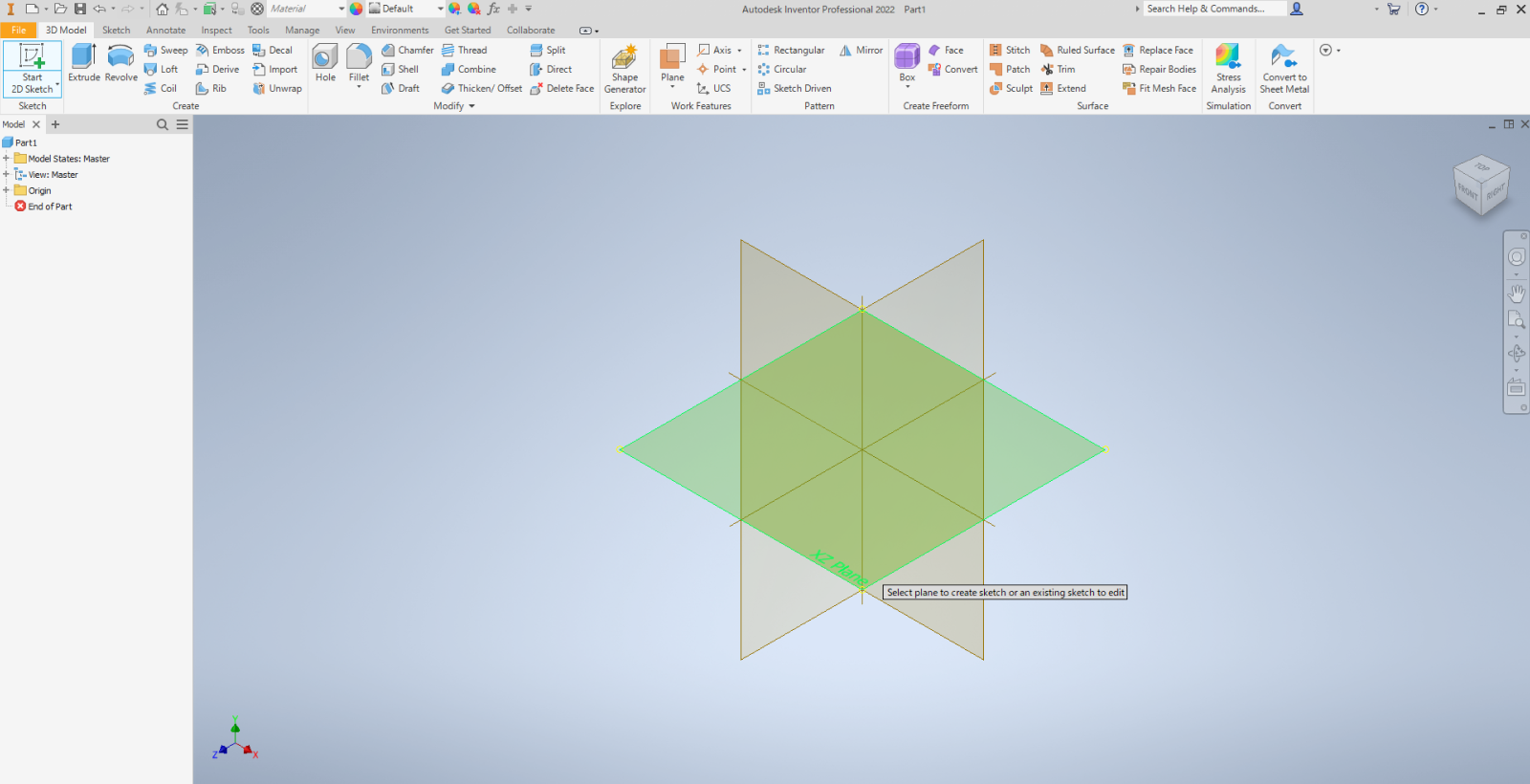
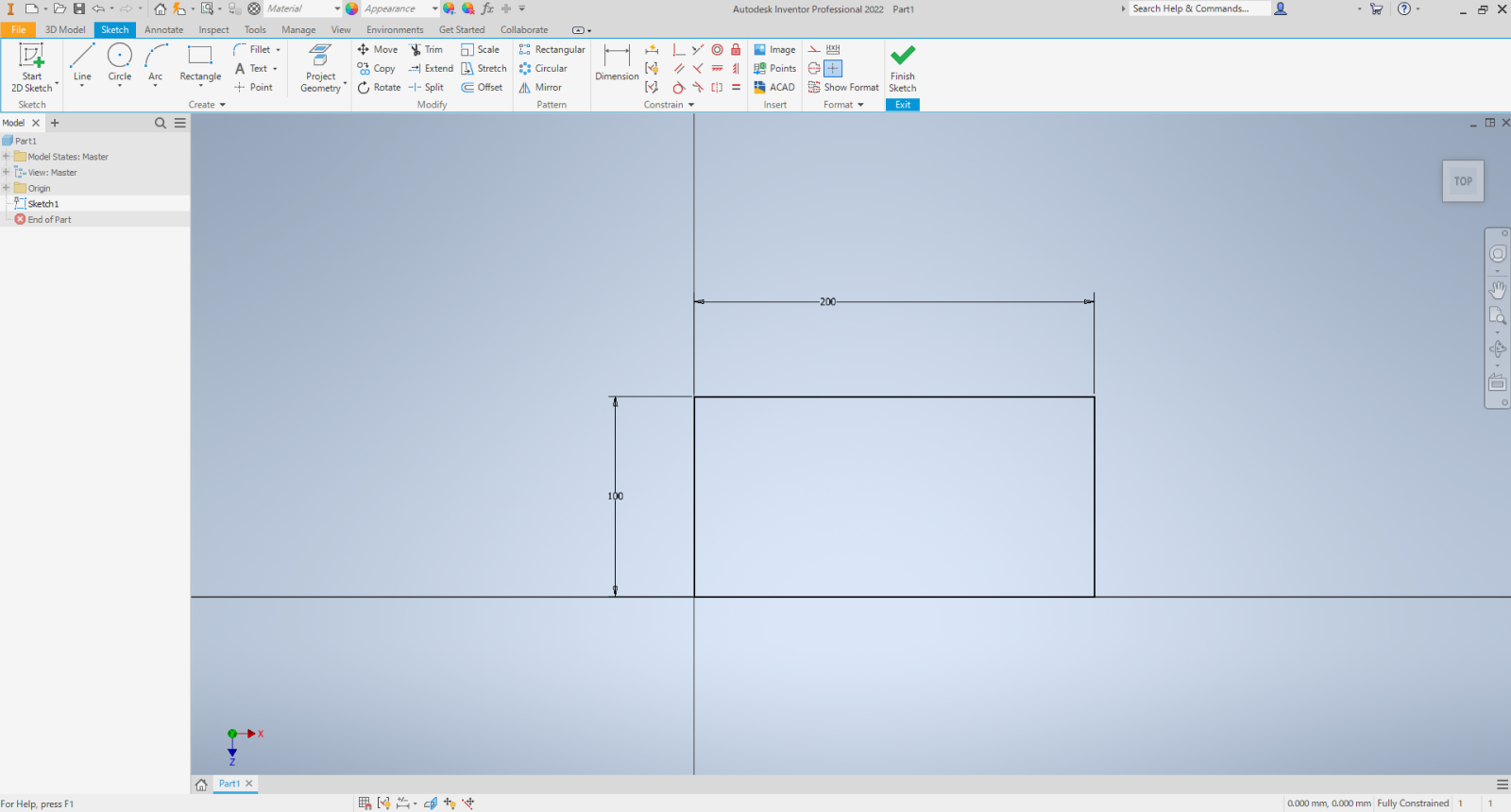
Click [3D Model] – [Start 2D Sketch] and select the base plane.
[Sketch] – Select [Rectangular] , fix the origin, and sketch
[Dimensions] X200mm Y100mm
End Sketch
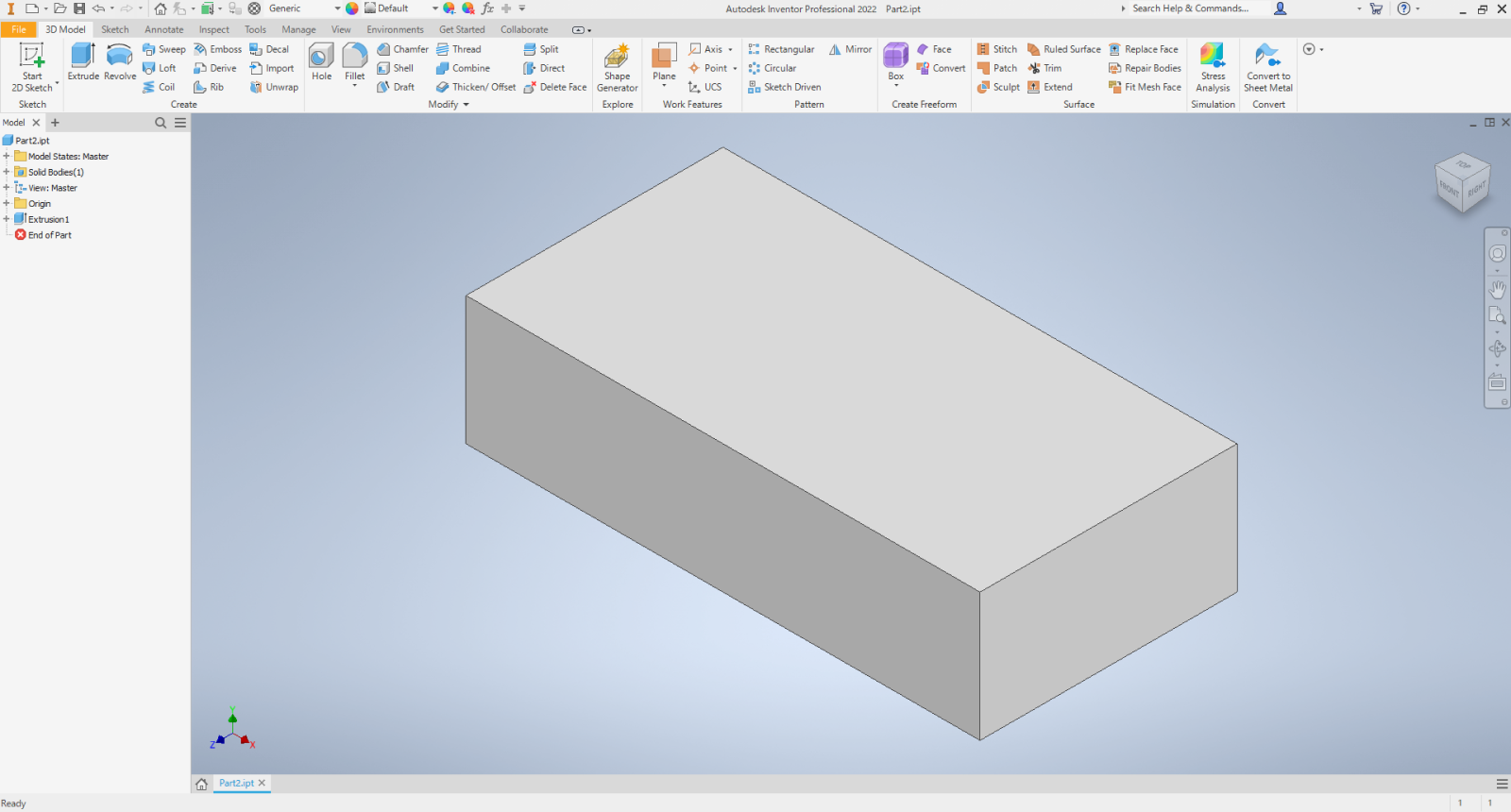
[Extrude] Set to 500mm
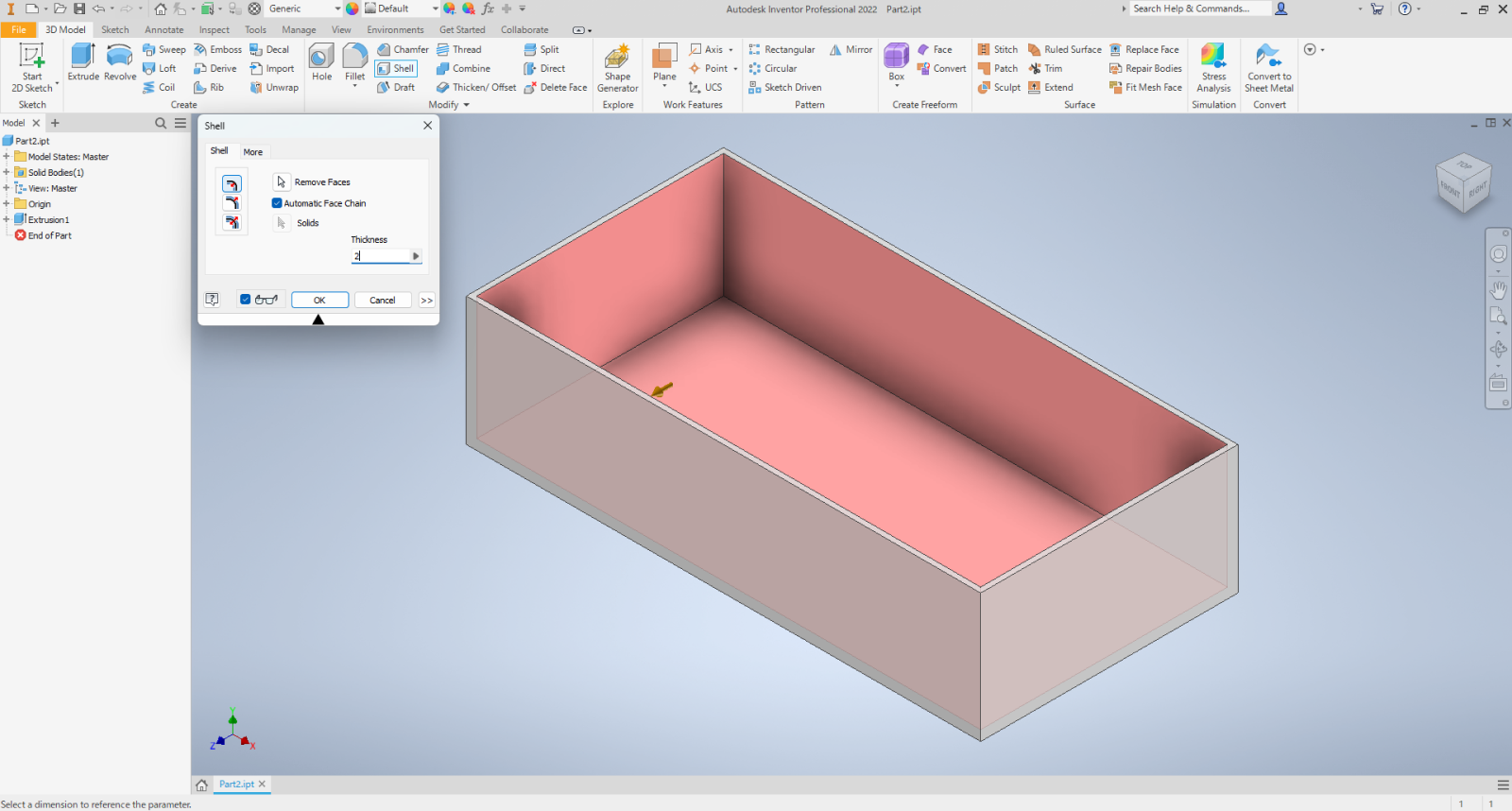
[Shell] – [Surfaces to Remove] – Select the model’s TOP surface
Set [Thickness] to 2mm
1.2 Create handle parts
Add handle parts to both sides of the box.
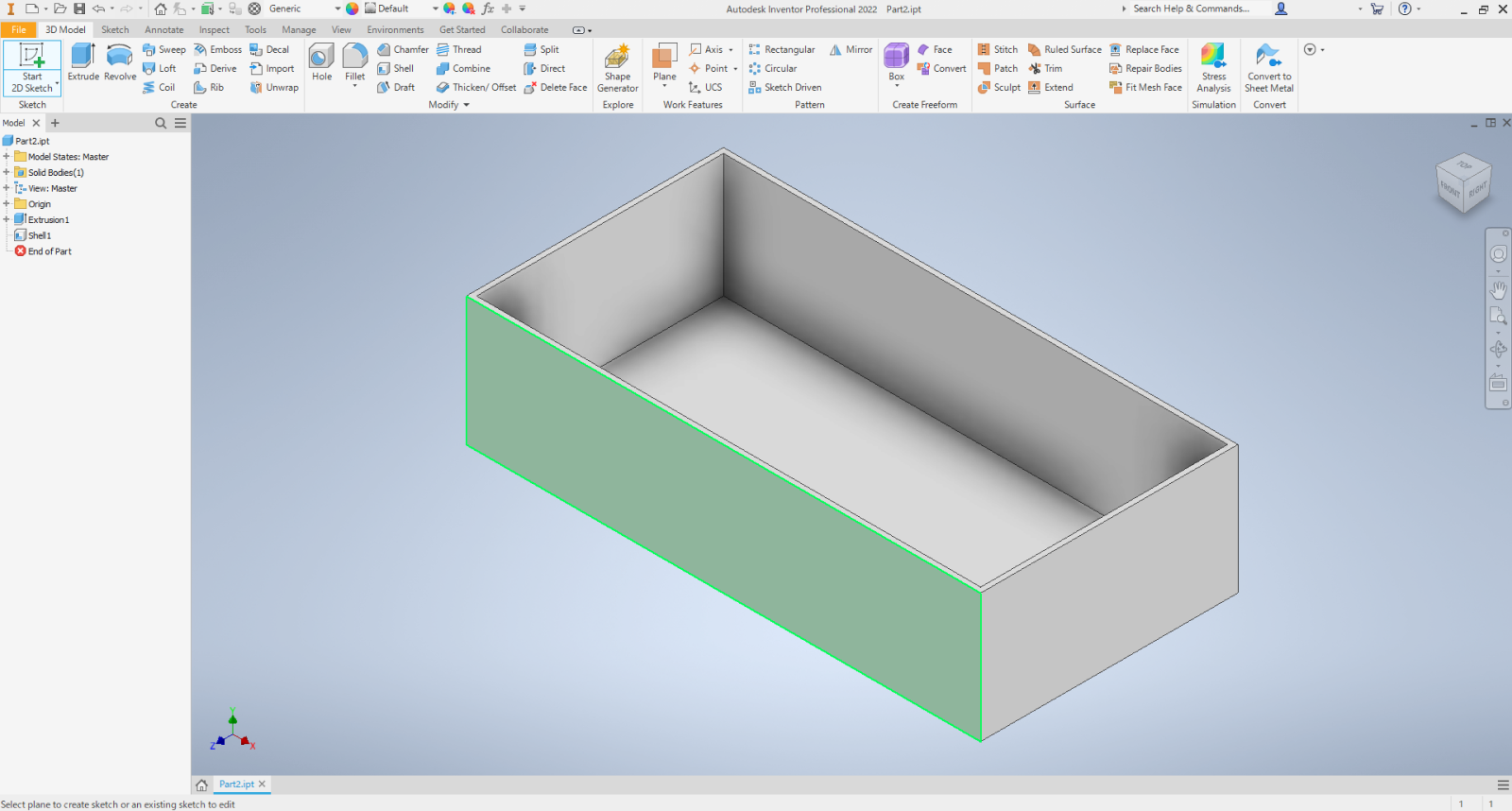
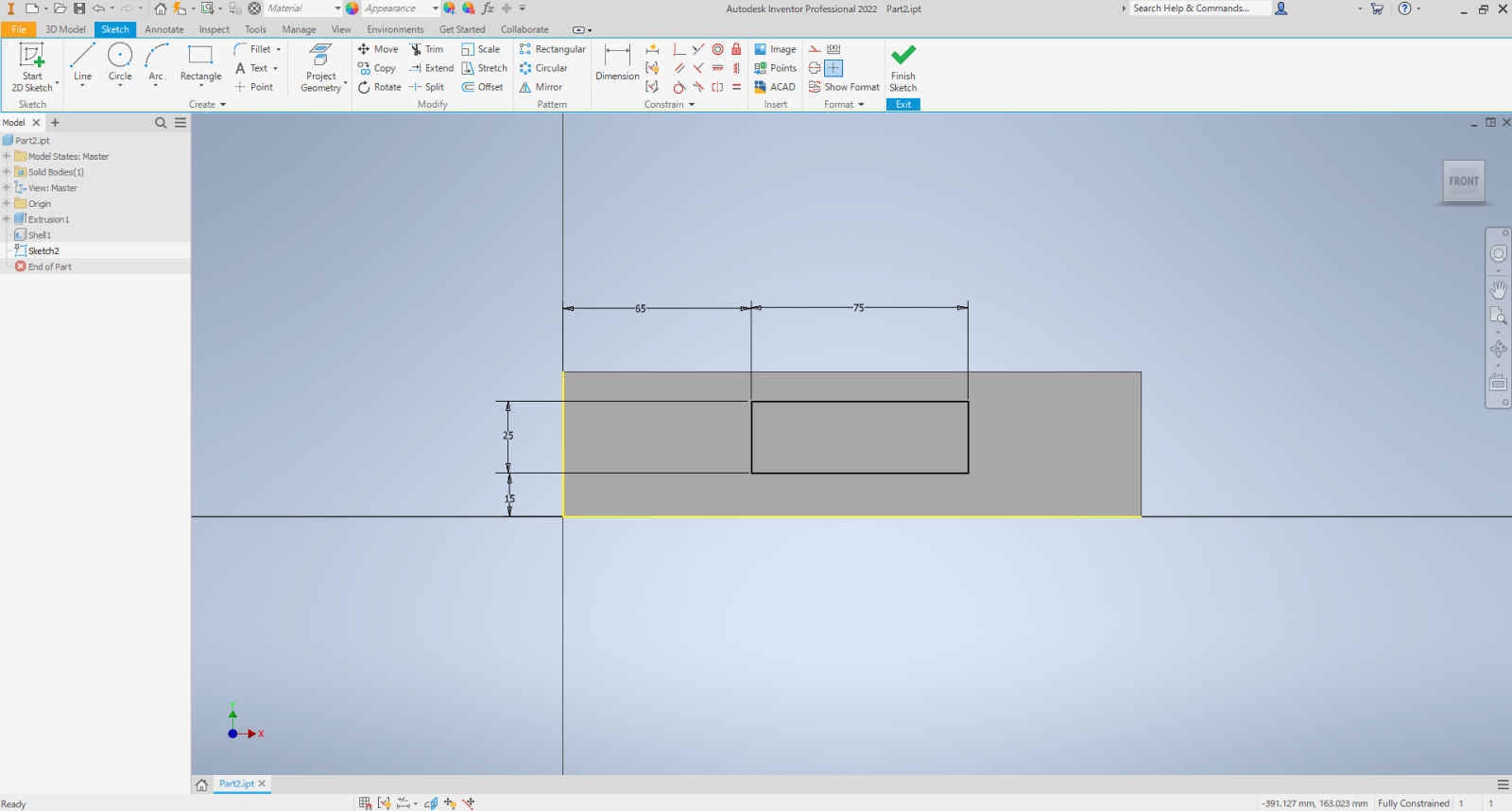
[3D Model] – [Start 2D Sketch]
Select the side faces of the box shape
[Sketch] – [Rectangle] – Enter dimensions to create rectangle size (X75 Y25)
Constrain the positional dimensions
Set [Extrude] to 2.0mm
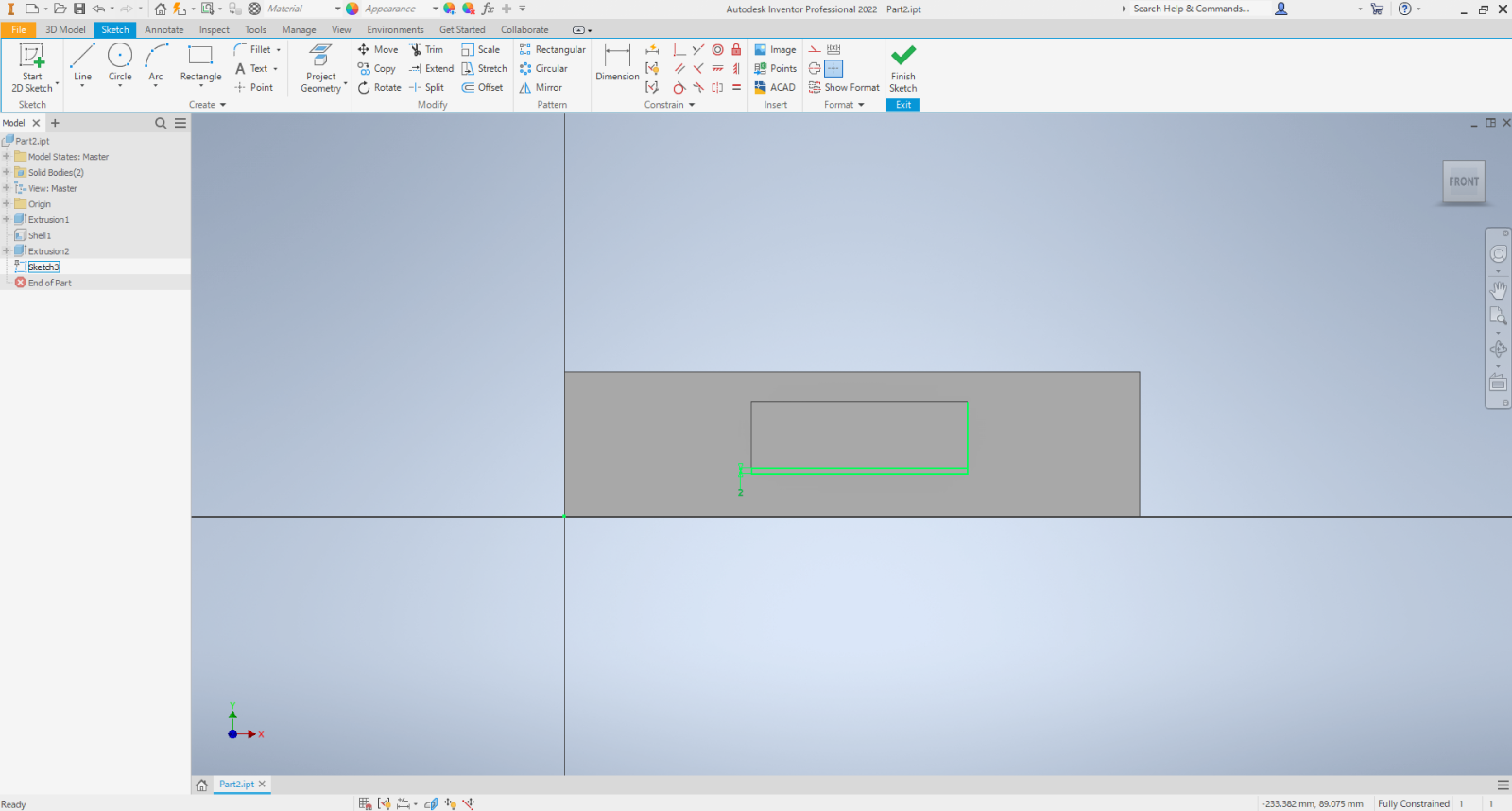
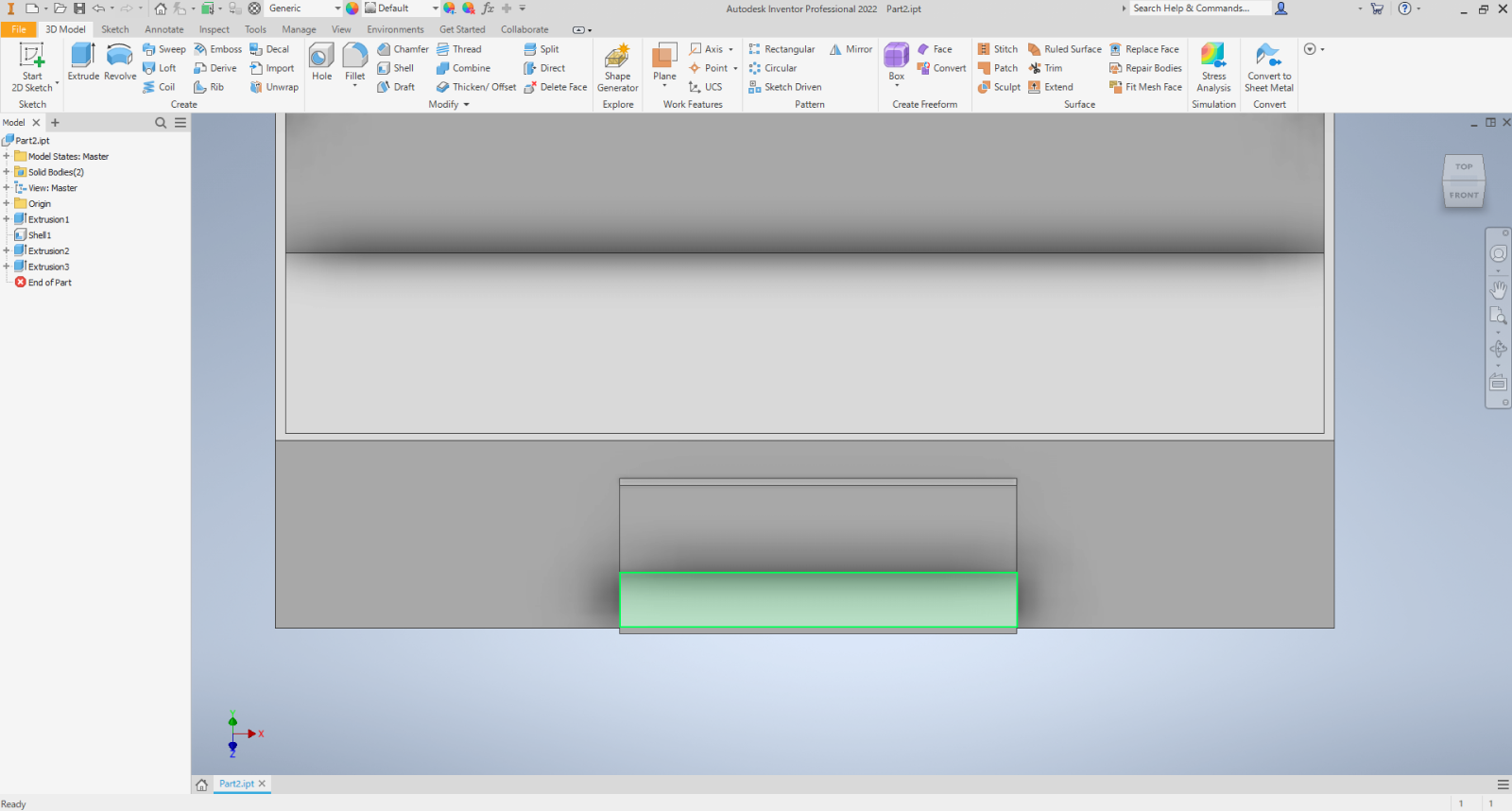
Next, create the bend for the handle part.
[Operation Method]
[Sketch] – [ Rectangle ] Create a sketch 2.0mm thick ( eq u al t o the plate thickness)
Press [Extrude ] and set the bend dimension to 14.5mm
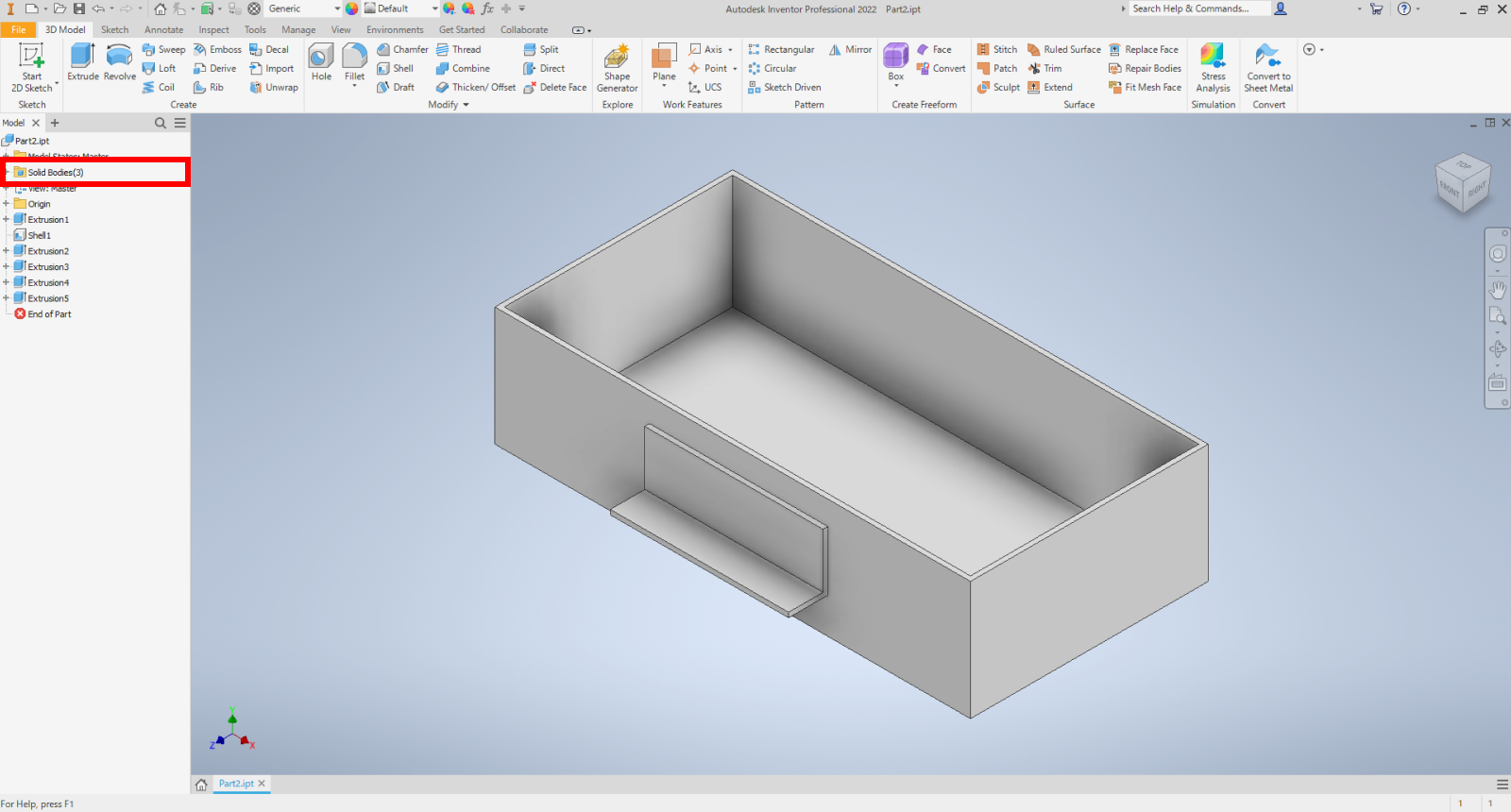
Finally, perform the same operation on the opposite side of the box to create the handle, completing the design.
1.3 Verify the solid structure of the model
Areas where faces overlap must be separated into distinct solids.
Check the number of solids before saving the CAD file. (Total of 3 solids: Box 1, Handle 2)
2 Save data
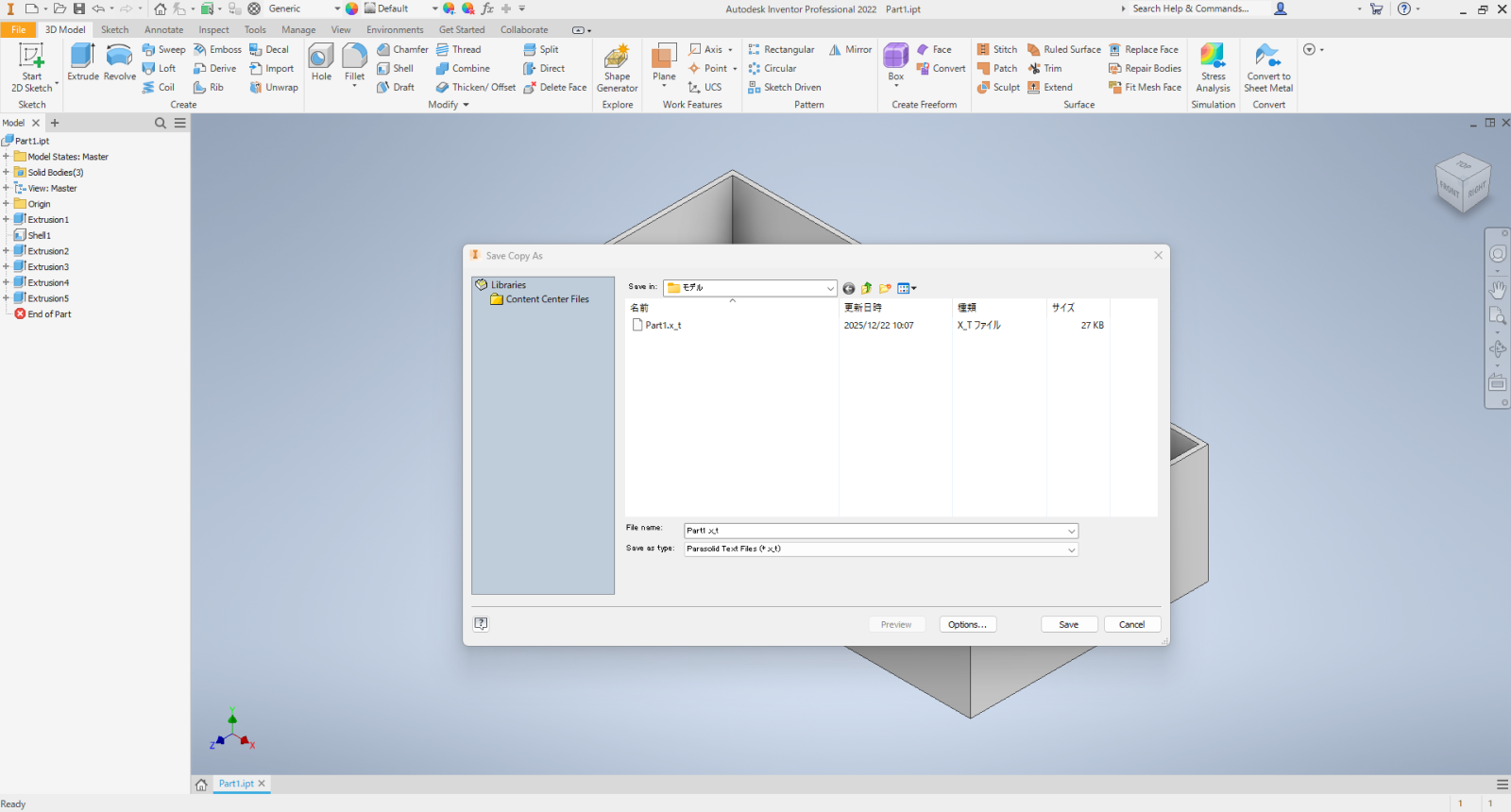
Save the CAD file in the intermediate format, Parasolid.
[Operation Method]
Click [Save As] – [Save a Copy As]
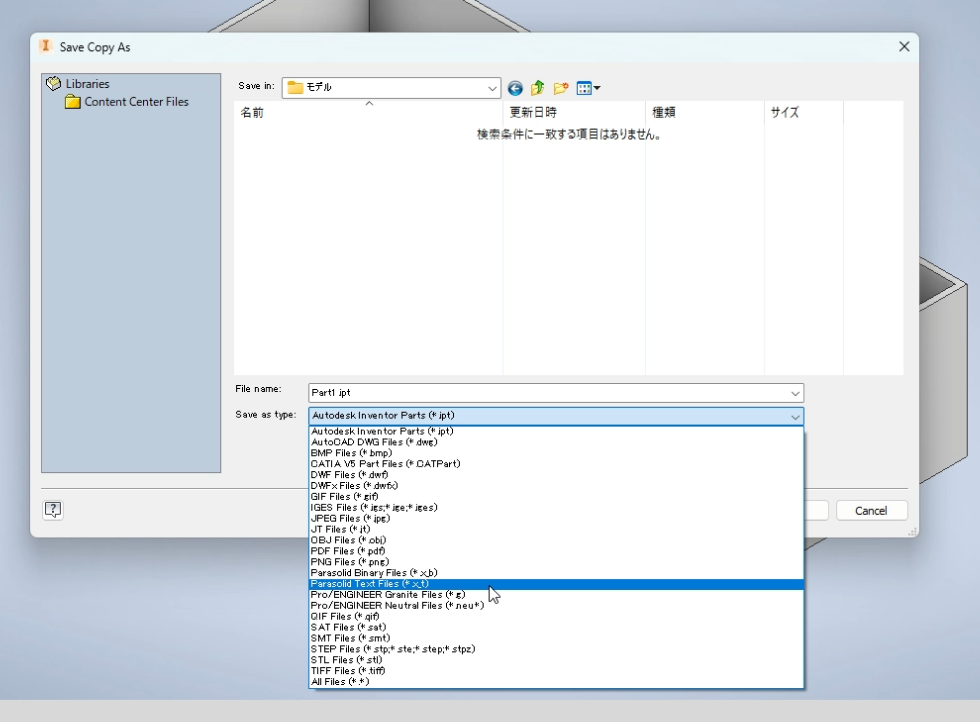
From [File Type], select Parasolid Text File (*.x_t) and click [Save]
3 Upload to meviy
3.1 Upload to meviy
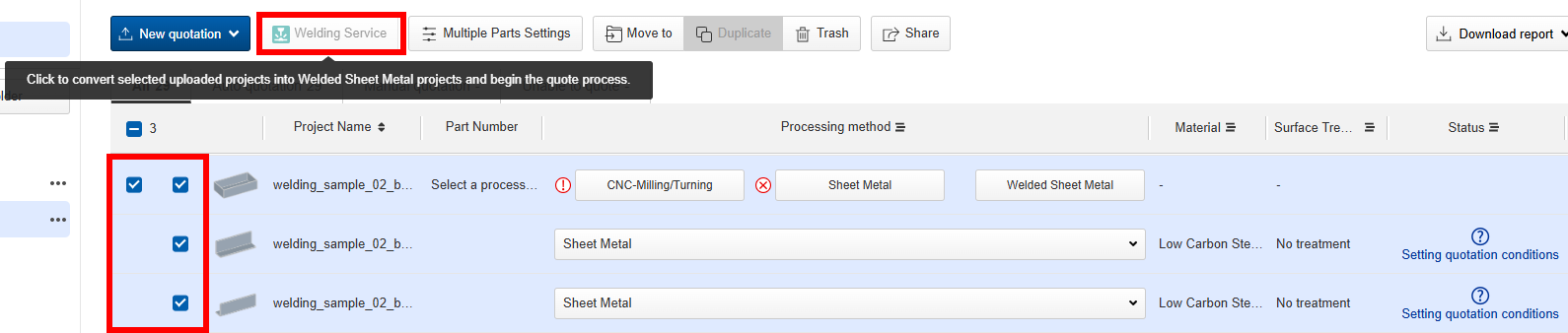
Open the meviy Project List, upload the saved 3D data, then check the target project and press the [Create Welded Structure] button.
(For multiple solids, clicking any one part will create a Welded Sheet Metal project based on the part configuration at upload.)
3.2 Set up estimates in the 3D viewer
Click [Next] to proceed to the 3D viewer and advance the estimation settings.
As an example, we will modify the welding conditions for the spot welds.
[Operation Method]
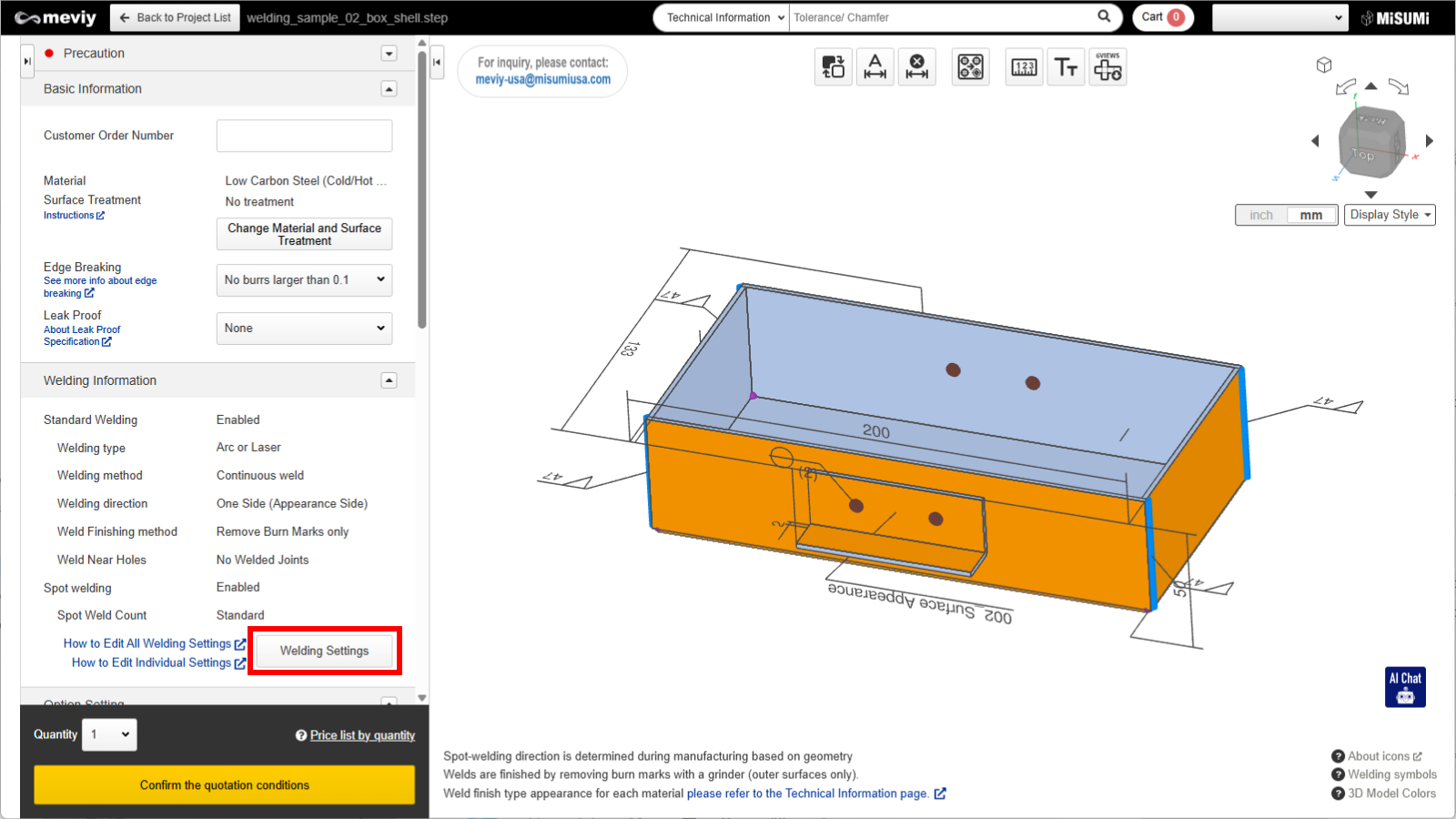
Press [Edit Welding Information] in the welding information field and specify the welding conditions.
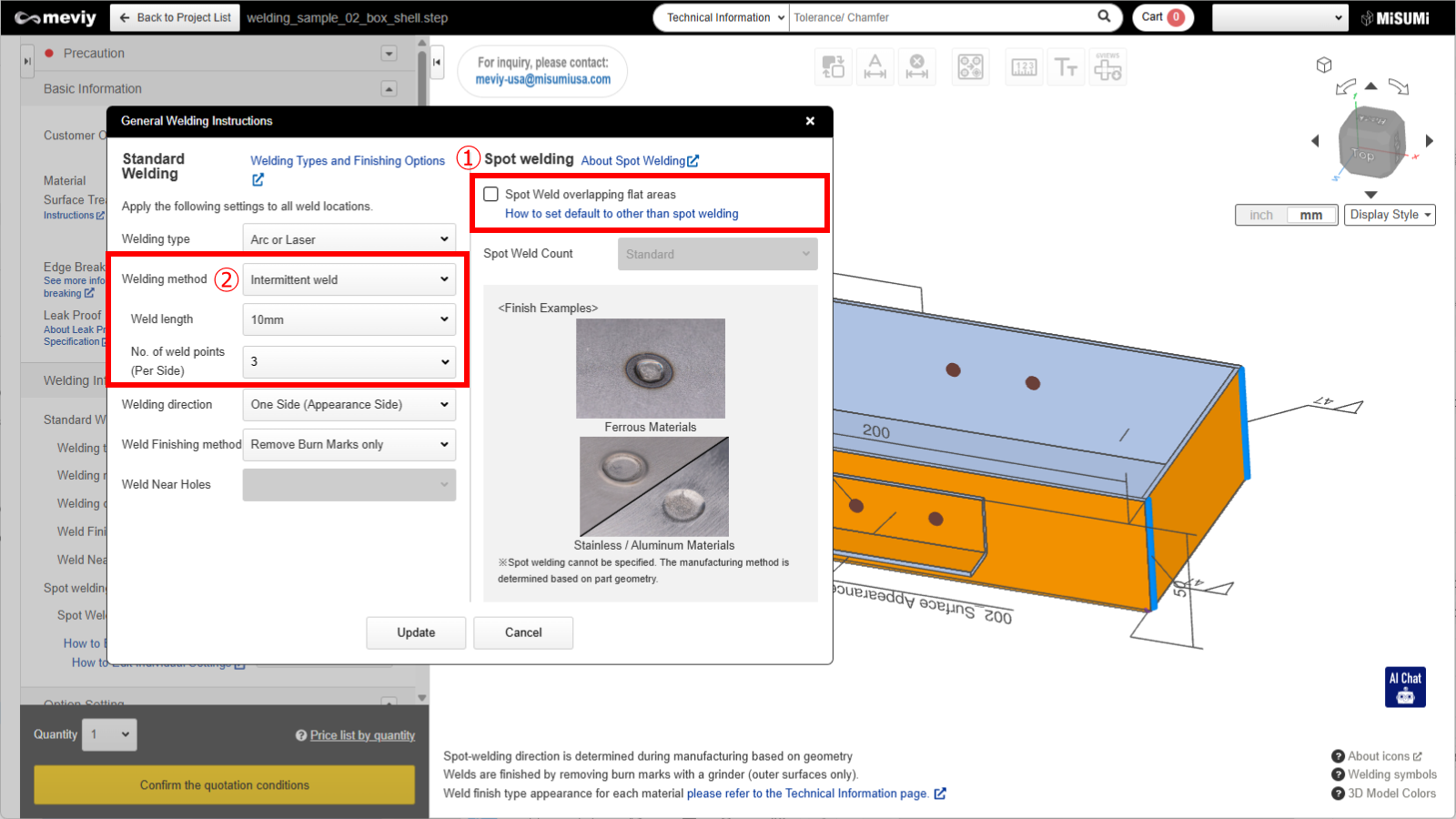
①Disable spot welding settings where plate flat surfaces overlap
②For standard welding conditions, select intermittent welding [3 points per 10mm weld length] instead of continuous welding
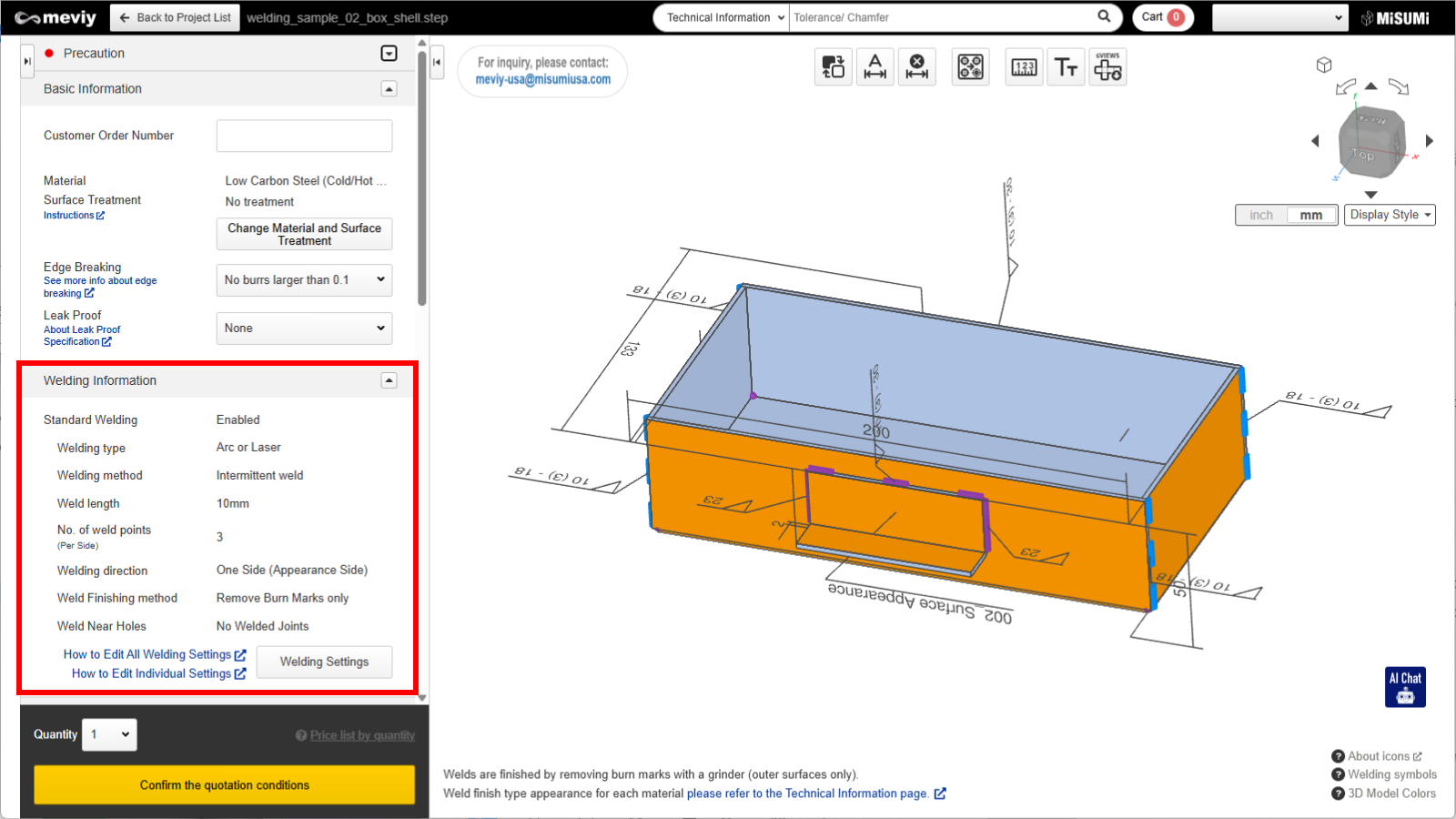
Confirm the changes to the estimate information via the weld information settings and the 3D model color.
3.3 Quotation Complete
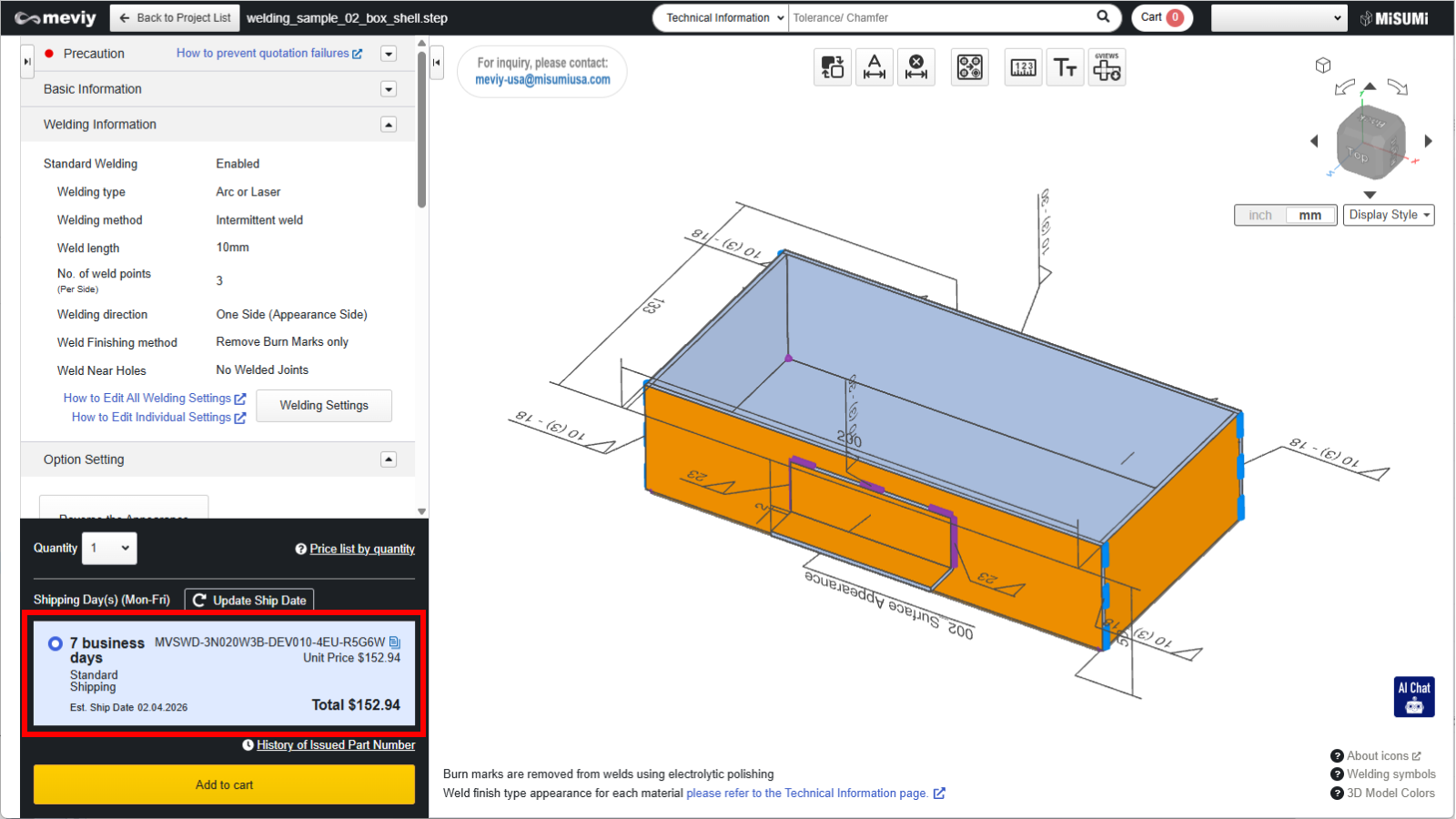
After editing the welding information, press the “Confirm Quotation Conditions” button. Once a plate welding model number starting with [MVSWD] is issued, the quotation is complete.