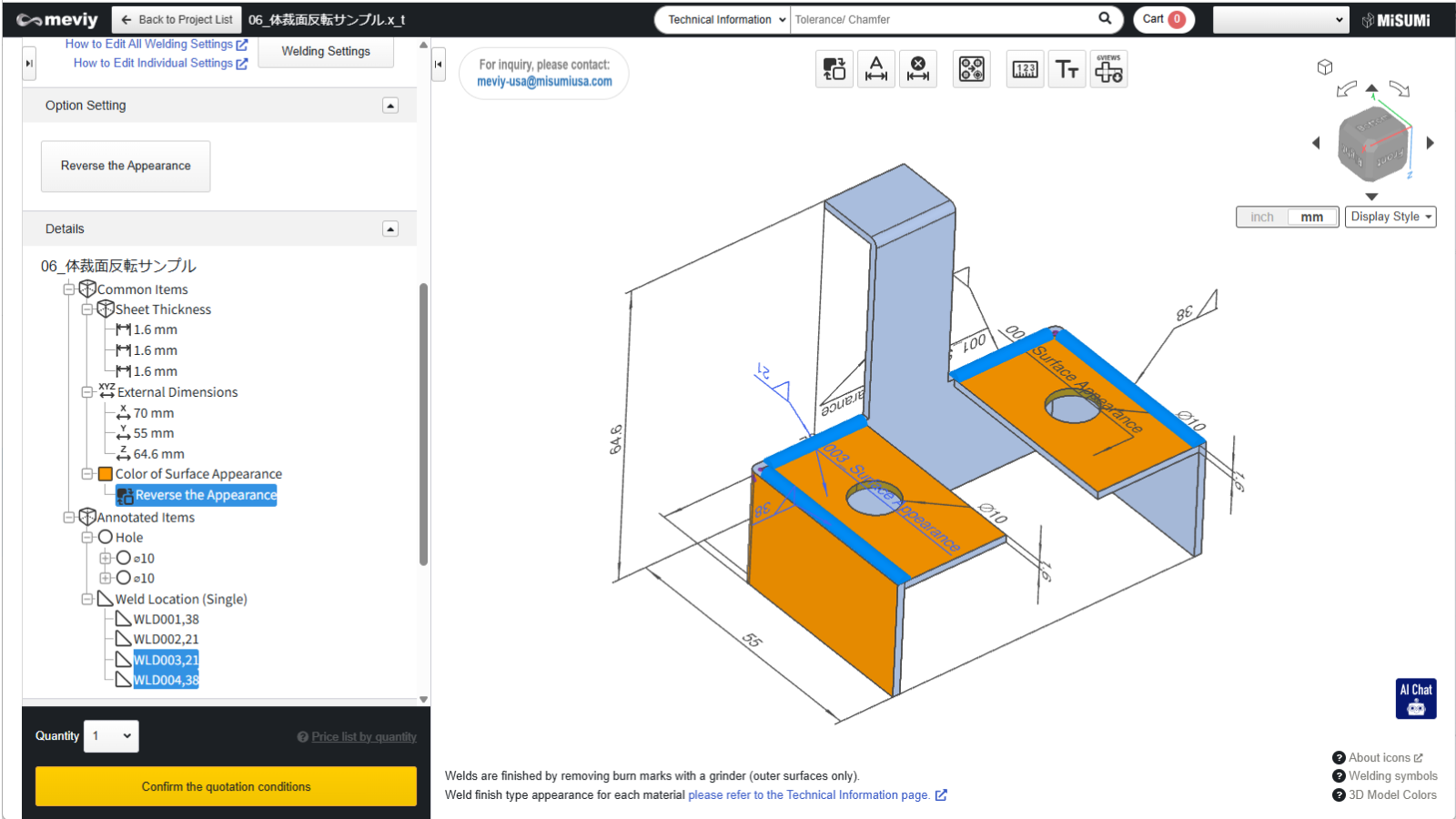
Appearance Surface and Welding Direction Settings

By setting the orientation reversal and welding direction for each component part, you can specify the welding location or welding surface as desired.

Display of the layout

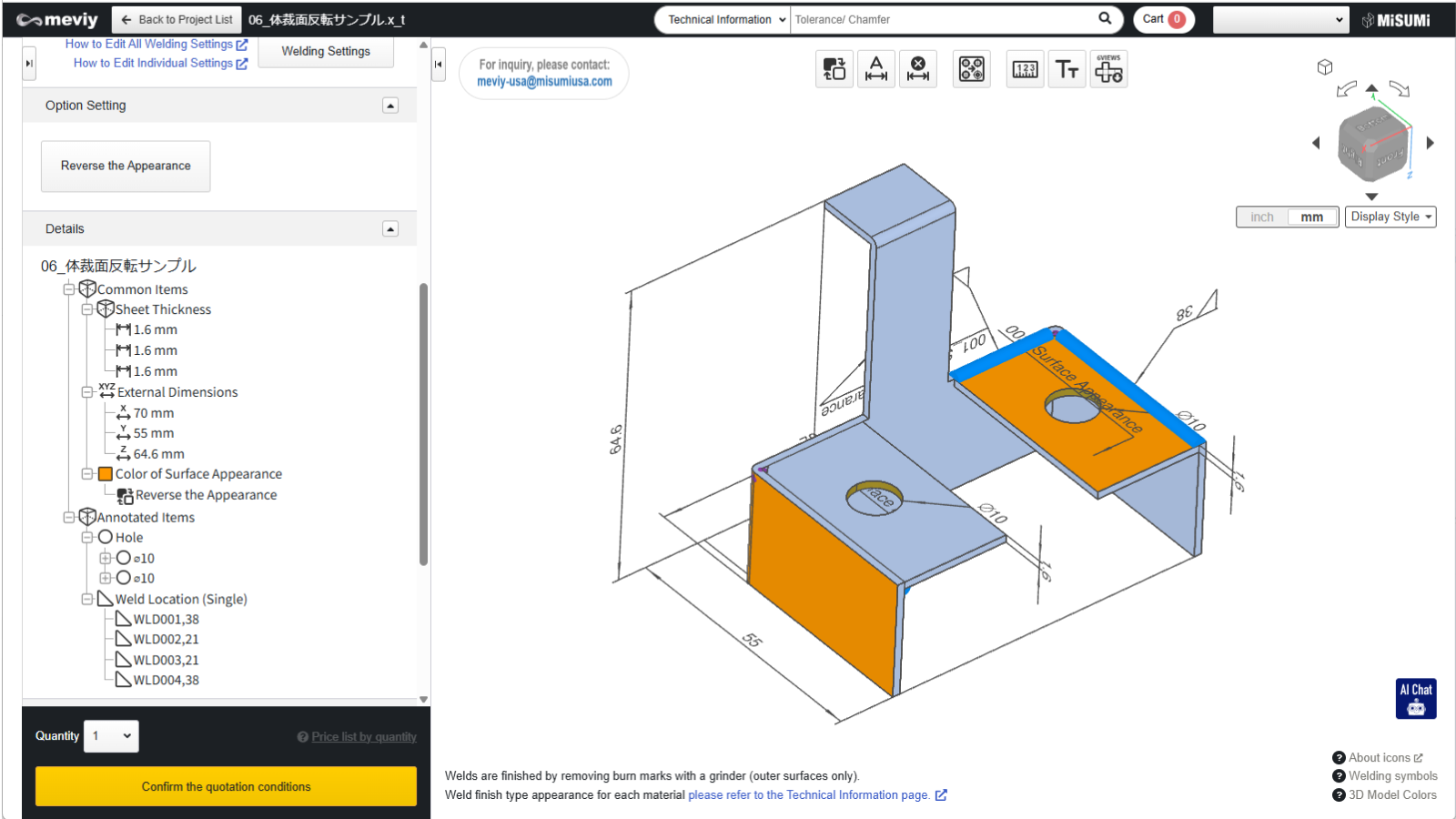
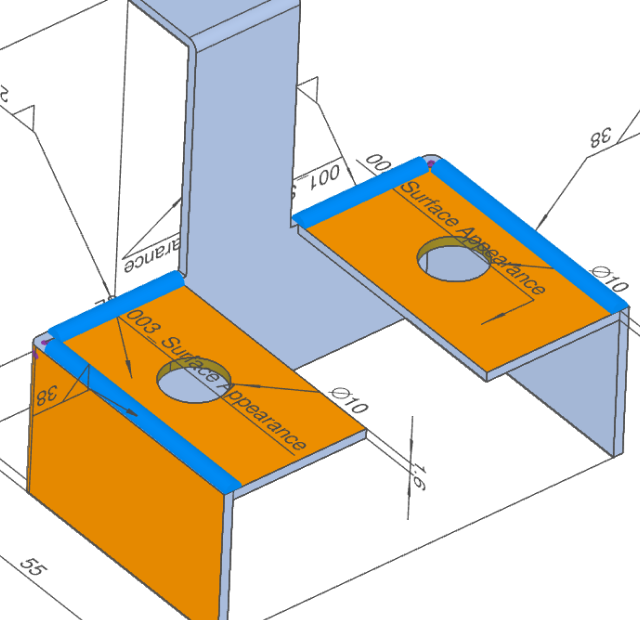
The layout surface is displayed in orange for each part.

Reversing the Layout

In meviy Welded Sheet Metal, the appearance can be reversed for each part.

Click the icon

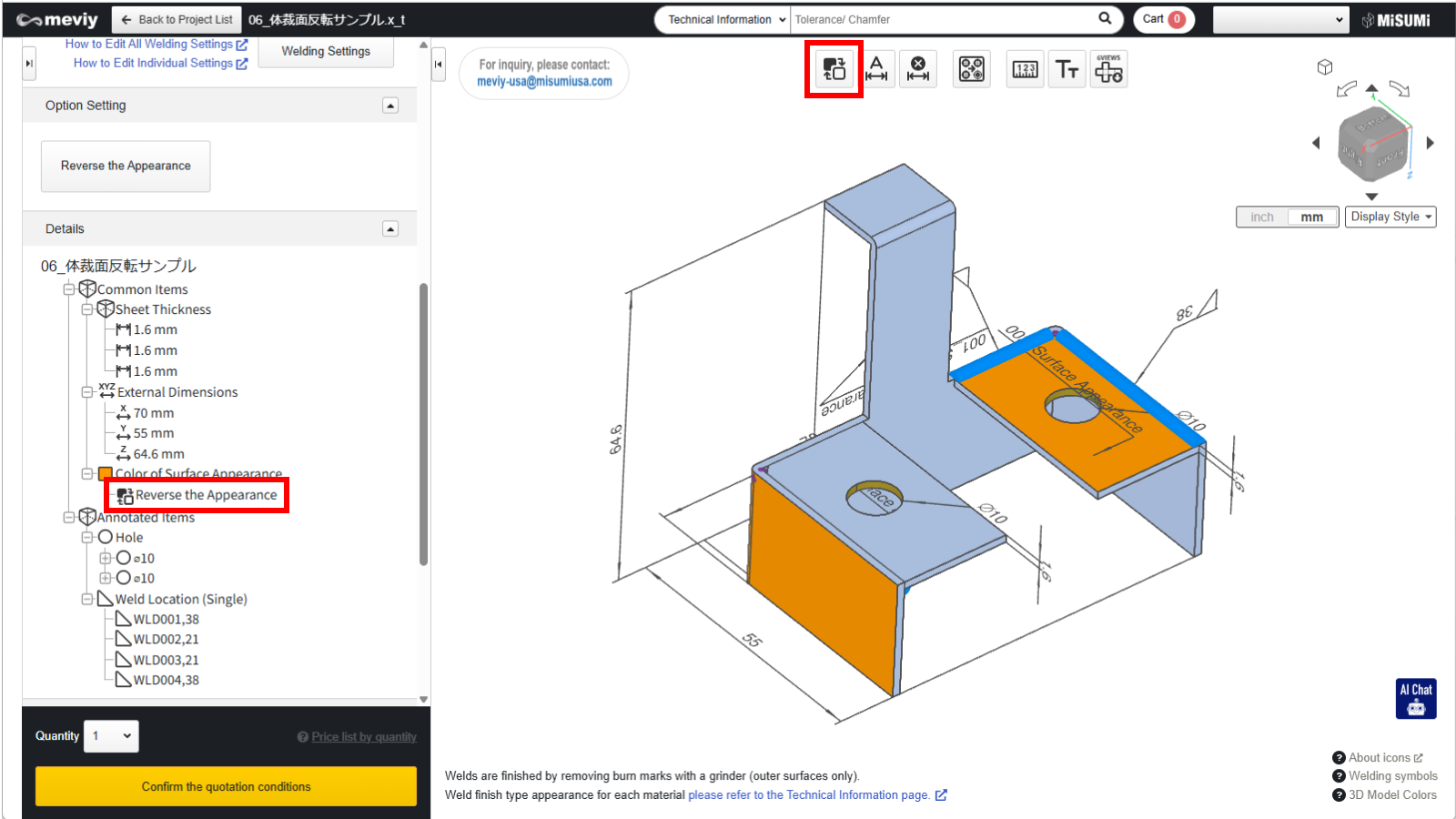
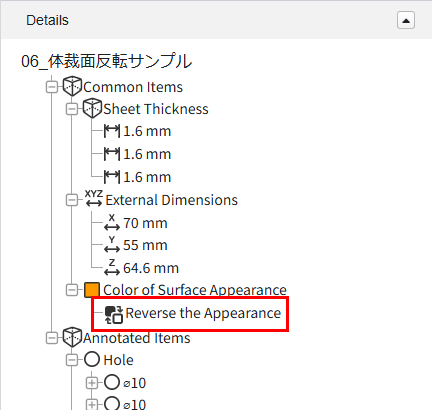
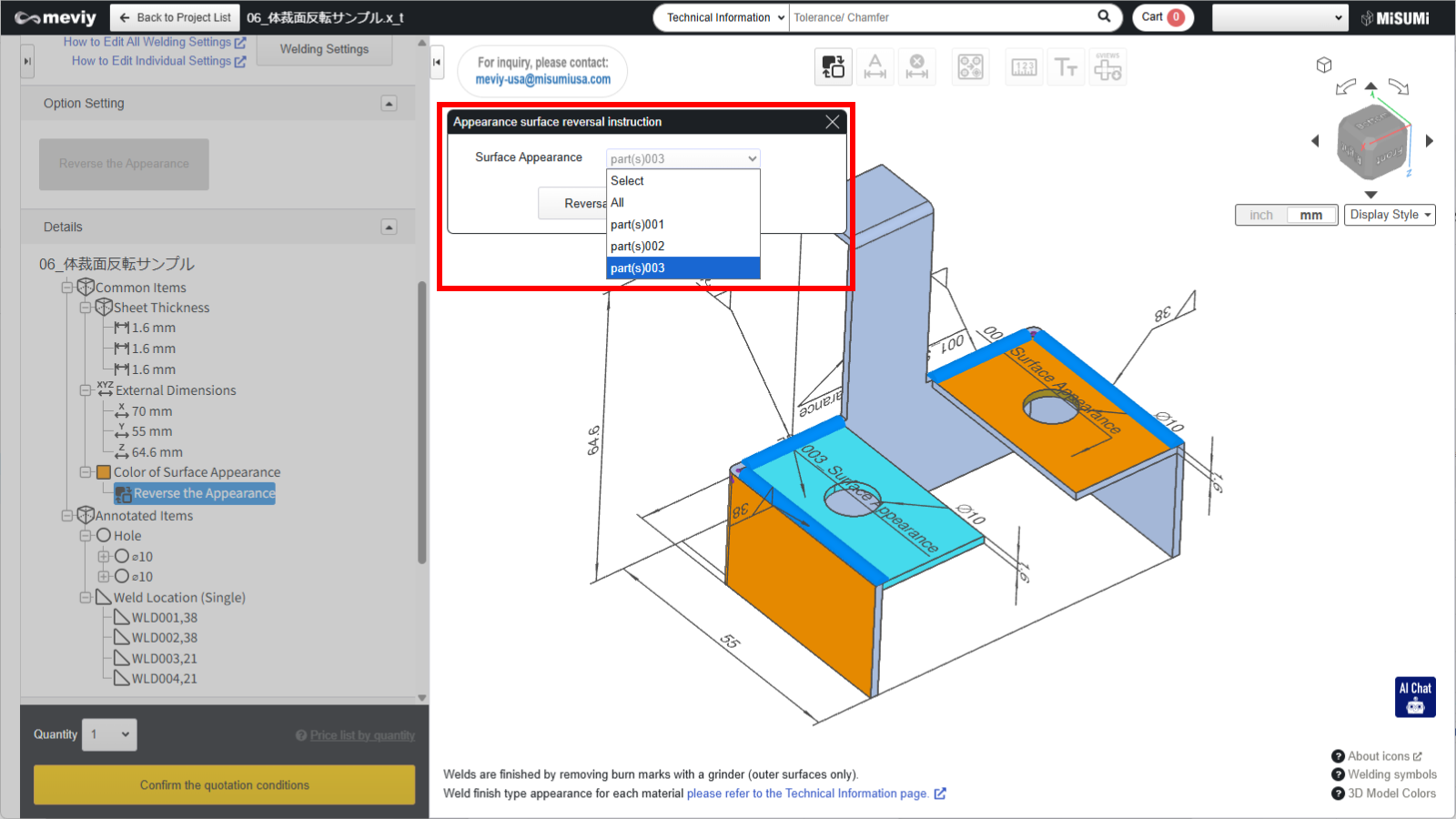
Double-click the “Reverse Layout” item in the tree view or click the icon labeled “Reverse Layout” on the toolbar at the top of the 3D viewer.

to display the layout inversion indicator dialog box.

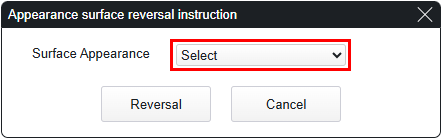
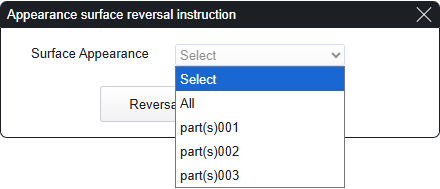
The Appearance Reversal Dialog will appear.

Click the appropriate item from the “Please select” drop-down list.

You can check the part number in the 3D viewer.

Tip

  • Selecting “All” will flip the orientation of all parts at once.
  • Reversing parts is a per-part operation. Multiple selections are not possible.
  • The three-digit number written on the leader line from the surface is the part number.
  • Selected parts will be highlighted in blue.
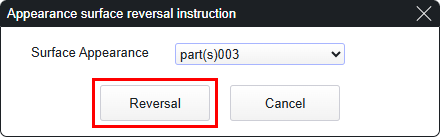
  • Click the “Reverse” button in the layout reversal indicator dialog box to reverse the layout Reverse the part layout.

Caution

  • When you reverse the part, the weld locations will also be reversed.
  • Double-sided welds (purple weld lines) will not be reversed.
  • Welding Information Display Dialog Box: You can only change the welding direction in the “Welding Direction” item.

Recently viewed articles